Access Commerce Assistant and Business Intelligence
Every authorized Subscription Commerce Manager (SCM) user can access Commerce Assistant (CA) and Business Intelligence (BI).
Before you begin
Make sure that you have:
- Your SCM credentials.
- A supported browser and stable internet connection. See System requirements.
- Permission for SCM to open a new browser window.
Open CA or BI
-
Sign in to Subscription Commerce Manager (SCM) with your SCM credentials.
-
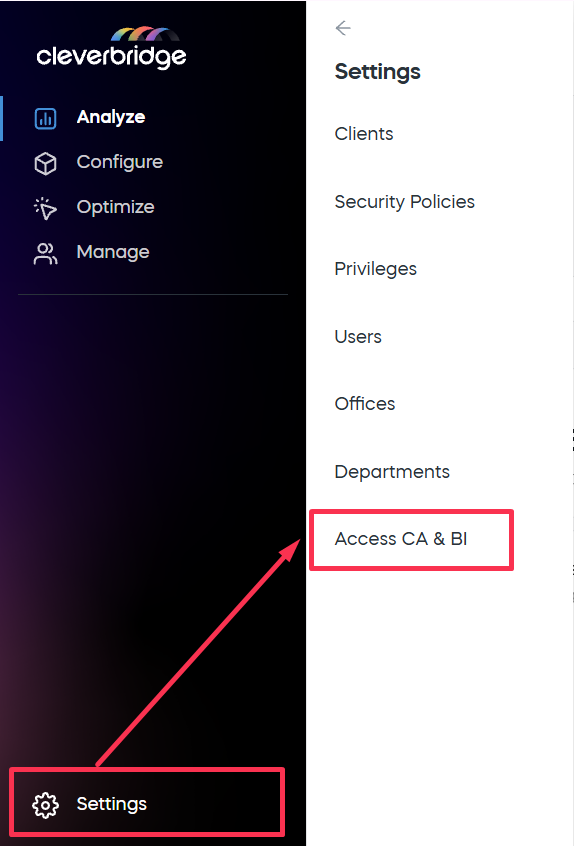
In the left navigation, select Settings, and then select Access CA & BI.
-
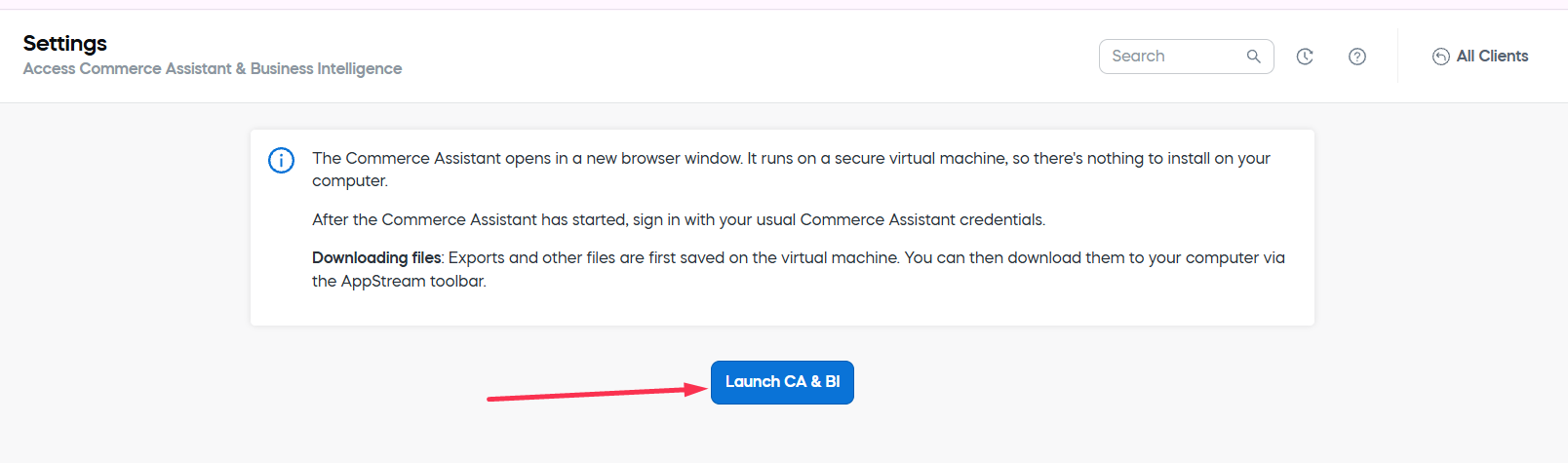
On the Access Commerce Assistant & Business Intelligence page, select Launch CA & BI. Amazon WorkSpaces Applications opens in a separate browser window.
-
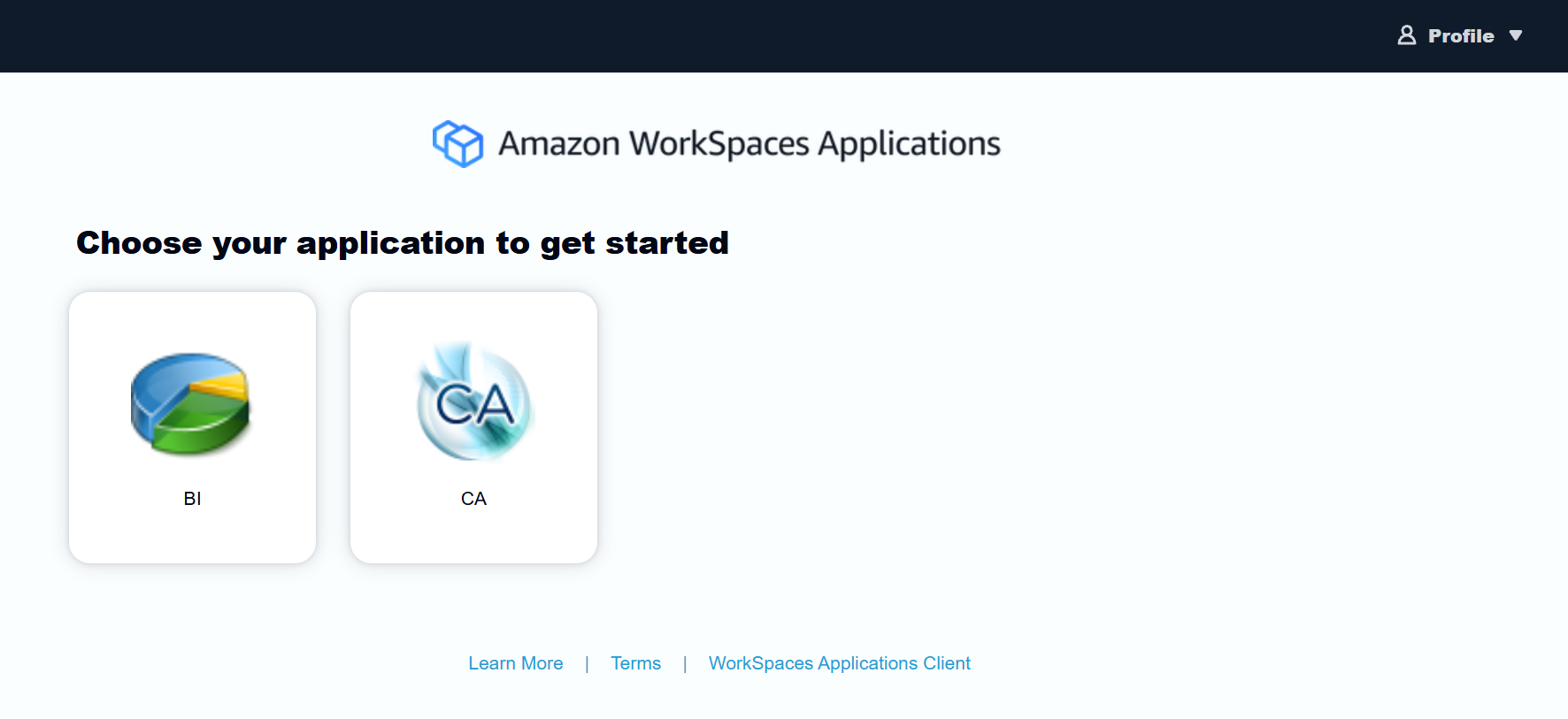
New browser window will open. On the Choose your application to get started page, select CA for Commerce Assistant or BI for Business Intelligence.
 tip
If the new browser window does not open, check whether your browser blocked a pop-up from SCM. Allow the pop-up, then select Launch CA & BI again.
-
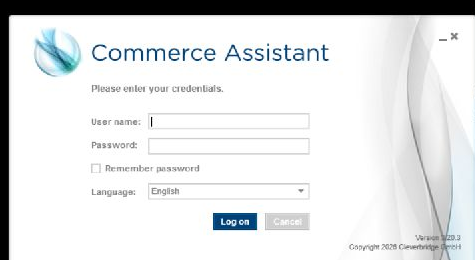
When the selected application prompts you, enter the same SCM credentials again.
 note
Use the same SCM credentials throughout the process. As the application opens remotely, you may be asked to enter them repeatedly but such sign-in does not require a separate account or password.
You can now work with the application. To open the other application, return to Catalog and select it.