Find and open records
Use Quick launch to open a CA feature, or Global Search to find a record such as a product or purchase.
Open a feature
-
Enter a feature name in Quick launch at the top right of CA. The list shows matching shortcuts, with frequently used features nearer the top.

-
Select the matching feature to open its worksheet.
You can press Ctrl+Q to focus Quick launch.
You can also open features from the main menu. Its groups include Products & Delivery, Marketing, Configurations, Tools, Channel Management, Transactions, Reporting, and Setup.
Search across records
Global Search checks applicable data fields, such as product names and IDs, account IDs, and customer email addresses. It accepts partial search terms.
For example, enter part of a customer email address in the Purchases category to find purchases associated with that address.
-
In Global Search on the left, select a category.
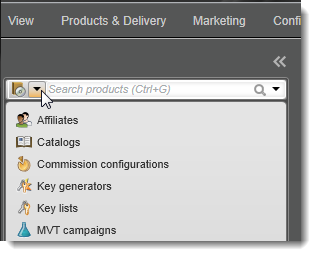
-
Enter a keyword, such as a product name or customer email address.
-
Press Enter or select the search icon to display matching records in a worksheet.
-
Select a result and use Open to view its details.
Select the row you want to work with, then select Open. The example below shows a selected product in a results list.
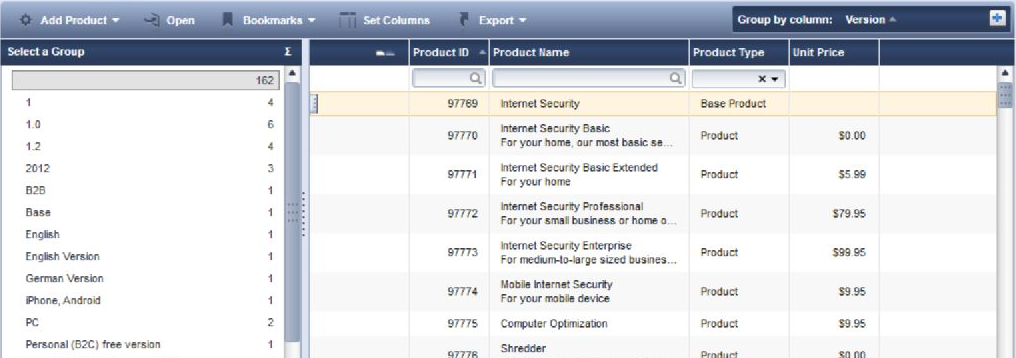
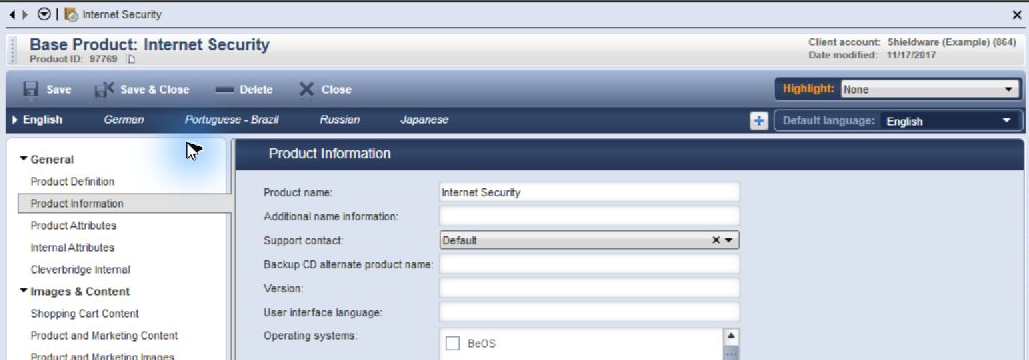
The record opens in a worksheet with its details and available actions.
To see previous searches, select the drop-down list at the right of the Global Search field. Commerce Assistant keeps the last 12 searches.
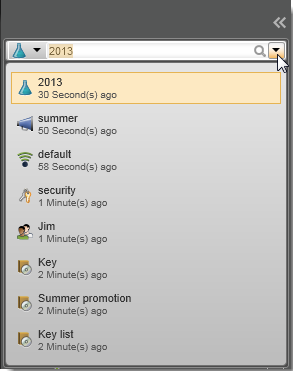
You can press Ctrl+G to focus Global Search.
To filter and organize results, see Work with search results. For a description of the search controls, see Search.
Return to your work
Use Worksheets & Windows in the navigation bar to switch between open worksheets. Bookmark a frequently used search so you can open it again with its saved settings. See Manage bookmarks and Manage worksheets and windows.