Manage users
Use Settings > Users in SCM to add and maintain users, assign privileges, control access to client accounts, and generate test card numbers for authorized testers.
Only users with the required administrative privileges can view or change user-management settings. Review access carefully before creating, copying, or deleting a user.
View users
In SCM, go to Settings > Users. The Users page displays the users available for the selected client account.
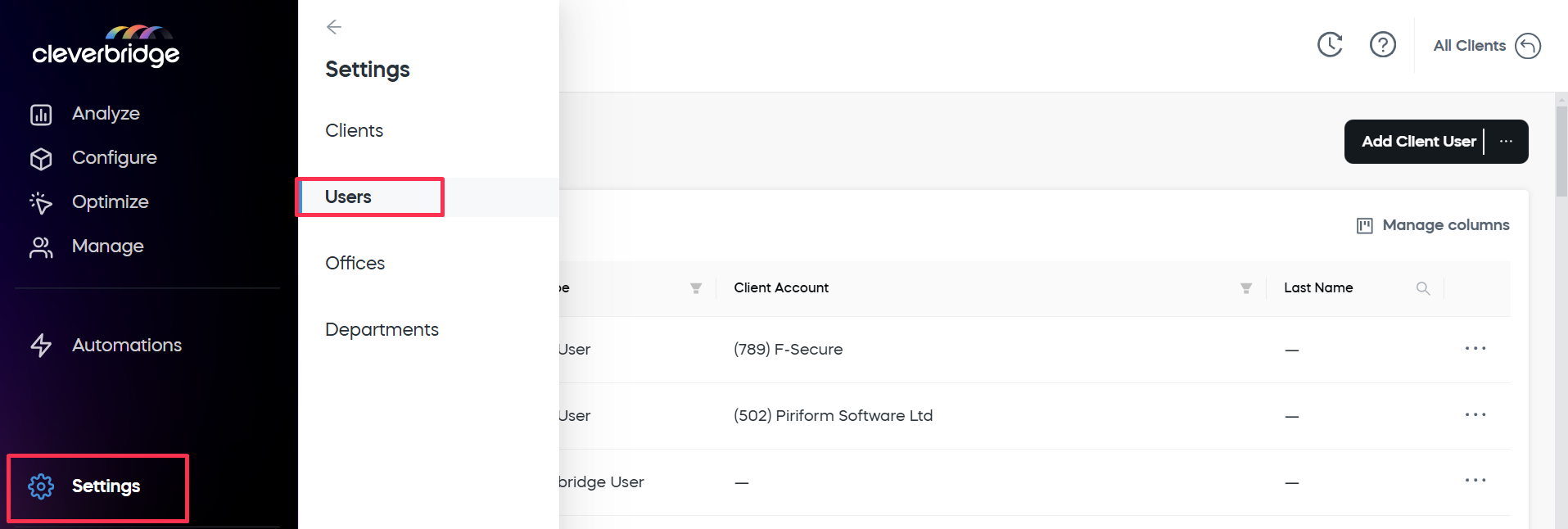
To adjust the displayed data:
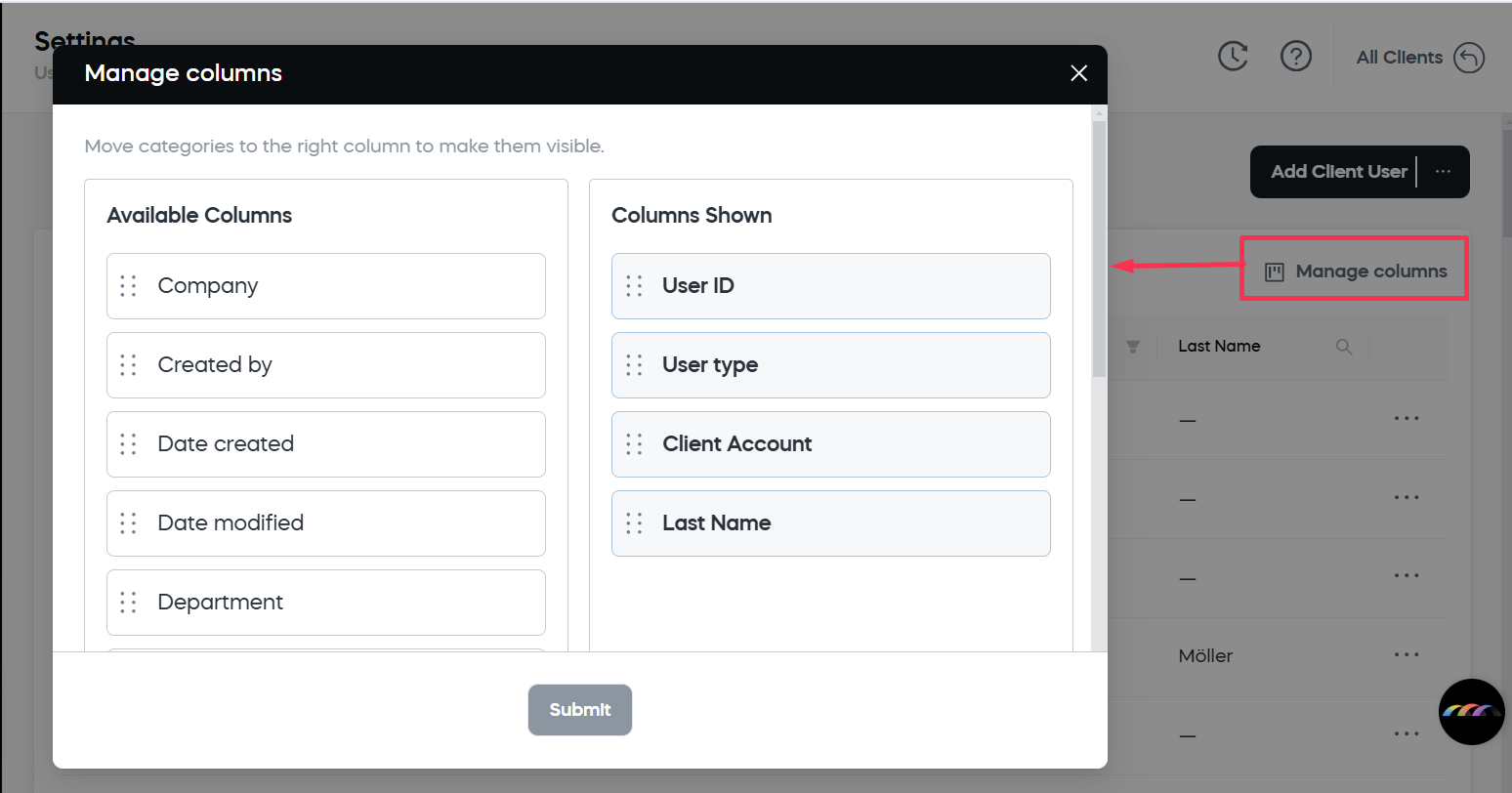
- Click Manage Columns.
- Move the columns you want to display to the right column.
Add a user
- In SCM, go to Settings > Users.
- Click Add New.
- Complete the user details on the following tabs.
- General
- Contact
- Privileges
- Client accounts
General
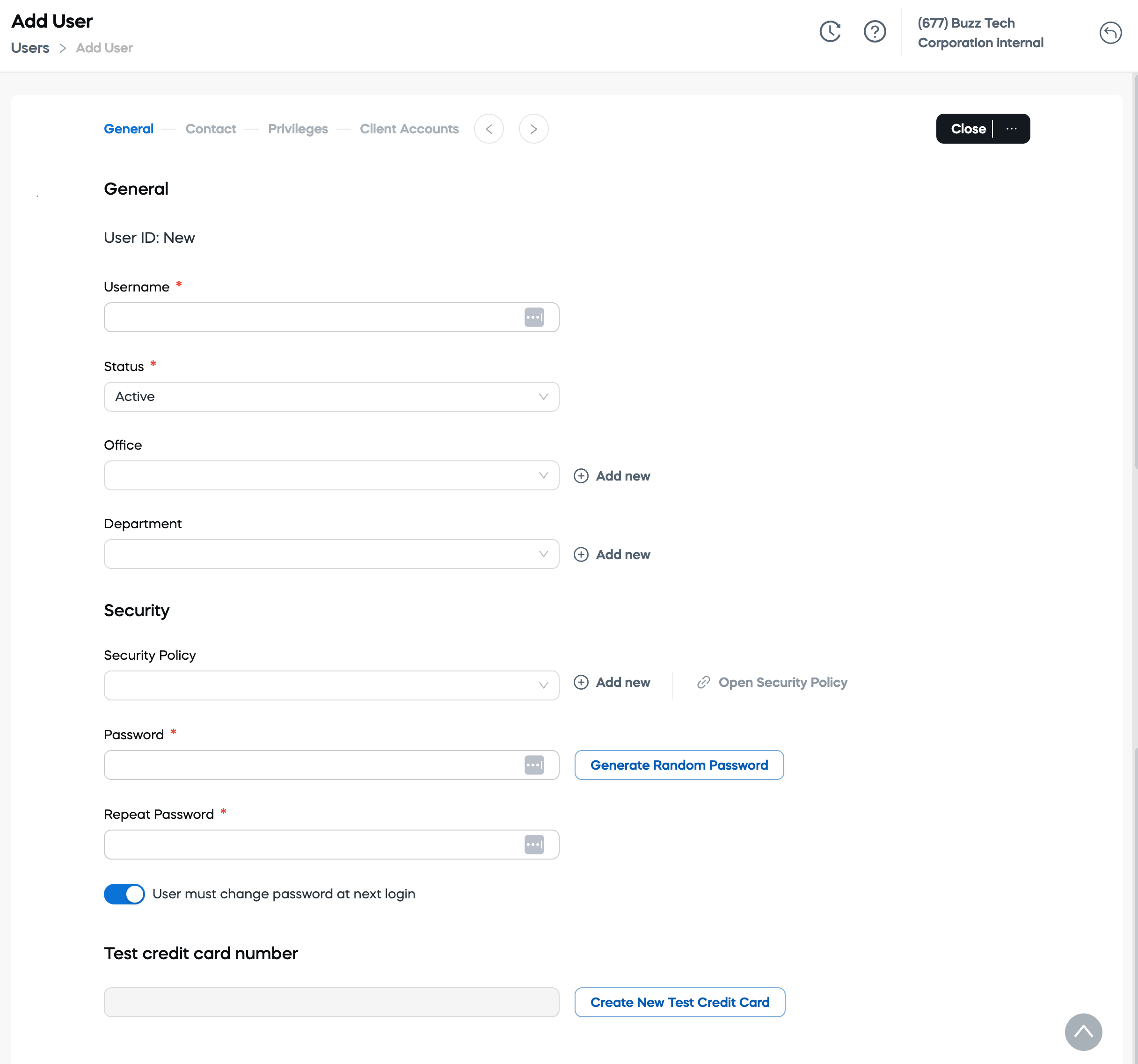
- User ID: SCM assigns the user ID automatically.
- Username: Enter the username.
- Status: Select the user's status.
- Office: Select an office or add a new office.
Security
- Password: Enter a password or select Generate Random Password. A user with a temporary password can be required to change it at the next login.
- Repeat Password: Enter the password again.
- User must change password at next login: Require the user to create a new password after signing in.
- Test credit card number: Generate a test credit card number for the user. This action requires the corresponding privilege.
Complete all required fields before continuing to the next tab.
Contact
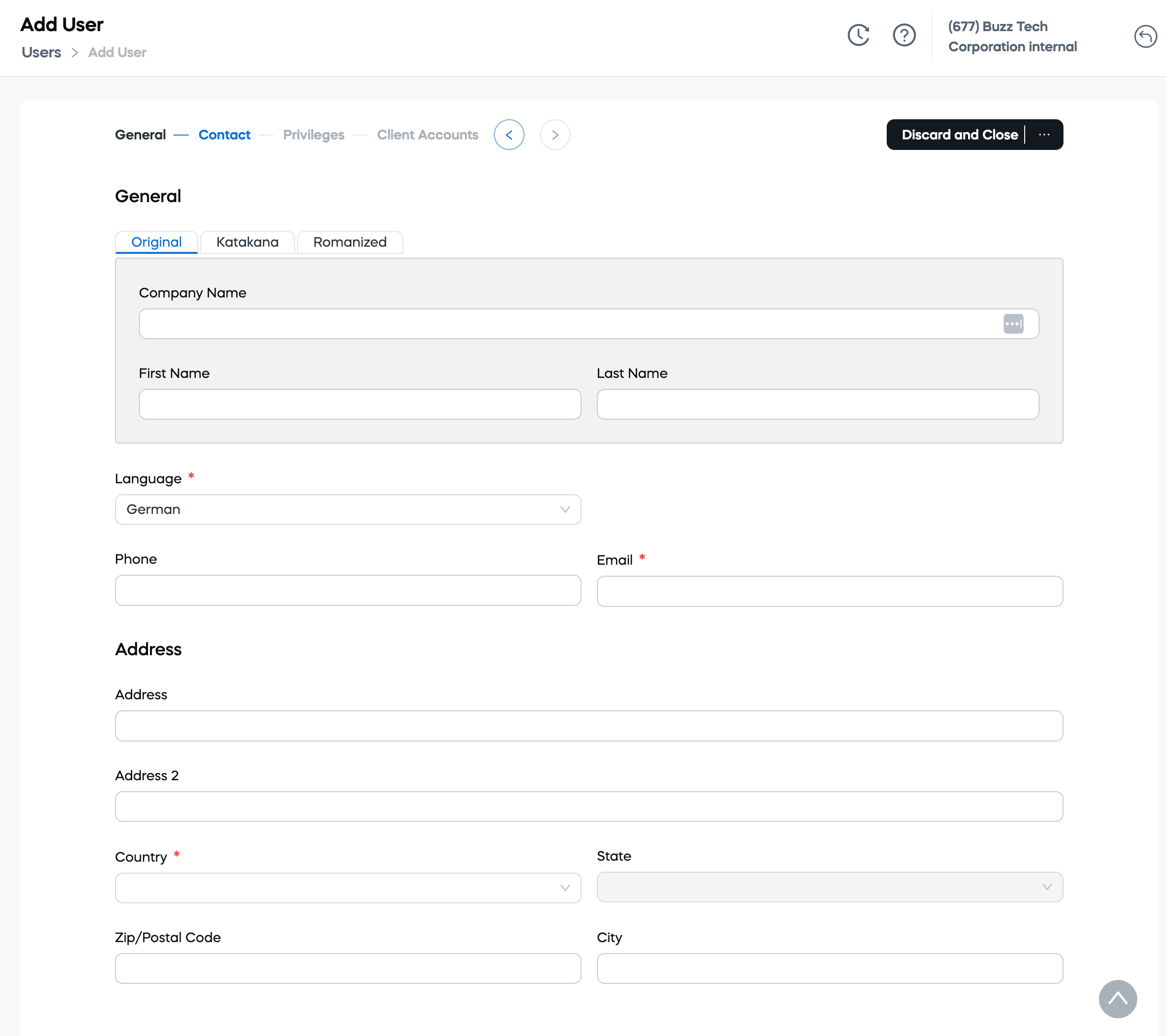
- Original: Enter the contact name in its original script.
- Katakana: Enter the contact name in Katakana, if applicable.
- Romanized: Enter the Romanized version of the contact name, if applicable.
- Company Name: Enter the company name associated with the user.
- First Name: Enter the user's first name.
- Last Name: Enter the user's last name.
- Language: Select the user's preferred language.
- Phone: Enter the user's phone number.
- Email: Enter the user's email address.
- Address: Enter the first address line.
- Address 2: Enter additional address information, if applicable.
- Country: Select the user's country.
- State: Select the state or region.
- Zip/Postal Code: Enter the ZIP or postal code.
- City: Enter the city.
Complete all required fields before continuing to the next tab.
Privileges
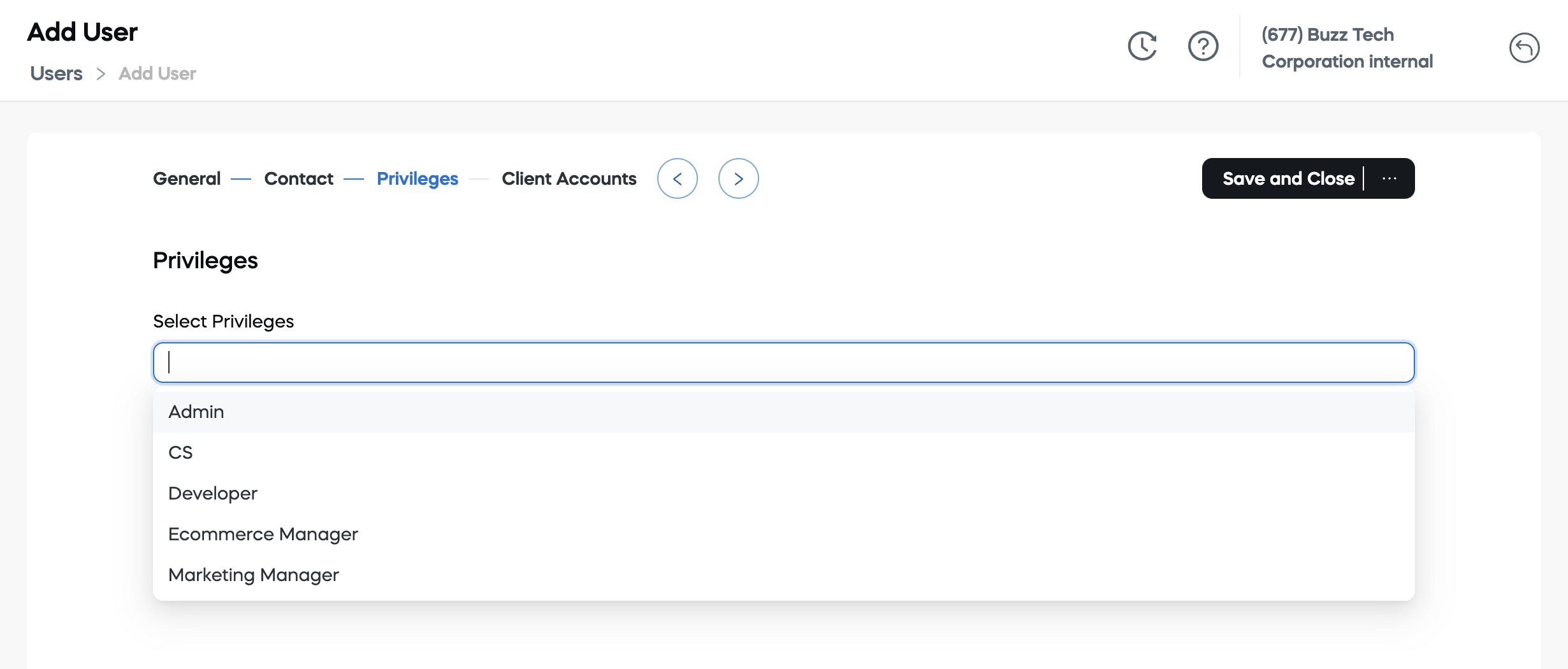
Select the appropriate privilege for the user. The list includes client user privileges that you create and the predefined privileges provided by Cleverbridge.
For details, see Manage user privileges.
Client accounts
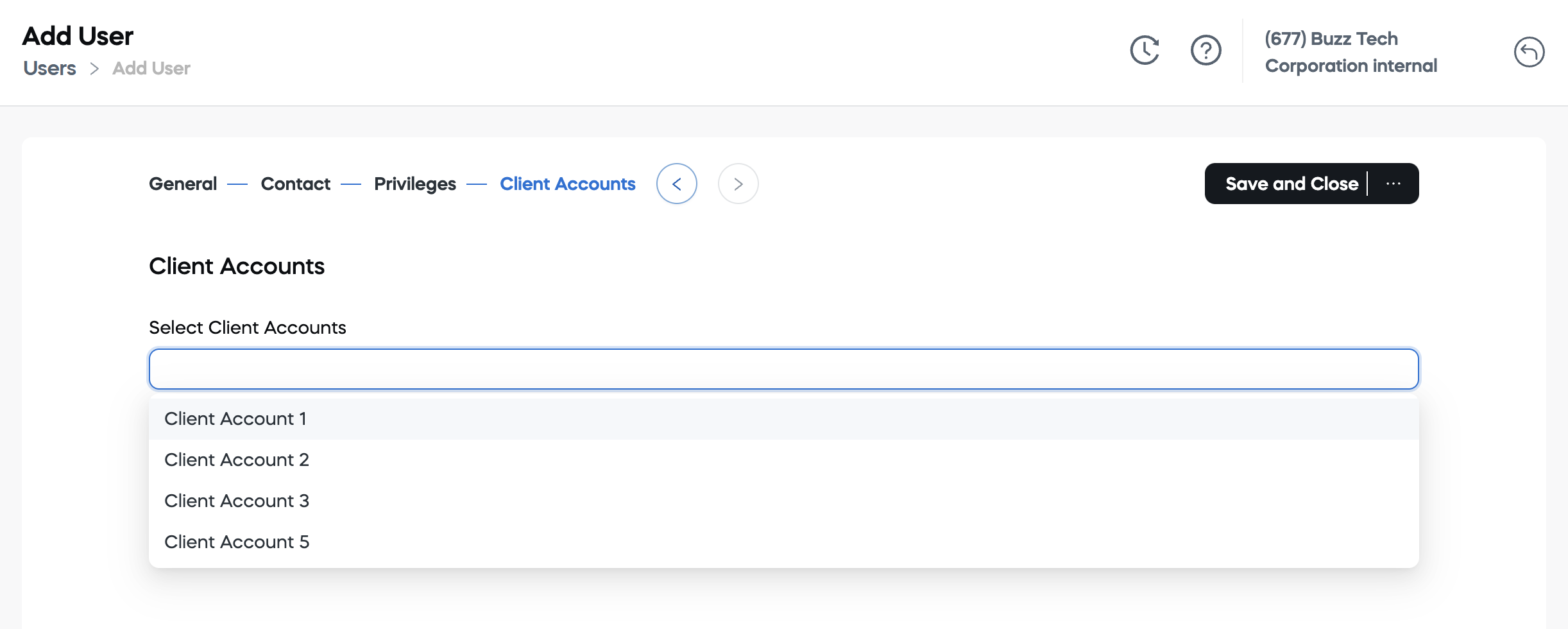
This tab is available only for organizations with multiple client accounts.
Select the client accounts that the user can access, and then select one of the following options:
- Save and Close: Save the user and close the page.
- Save and Stay: Save the user and remain on the page.
- Discard and Close: Discard the changes and close the page.
Generate a test credit card number
You can generate a test credit card number for a user who needs to place test orders.
- In SCM, go to Settings > Users.
- Edit the user.
- On the General tab, locate Test credit card number.
- Generate or copy the number.
- Save the user.
The option is available only to users with the required privilege. If it is unavailable, contact your SCM administrator.
Edit a user
- In SCM, go to Settings > Users.
- Find the user by using the search or filtering options.
- Open the ... menu on the right side of the user row, and select Edit.

Update the required information, and save the user. The available fields correspond to the fields described in Add a user.
Create a copy of a user
- In SCM, go to Settings > Users.
- Find the user by using the search or filtering options.
- Open the ... menu on the right side of the user row, and select Create copy.

SCM creates a new user with information copied from the selected user. Before saving, review the username, password, contact information, privileges, and client-account access.
Delete a user
Deleting a user permanently removes the user's access. This action cannot be undone.
- In SCM, go to Settings > Users.
- Find the user by using the search or filtering options.
- Open the ... menu on the right side of the user row, and select Delete User.

In the confirmation dialog, click OK.
You can also manage users in Commerce Assistant. For more information, see Users.
Explore this section
Manage user privileges
Manage user privileges and complete the related administrative tasks.
Single Sign-On (SSO) setup
Explore Single Sign-On (SSO) setup and learn how it supports your work in Cleverbridge.