Quick start tutorial
Overview
Use this tutorial to create a basic recurring product, generate a checkout link, and place your first test order in the Cleverbridge platform.
By the end of the tutorial, you will have:
- A recurring product with a base price.
- A checkout link for that product.
- A completed test order that you can review in your account.
Before you begin
Make sure that you:
- Have access to the Cleverbridge platform.
- Have permission to create products and checkout links.
- Have an available checkout configuration.
- Have permission to generate a test credit card number.
If an option described in this tutorial is unavailable, contact your Cleverbridge administrator or the Client Experience team.
1. Create a recurring product
- Go to Configure > Manage Products.
- Open the menu on the Add button.
- Select Add Recurring Product (Plan).

Enter the product details
On the General tab, complete the required fields:
- Product Name: Enter a name that will help you identify the product in your account and at checkout.
- Category: Select an existing category or create one for the product.
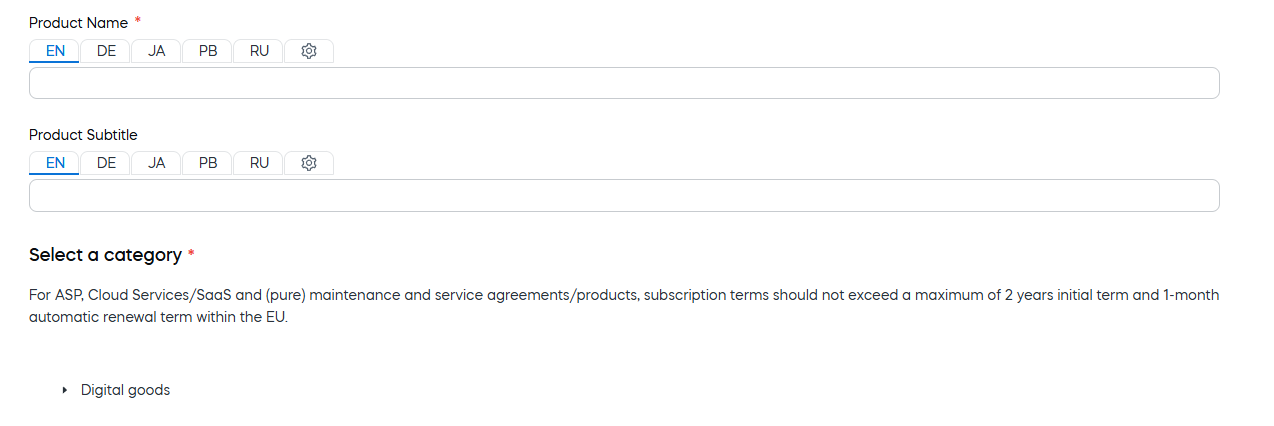
You can leave optional settings unchanged for this first setup.
Configure billing and pricing
- Open the Pricing tab.
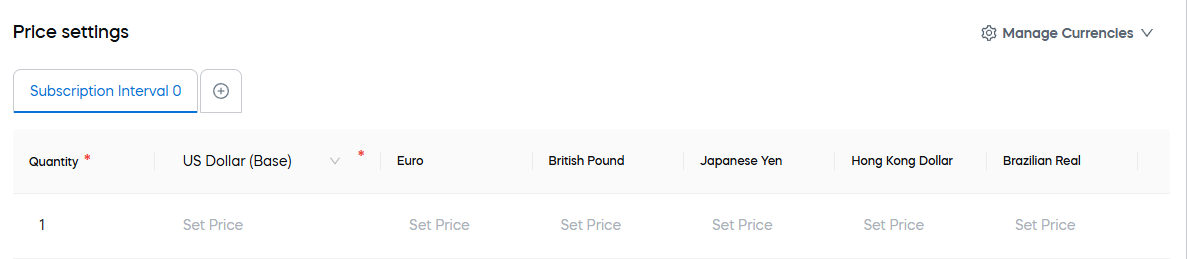
- Configure the initial and recurring subscription intervals for the product.
- In Price setting, enter a price in your base currency.
- Select Save and Close.

Expected result: The recurring product appears in the Products table.
If your permissions allow it, you can also define fixed prices in additional currencies. Otherwise, Cleverbridge converts the base price for supported currencies. For details, see Supported currencies.
2. Configure delivery, if required
You can skip this step for the initial checkout test.
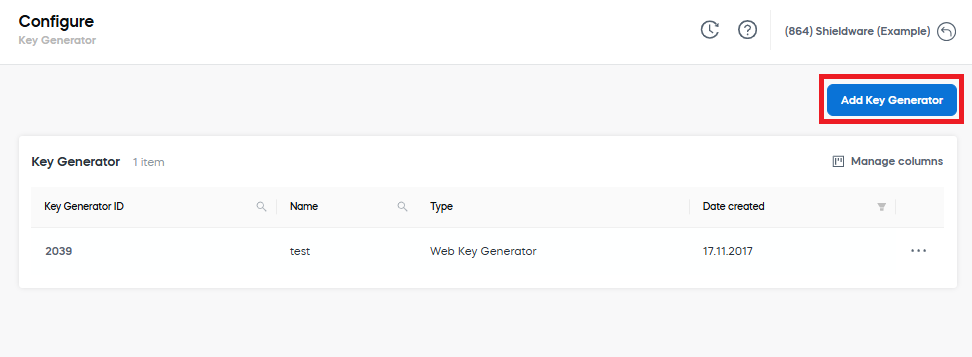
If your product requires a license key, configure a key generator:
- Go to Configure > Tools > Key Generator.
- Select Add Key Generator.
- Configure and save the generator.
For complete instructions, see Generate license keys.
If you use another fulfillment or entitlement method, configure it before testing the complete delivery workflow.
3. Generate a checkout link
- Go to Configure > Link Generator.
- Select Add Checkout Link.
- Select the checkout configuration you want to use.
- Select Add Product, and then add the recurring product you created.
- Save the link.

Copy the generated URL and open it in a new browser tab.
Expected result: The URL opens a checkout containing the recurring product you created.

4. Review the checkout
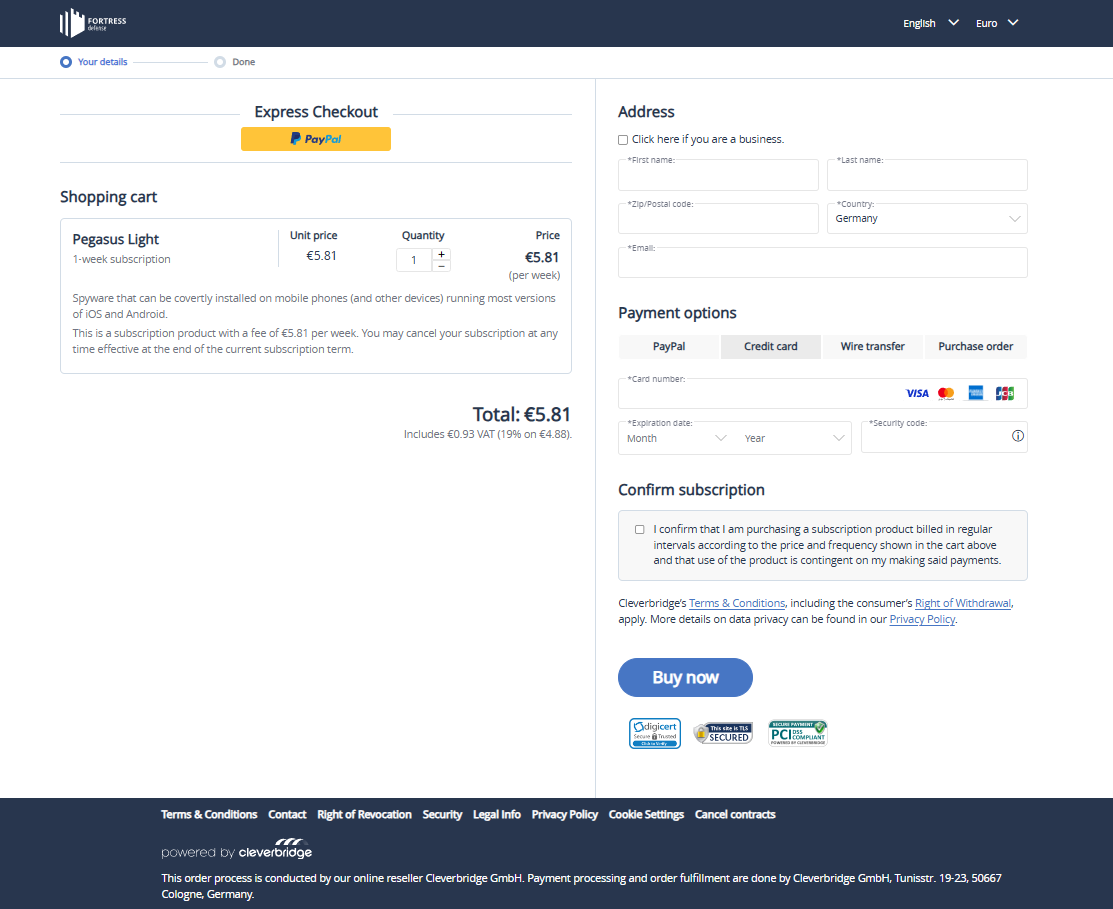
Before placing an order, verify that the checkout shows the expected:
- Product name.
- Price and currency.
- Subscription billing interval.
- Checkout branding and customer-facing content.
The checkout appearance can be customized to match your website and brand.
5. Generate a test credit card number
- Go to Settings > Users.
- Open your user account.
- In the General settings, generate or copy the Test credit card number.
- Save the user if you generated a new number.
Generating a test credit card number requires the appropriate user privilege. If the action is unavailable, contact your Cleverbridge administrator.
6. Place a test order
- Return to the checkout link.
- Enter customer and billing information. Use test data only, and do not enter real customer information.
- Enter the generated test credit card number.
- Enter any future expiration date and any three-digit security code.
- Complete the purchase.
Expected result: The completed purchase is identified as a test order and does not result in a real payment.
7. Verify the result
After completing the checkout, verify the parts of the workflow that apply to your setup:
- The order was created and identified as a test order.
- The subscription was created with the expected billing interval.
- The customer email was generated.
- The product, license, or other entitlement was delivered.
- Notifications reached your connected systems and were processed correctly.
For additional test scenarios and production guardrails, see Test your Cleverbridge setup and integrations.
Next steps
You now have a basic product and checkout flow. Continue by configuring the branding, localization, payment methods, delivery, notifications, and other capabilities required for your production setup.