Set up a license key generator
Overview
License key generators allow you to create customized licensing information for customers at the time of purchase. Unlike license key lists, these licenses aren't pre-generated. Rather, when the customer clicks Buy, the Cleverbridge platform calls your license key generator, submits the purchase details, and requests the license information back as a response.
This offers you the following advantages:
- Manual effort to regularly upload additional license key lists is no longer required.
- The license can include information about the customer. This helps reduce software piracy because customers are less likely to pass this information on to someone else.
Manage license key generators
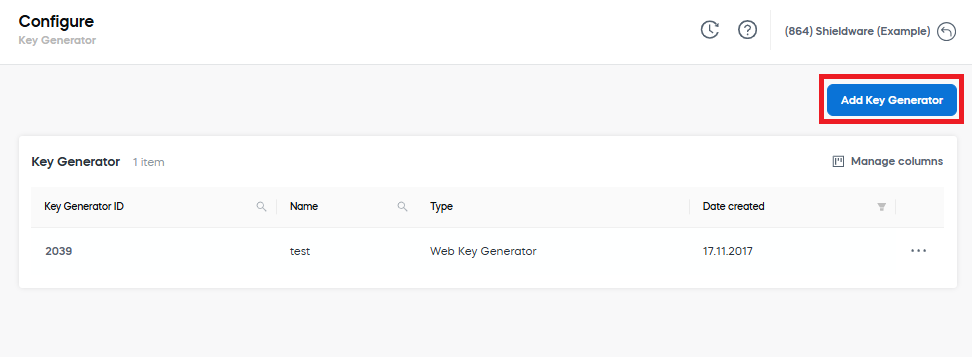
To manage license keys, go to SCM and select Configure > Tools > Key Generator.
To offer license key upgrades using our APIs, see License Key Upgrades.
The Key Generator table displays all the key generators added by the account users. The following fields are available:
Add a key generator
To add a web key generator, do the following:
- In the main menu of SCM, select Configure > Tools > Key Generator.
- Click Add Key Generator.
- Enter information in the following fields:
| Field | Description |
|---|---|
| Name | Enter a unique name for the key generator. |
| Path | Enter the full URL of the key generator. The URL of your key generator must have an HTTPS scheme. SSL certificates for HTTPS are only supported if they are signed by a trusted authority. |
| Authenticate | Enable the toggle to authenticate username and password access to the key generator. |
| User Name | Enter a username that will be used to access the key generator. |
| Password | Enter the password that will be used to access the key generator. |
| Repeat Password | Repeat what you filled in for Password. |
| Interface | Select Type 1 unless Client Experience has instructed you otherwise. |
| Character Encoding | Select the type of JSON or XML character encoding to use for the key generation. Most clients typically choose Unicode (UTF-8). |
| Use romanized contact values | Select to render western characters for the Company, First name, and Last name contact values for languages such as Chinese, Japanese, and Russian. |
| Call once per purchase | If enabled, the key generator is called once for the entire purchase in the shopping cart. If left unchecked, the key generator is called once for every purchase item in the shopping cart. |
| Client handles errors | Enable if you wish to manage key generation errors on your own. If you don't select this option, Cleverbridge manages key generation errors (recommended). If a key generation or key list error occurs, the following happens:
|
- Click Save and Close.
For more information, see Implement License Key Generator.
To add a key generator using Commerce Assistant (CA), see Key Generators.
Connect the key generator to a product
After you add the web key generator, configure the product that should use it:
- In SCM, go to Configure > Manage Products.
- Select the product.
- Open the Delivery tab.
- Select the license-key delivery type and the web key generator.
- Configure the customer-facing Key Template and Email Key Template, as required.
- Click Save and Complete.
For the complete list of product-level options and supported placeholders, see Delivery settings.