Use Google Tag Manager
Overview
The Cleverbridge Google Tag Manager (GTM) integration is the recommended way to manage tracking on your checkout pages. GTM gives you a single, centralized container and controller for all tags, so you can launch, test, and refine third-party tracking without code changes or Commerce Assistant (CA) setup.
Google Tag Manager works on both Checkout 1.0 and Checkout 2.0 pages. The list of supported events and tag templates may differ between versions; see the sections below for details.
Set up the integration
To integrate GTM with your Cleverbridge checkout pages:
- Create a GTM account. For more information, see Google Tag Manager.
- Contact the Client Experience team to enable the GTM data layer on your checkout pages.
- Set up your GTM tags and triggers using Cleverbridge data layer values and events.
How events work
To make the concept easier to follow, the flow below shows a simplified version of how GTM interacts with the Cleverbridge dataLayer.
- When the GTM integration is enabled, a dedicated data layer is created on every Checkout page. This layer acts as a container for data fields that can be used by GTM.
- When an event happens on a Checkout page, a new data object is added to this layer.
- GTM reads this object and resolves the Data Layer variables to their most recent values.
- You can use these values to create rules that provide values for other tags, trigger specific events, or fire tags.
- When a tag fires, it reads the current data and sends it to the chosen destination (for example, GA4, Google Ads, Meta Pixel).
Previous entries stay in the array until the page reloads.
Understanding the data fields
Data fields are the fields that represent information available at the Checkout page in Cleverbridge. When an event happens, these fields and their current values are saved in the data layer.
These details include:
- Transaction details, including the transaction id, transaction currency and total transaction amount.
- Details of the products in the cart, such as their names and SKUs, categories, prices and amounts.
- Specific checkout screen, at which the data is passed, and the event that has caused the system to collect the data.
- Other information, including the session ID, language, applied coupons, and x-parameters passed through checkout.
Data Layer variables
User-defined variables in GTM act like labels that tell GTM which pieces of information to pick from the data layer. Think of the data layer as a shelf full of boxes, each box holding a data field. By creating the variables, you're essentially telling GTM "I want the value inside this box whenever it appears." These values are then used to populate tag fields or define trigger rules (for instance, "fire when paymentStatus = paid").
You can find detailed guidelines at Google's document on user-defined variables. The guide covers all user-defined variables. For this integration, set Type to Data Layer Variable.
The Cleverbridge data layer contains a field named transactionId. We want to create a GTM variable cleverbridgeTransactionId that will reference the transactionId value from the Cleverbridge data layer. In the variable configuration, set Type to Data Layer Variable, and use the exact Cleverbridge field name as the Data Layer Variable Name.

You can then reference it in tags and triggers using the variable name, {{cleverbridgeTransactionId}}.
Cleverbridge events
Cleverbridge supports a comprehensive set of events that span the entire checkout flow — from the moment a customer opens the checkout page to the successful completion of a purchase. These events make it possible to capture every key interaction and send accurate, structured data to your analytics, advertising, attribution, or marketing automation tools. The list of events depends on the checkout model you're using.
Data fields and examples for each event
Each event pushes a dedicated data object to the dataLayer. These typically include an event name and additional parameters describing the context, such as product details, transaction values, or payment information.
The exact objects and available fields depend on the checkout model you're using:
- Checkout 2.0
- Checkout 1.0
begincheckout fields
begincheckout item fields in Checkout 2.0
dataLayer.push({
 event: "begin_checkout",
 ecommerce: {
   currency: "USD",
   value: 129.99,
   items: [
     {
       item_id: "12345",
       item_name: "Pro Suite Annual",
       affiliation: "cleverbridge",
       coupon: "FALL20",
       discount: 20.00,
       item_brand: "Acme Corp",
       item_category: "Software",
       item_variant: "Pro Suite",
       price: 129.99,
       quantity: 1
     }
   ]
 }
});
A customer starts checkout, so we push a begin_checkout event to the data layer with the current cart details: currency is USD, the order total is 129.99, and the cart contains one item—Pro Suite Annual (ID 12345) from Acme Corp. The FALL20 coupon applies a 20.00 discount, and the item price shown is the discounted gross price.
GTM can use this event to trigger analytics, conversion, and remarketing tags for the start of the checkout.
pageview fields
js
dataLayer.push({
  event: "page_view",
  subscription_type: "none",
  checkout_type: "new",
  affiliation: "cleverbridge",
  language: "en",
  transaction_interval: 0,
  currency: "USD",
  cart_id: "CART-9A7B",
  entry_url: "https://checkout.example.com/?pid=12345",
  page_name: "checkout.step.shipping",
  session_id: "sess_abc123",
  "x-parameters": [{ partner: "affiliate42" }, { campaign: "fall_launch" }],
  country: "US"
});
A customer views the shipping step of Checkout 2.0, so we push a page_view event to the data layer with contextual information about this session: the checkout type is new, the selected language is English, and the transaction is a one-time purchase (interval 0). The checkout is in USD, with the cart ID CART-9A7B and session ID sess_abc123. Additional parameters identify the affiliate partner (affiliate42) and campaign (fall_launch).
GTM can use this event to record funnel progression, measure engagement by step, and attribute the session to the correct campaign and partner.
addtocart fields
addtocart item fields in Checkout 2.0
js
dataLayer.push({
  event: "add_to_cart",
  ecommerce: {
    currency: "EUR",
    value: 59.99,
    items: [
      {
        item_id: "67890",
        item_name: "Add-on Storage 100GB",
        affiliation: "cleverbridge",
        discount: 0,
        item_brand: "Acme Corp",
        item_category: "Add-on",
        item_variant: "Storage-100",
        price: 59.99,
        quantity: 1,
        index: 2
      }
    ]
  }
});
A customer adds a recommended product to the cart, so we push an add_to_cart event to the data layer with details about the item: the currency is EUR, the total cart value is 59.99, and the added product is Add-on Storage 100GB (ID 67890) from Acme Corp. The product has no discount, is priced at 59.99 gross, and appears as the second recommendation in the list (index 2).
At the same time, a select_promotion event is pushed to record that this item was selected from the recommendation module, identifying the promotion ID rec_002 and name Recommended Add-on. GTM can use these events together to track user interaction with recommendations, measure conversion effectiveness, and attribute sales to specific promotional placements.
selectpromotion fields
selectpromotion item fields in Checkout 2.0
js
dataLayer.push({
  event: "select_promotion",
  ecommerce: {
    creative_name: "Sidebar Bundle",
    creative_slot: "right_rail",
    promotion_id: "rec_002",
    promotion_name: "Recommended Add-on",
    items: [
      {
        item_id: "67890",
        item_name: "Add-on Storage 100GB",
        affiliation: "cleverbridge",
        discount: 0,
        item_brand: "Acme Corp",
        item_category: "Add-on",
        item_variant: "Storage-100",
        price: 59.99,
        quantity: 1
      }
    ]
  }
});
A customer selects a recommended product displayed in the sidebar, so we push a select_promotion event to the data layer. It identifies the promotion as rec_002 with the name Recommended Add-on, and records contextual details such as placement (right_rail) and creative (Sidebar Bundle). The associated product is Add-on Storage 100GB (ID 67890) from Acme Corp, priced at 59.99 with no discount.
GTM can use this event to measure how customers interact with recommendations and evaluate promotion performance across placements.
removefromcart fields
removefromcart item fields in Checkout 2.0
js
dataLayer.push({
  event: "remove_from_cart",
  ecommerce: {
    currency: "GBP",
    value: 0,
    items: [
      {
        item_id: "67890",
        item_name: "Add-on Storage 100GB",
        affiliation: "cleverbridge",
        discount: 0,
        item_brand: "Acme Corp",
        item_category: "Add-on",
        item_variant: "Storage-100",
        price: 59.99,
        quantity: 1,
        index: 1
      }
    ]
  }
});
A customer removes a product from the cart, so we push a remove_from_cart event to the data layer. The event contains the item details—Add-on Storage 100GB (ID 67890) from Acme Corp, priced at 59.99 in GBP—and indicates it was the first item in the list (index 1).
GTM can use this event to track cart adjustments, update remarketing audiences, and analyze abandonment behavior.
addpaymentinfo fields
addpaymentinfo item fields in Checkout 2.0
js
dataLayer.push({
  event: "add_payment_info",
  ecommerce: {
    currency: "USD",
    value: 129.99,
    items: [
      {
        item_id: "12345",
        item_name: "Pro Suite Annual",
        affiliation: "cleverbridge",
        discount: 20.00,
        item_brand: "Acme Corp",
        item_category: "Software",
        item_variant: "Pro Suite",
        price: 129.99,
        quantity: 1
      }
    ]
  }
});
A customer completes their payment information on the checkout page, so we push an add_payment_info event to the data layer. The event includes details of the order in USD, with a total value of 129.99 and one product—Pro Suite Annual (ID 12345) from Acme Corp—with a 20.00 discount applied.
GTM can use this event to trigger analytics or conversion tags that record payment intent or checkout progression.
purchase fields
purchase item fields in Checkout 2.0
js
dataLayer.push({
  event: "purchase",
  ecommerce: {
    transaction_id: "CB-REF-001122",
    value: 129.99,
    tax: 10.83,
    shipping: 0,
    currency: "USD",
    items: [
      {
        item_id: "12345",
        item_name: "Pro Suite Annual",
        affiliation: "cleverbridge",
        discount: 20.00,
        item_brand: "Acme Corp",
        item_category: "Software",
        item_variant: "Pro Suite",
        price: 129.99,
        quantity: 1
      }
    ]
  }
});
A customer successfully completes a purchase, so we push a purchase event to the data layer. The event records the transaction ID CB-REF-001122, a total order value of 129.99 USD, and includes tax of 10.83 with no shipping cost. The purchased item is Pro Suite Annual (ID 12345) from Acme Corp, discounted by 20.00.
GTM can use this event to record conversions, trigger remarketing tags, and send detailed order data to analytics and advertising platforms.
Initialize checkout
This is the initial data object that is created by Checkout 1.0 on each page load. It does not contain details of an event.
As you can see from the example, this object has all the fields that can be needed at different Checkout pages. If the value is irrelevant, it will stay empty.
js
dataLayer = [
  {
    transactionId: '51142586',
    transactionAffiliation: 'cleverbridge',
    transactionTotal: 53.95,
    transactionTax: 8.61,
    transactionShipping: 0,
    transactionCurrency: 'EUR',
    transactionProducts: [
      {
        id: '2417',
        sku: 'SW-ANTIMW-2Y',
        category: 'Software',
        name: 'Anti-Malware+%5b2+Years%5d',
        price: '53.95',
        quantity: '1'
      }
    ],
    customerCurrency: 'EUR',
    languageCountry: 'en-DE',
    coupons: 'OFF50',
    cleverbridgePage: 'confirmation.successInstantDelivery',
    paymentStatus: 'paid',
    random: 'rmgP9A3fUMNxANgeuHi8',
    configParameterName: 'default',
    paymentType: 'CCA_VIS',
    'x-parameter': [
      {
        promotionCode: 'SUMMER2025',
        customerSegment: 'returning_customer'
      }
    ]
Looking at this object, GTM can determine that order 51142586 for one software product — "Anti-Malware [2 Years]" (SKU: "SW-ANTIMW-2Y", product ID 2417) priced €53.95 (tax €8.61, shipping €0; currency EUR) was completed with immediate payment approval. The payment was completed (paid) using a Visa credit card (CCA_VIS). A coupon OFF50 was used; the customer's locale was English (Germany) (en-DE).
GTM also sees a promo code SUMMER2025 and segment returning_customer under custom fields.
Click for the dataLayer field details and explanation
The following values are exposed in the dataLayer and available for use in Google Tag Manager variables and triggers.
TransactionProducts array
TransactionProducts is an array of string items for the order. Each entry describes a single product in the cart using the keys below (for example, ID, SKU, name, category, unit price, and quantity).
clevebridgePage
The dataLayer.cleverbridgePage value identifies the checkout outcome on the confirmation page, including statuses for a second payment attempt (confirmationpp). Possible values are:
paymentStatus
To determine whether the order was paid, use the paymentStatus field. Possible values are:
CartOpen
dataLayer.push({
  'event': 'cartOpen',
  'ecommerce': {
    'currencyCode': 'EUR',
    'add': {
      'actionField': {
        'affiliation': 'cleverbridge',
        'step': 1
      },
      'products': [{
        'id': '2417',
        'name': 'Anti-Malware+%5b2+Years%5d',
        'price': '53.95',
        'brand': 'brandValue',
        'category': 'categoryValue',
        'variant': 'variantValue',
        'quantity': 1,
        'list': 'listName'
      }],
      'impressions': [{
        'id': '71028',
        'name': 'Recommended Professional',
        'price': '12.95',
        'category': 'Consumer Support',
        'variant': 'variantValue',
        'position': 1,
        'list': 'listName'
      }]
    }
  }
});
Checkout
dataLayer.push({
  'event': 'checkout',
  'ecommerce': {
    'currencyCode': 'EUR',
    'checkout': {
      'actionField': {
        'step': 1
      },
      'products': [{
        'id': '2417',
        'name': 'Anti-Malware+%5b2+Years%5d',
        'price': '53.95',
        'brand': 'brandValue',
        'category': 'categoryValue',
        'variant': 'variantValue',
        'quantity': 1,
        'list': 'listName'
      }],
      'impressions': [{
        'id': '71028',
        'name': 'Recommended Professional',
        'price': '12.95',
        'category': 'Consumer Support',
        'variant': 'variantValue',
        'position': 1,
        'list': 'listName'
      }]
    }
  }
});
The step field indicates the step of the checkout process where the customer is currently active. Depending on your design and region, your checkout process may contain multiple steps (cart page, billing details, review page, etc.).
RemoveFromCart
dataLayer.push({
  'event': 'removeFromCart',
  'ecommerce': {
    'currencyCode': 'EUR',
    'remove': {
      'actionField': {
        'list': 'listName'
      },
      'products': [{
        'id': '2417',
        'name': 'Anti-Malware+%5b2+Years%5d',
        'price': '53.95',
        'brand': 'brandValue',
        'category': 'categoryValue',
        'variant': 'variantValue',
        'quantity': 1,
        'list': 'listName'
      }]
    }
  }
});
AddToCart
dataLayer.push({
  'event': 'addToCart',
  'ecommerce': {
    'currencyCode': 'EUR',
    'add': {
      'actionField': {
        'list': 'listName'
      },
      'products': [{
        'id': '2417',
        'name': 'Anti-Malware+%5b2+Years%5d',
        'price': '53.95',
        'brand': 'brandValue',
        'category': 'categoryValue',
        'variant': 'variantValue',
        'quantity': 1,
        'list': 'listName'
      }]
    }
  }
});
SubmitOrder
dataLayer.push({
  'event': 'submitOrder',
  'paymentMethod': 'CCA_VIS'
});
Purchase
dataLayer.push({
  'event': 'purchase',
  'ecommerce': {
    'currencyCode': 'EUR',
    'purchase': {
      'actionField': {
        'id': '171513018',
        'affiliation': 'cleverbridge',
        'revenue': '53.95',
        'tax': '8.61',
        'shipping': '0',
        'coupon': ''
      },
      'products': [{
        'id': '2417',
        'name': 'Anti-Malware+%5b2+Years%5d',
        'price': '53.95',
        'brand': 'brandValue',
        'category': 'categoryValue',
        'variant': 'variantValue',
        'quantity': 1,
        'list': 'listName'
      }]
    }
  }
});
How to trigger GTM tags with events
To trigger a tag when a certain ecommerce event occurs, create a new GTM trigger with the Custom Event type. Under Event Name, add one of the event names. For more information, see Custom event trigger.
The following is an example of a GTM trigger that only activates when a customer places a purchase.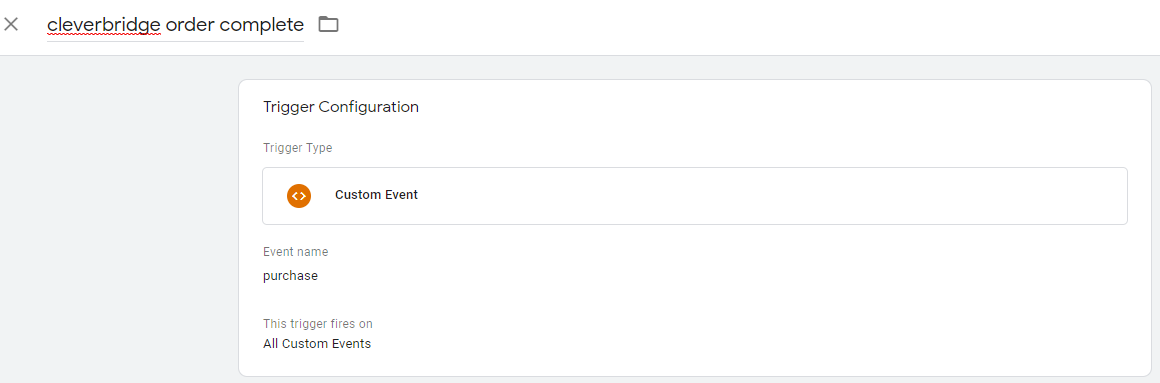
If you have specific questions related to the Cleverbridge Google Tag Manager implementation, or if you want to implement a certain use case, contact our Tracking team.