Manage web files
Overview
Use Web Files in SCM to upload and maintain images, stylesheets, scripts, and other assets used by Cleverbridge configurations.
In SCM, go to Configure > Web Files.
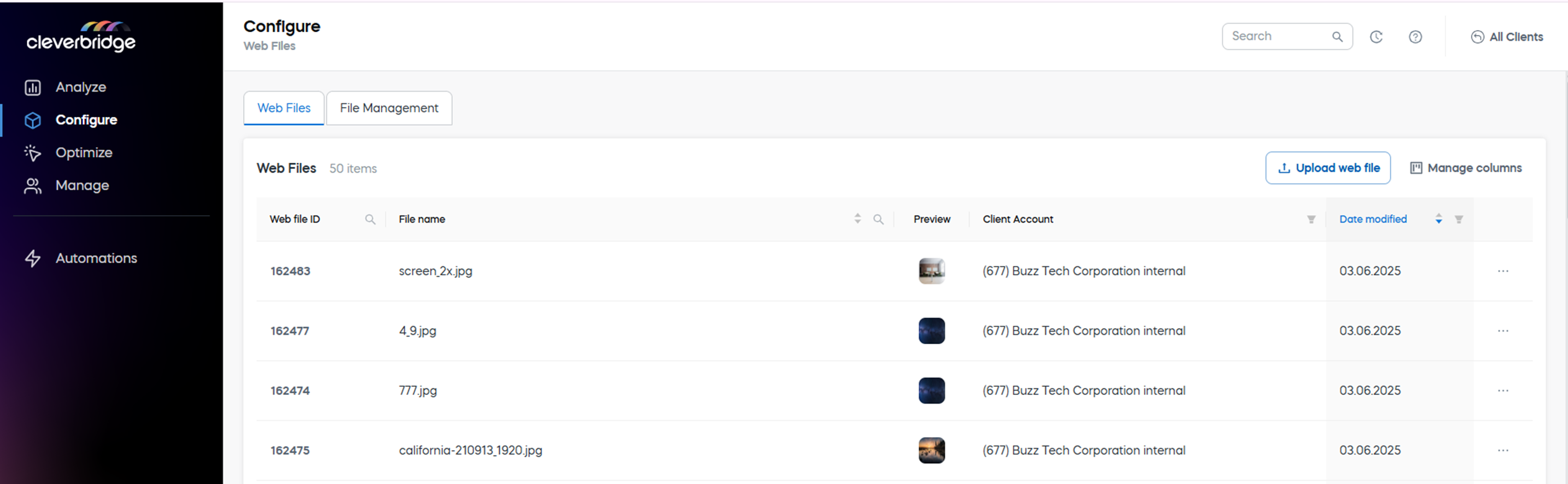
View web files
The Web Files page lists all web files available for the selected client account.
Select Manage columns to show or hide optional columns.
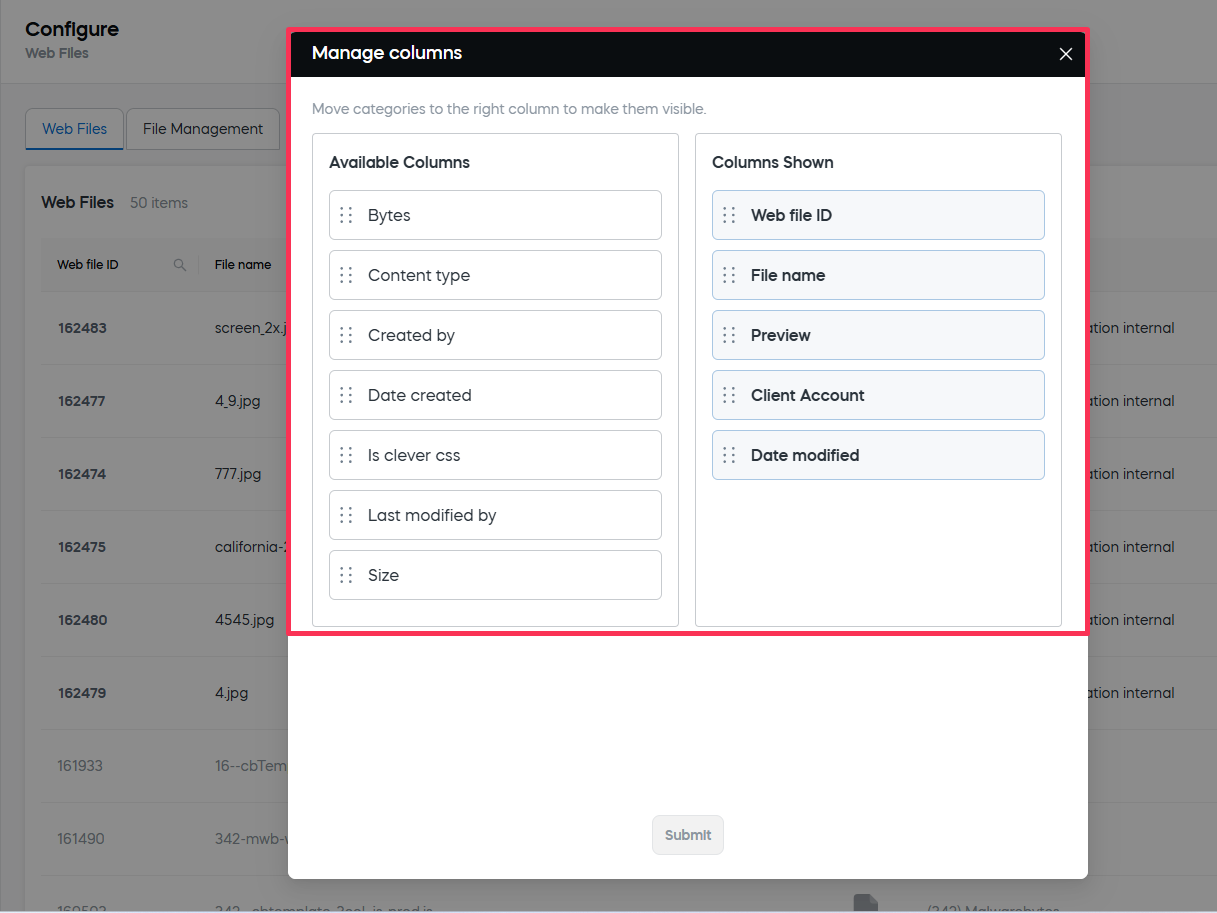
Available columns
Upload a web file
- Select Upload web file.
- Select the file from your computer.
- Confirm the upload.
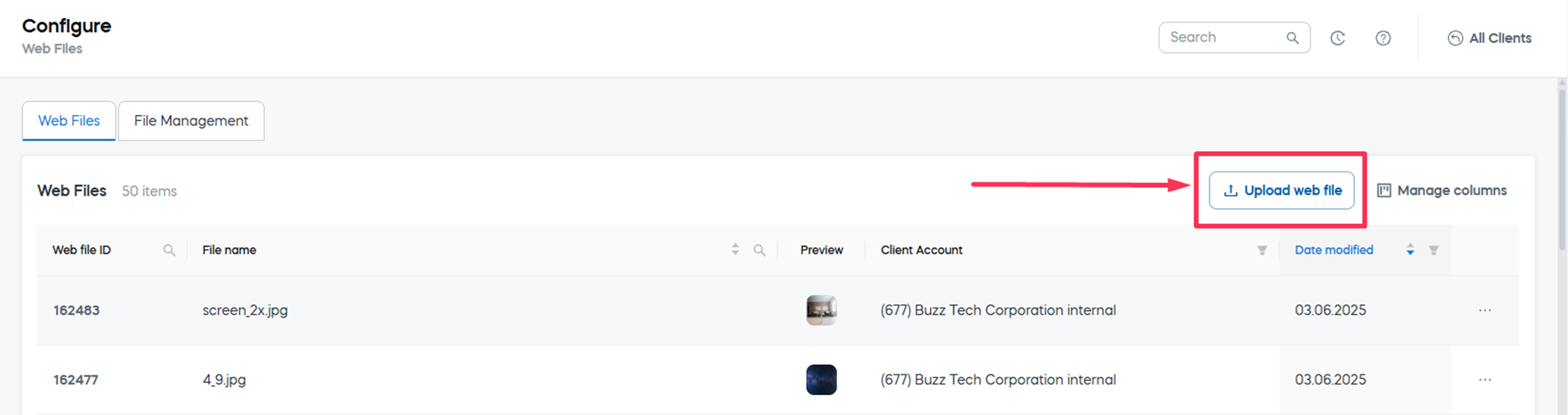
The uploaded file appears in the table and receives a web file ID.
Manage a web file
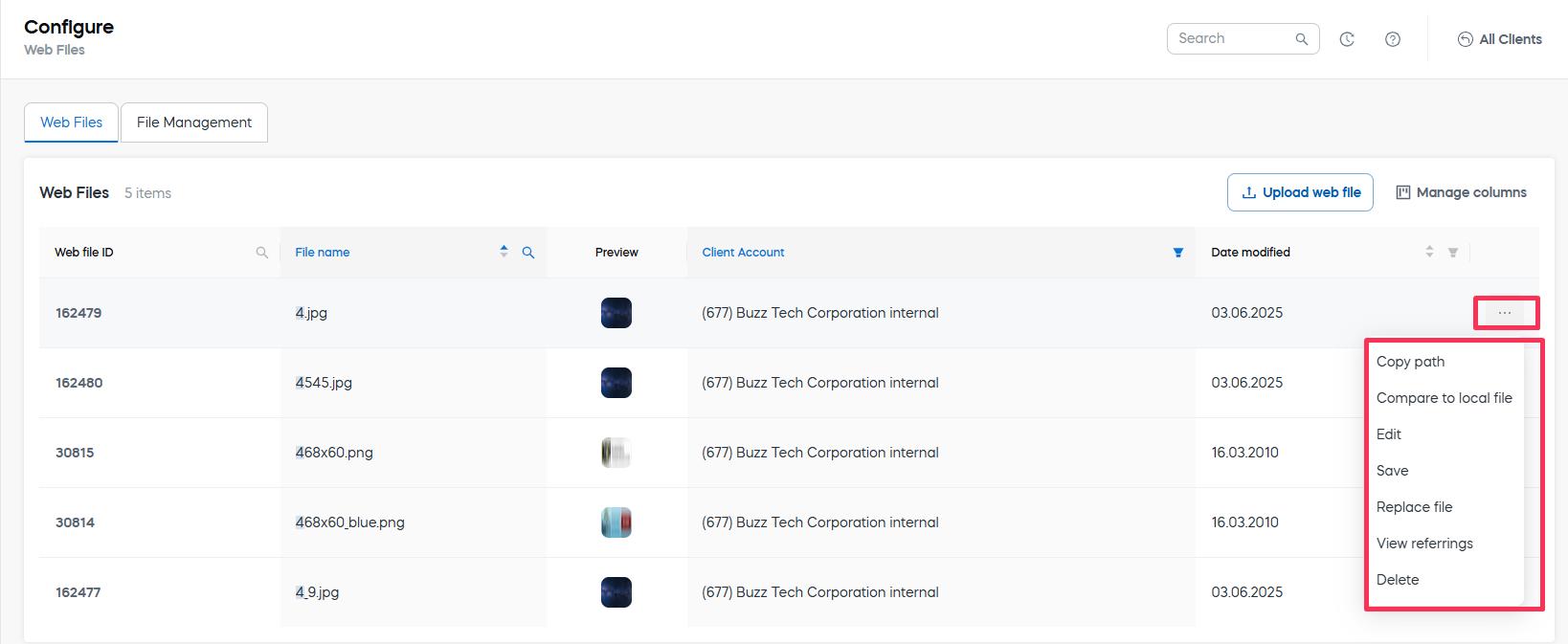
Open the ... menu for a file to access the available actions.
-
Copy path: Copies the file path to the clipboard.
-
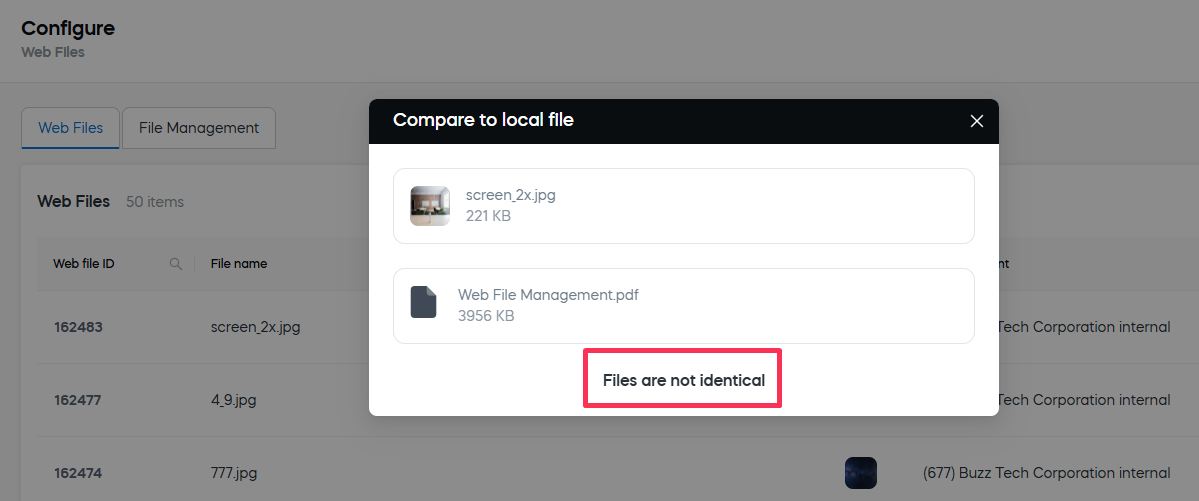
Compare to local file: Compares the selected web file with a file from your computer and indicates whether their contents are identical.
-
Edit: Opens the file details for editing.
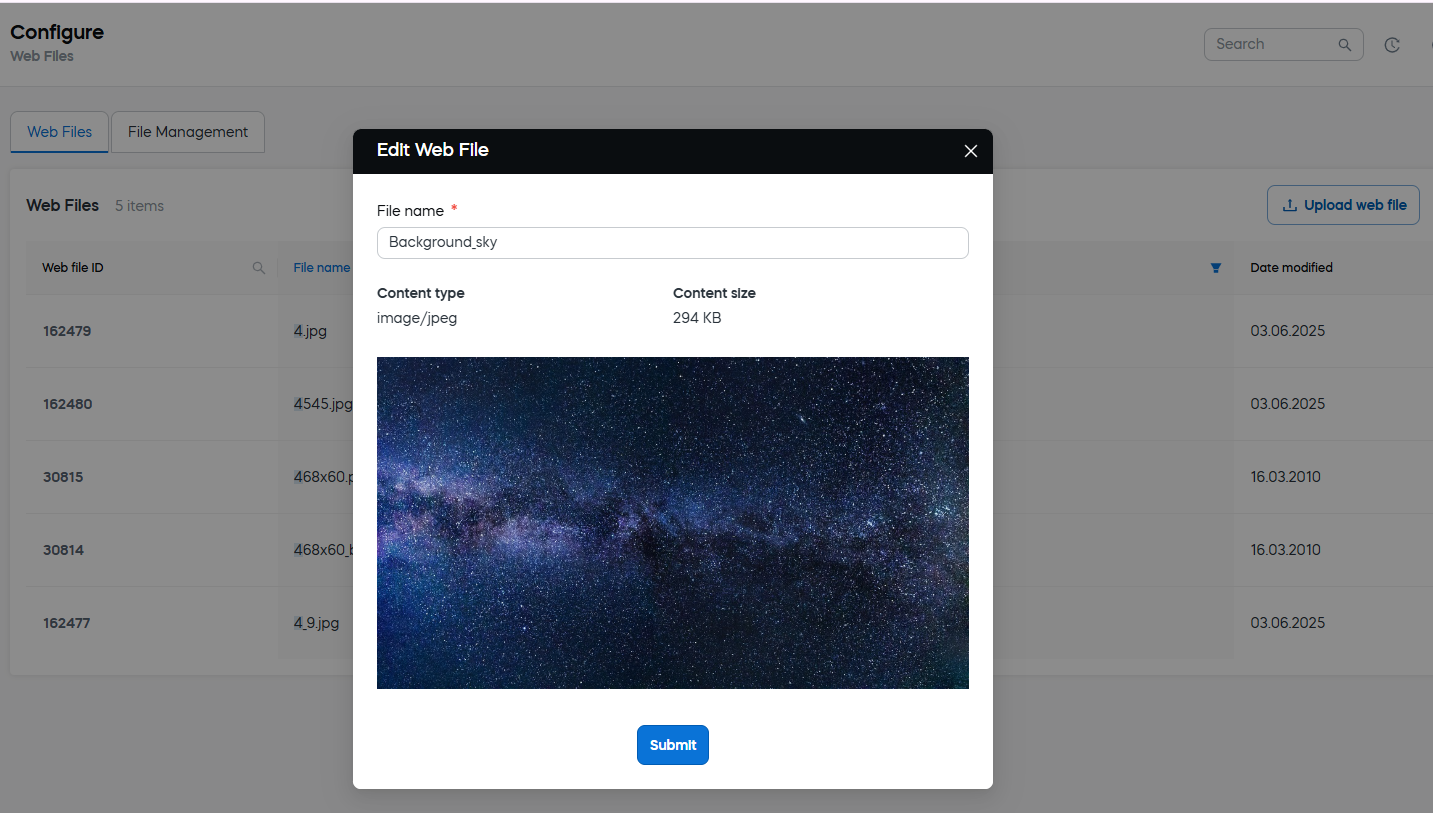
Use clear, versioned file names to improve traceability and simplify asset management.
-
Save: Downloads the file to your computer.
-
Replace file: Uploads new content while preserving the existing web file ID and references.
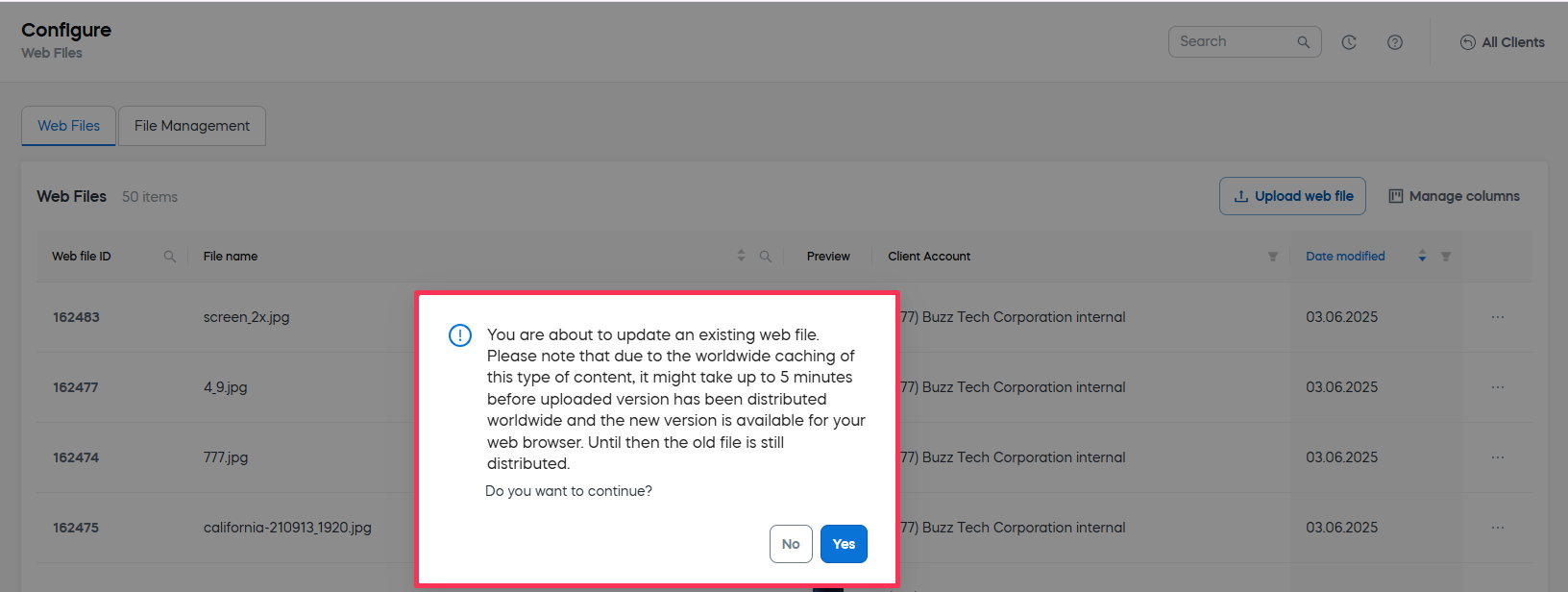 warning
Replacing a file immediately affects configurations that reference it. Review the file's references before replacing it.
-
View referrings: Shows the configurations that use the file.
-
Delete: Permanently removes the file after confirmation.
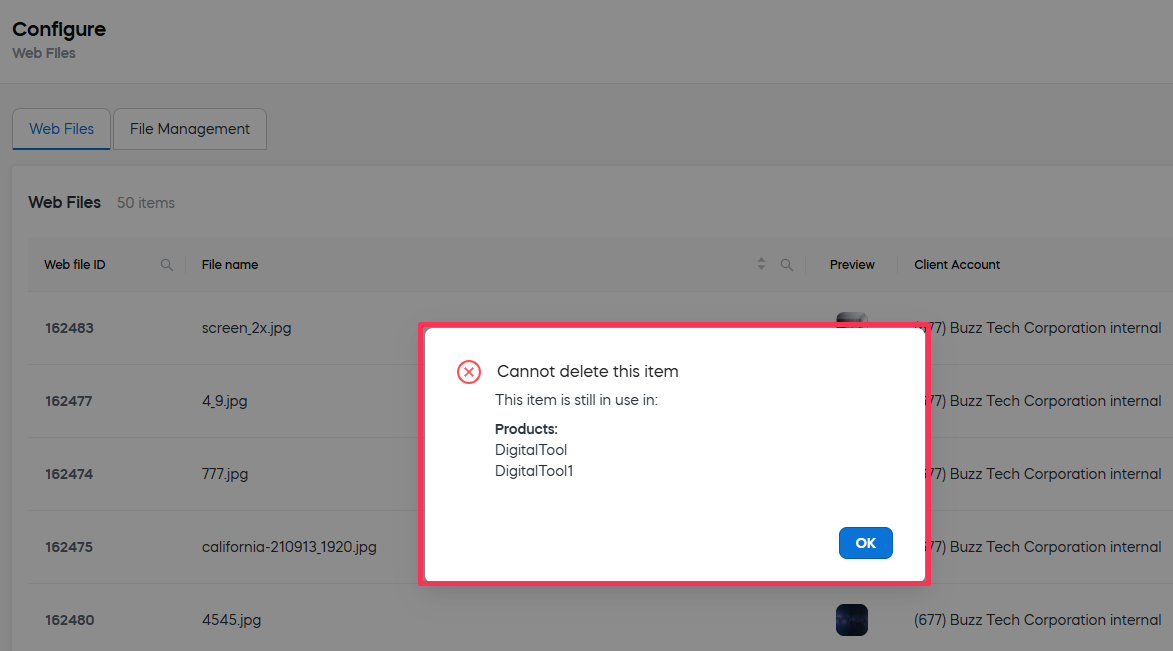
A web file cannot be deleted while it is referenced by another configuration.
Find web files
Use the table headers to search, filter, and sort the available files. The supported controls depend on the column.
You can:
- Search by Web file ID or File name.
- Filter by client account, creator, content type, or Clever CSS status.
- Sort by Date modified, Bytes, or File name.