Copy and paste text
Use the session clipboard to transfer text between Commerce Assistant (CA) or Business Intelligence (BI) and a program on your computer. Try Ctrl+C and Ctrl+V first. If the text does not transfer, use Clipboard in the Amazon WorkSpaces Applications toolbar (session toolbar).
Copy from CA or BI to your computer
-
Select and copy the text in CA or BI, where copying is supported.
-
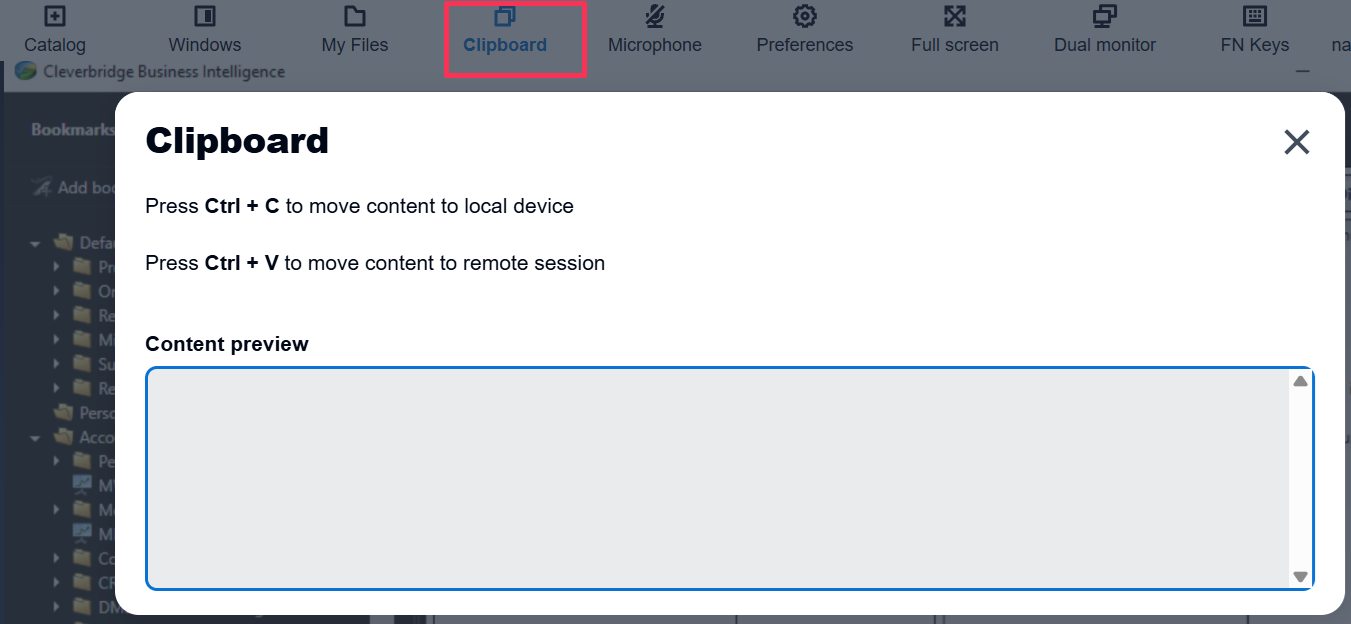
Select Clipboard in the session toolbar.
-
Select Content preview and press Ctrl+C. The dialog identifies this action as moving content to your local device.
-
Paste the text into the program on your computer.
The Content preview area is where you select the text to copy or transfer text into the session.
Clipboard transfer may not preserve spreadsheet formatting or report structure in either application. For reports, export and download a file.
Copy from your computer to CA or BI
- Copy text on your computer.
- Open Clipboard in the session toolbar.
- Select Content preview and press Ctrl+V. The dialog identifies this action as moving content to the remote session.
- Paste the text in CA or BI, where pasting is supported.