Store files
Commerce Assistant (CA) and Business Intelligence (BI) save files on the remote computer. Use My Files > Temporary Files in the Amazon WorkSpaces Applications toolbar to access exported files and download them to your computer.
When exporting from CA, choose This PC > Temporary Files in the save dialog. This is the same storage shown under My Files > Temporary Files in the session toolbar.
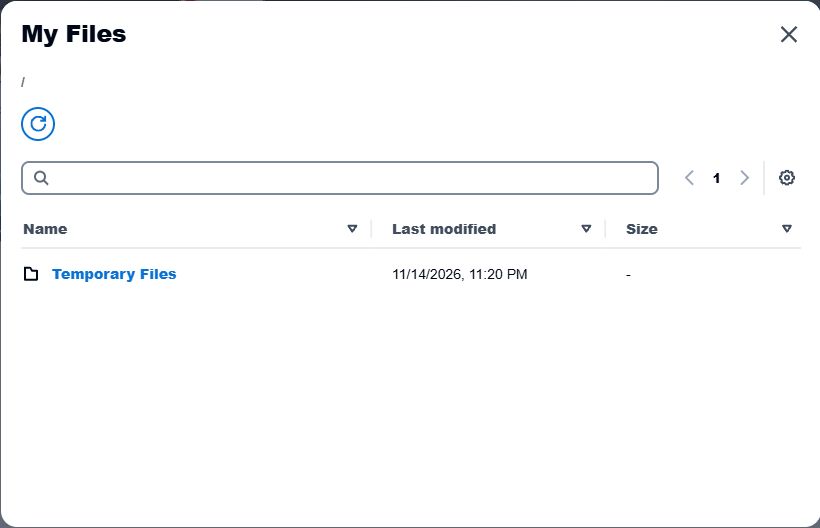
Storage availability
Persistent Home Folder storage is not enabled for the Cleverbridge environment. Temporary Files remain available only while your current session is preserved; they are not long-term storage.
Uploading files from your computer to the CA or BI session is not available by default. If your workflow requires a local file, contact Client Experience for assistance.
How long files remain available
- If the browser tab closes or the internet connection is interrupted, the session is preserved for up to 10 minutes. Reopen CA or BI during that time to resume the session and access its temporary files.
- An inactive session is preserved for up to 70 minutes. When you return during that time, select the application to resume it.
- Ending the session or allowing the preservation period to expire removes its temporary files.
Download anything you need to keep before you end the session or the preservation period expires. Any file-size limit shown by CA or BI for a specific export still applies.
For download and printing steps, see Download files. For reconnecting or ending a session, see Manage your session.