Download files
Commerce Assistant (CA) and Business Intelligence (BI) run on a remote computer and cannot access files on your computer directly.
To download files saved by CA or BI, use My Files > Temporary Files in the Amazon WorkSpaces Applications toolbar.
Uploading files from your computer to the CA or BI session is not available by default. Contact Client Experience if you need assistance with such a workflow.
Save an export from CA
The save dialog inside CA belongs to the remote computer. Saving an export there does not save it to your computer yet.
-
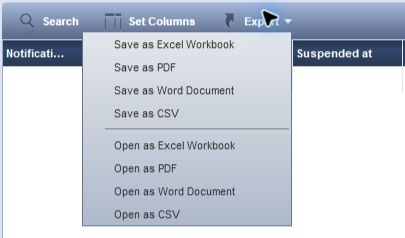
In a CA search worksheet, open Export and select a save option, such as Save as Excel Workbook.
-
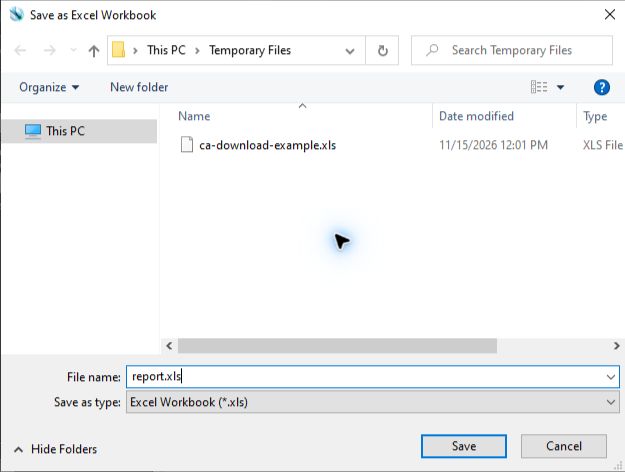
In the save dialog, select This PC, then open Temporary Files. If the dialog already shows Temporary Files, keep that location.
-
Enter a File name, check Save as type, and select Save.
-
Follow the download steps below to transfer the saved file to your computer.
If the remote Downloads folder displays Location is not available, return to This PC and choose Temporary Files instead.
Save an export from BI
Use the BI report export command and save the result to Temporary Files. See Configure and manage reports for the application-specific steps. Then download the saved file as described below.
Download the saved file
-
Select My Files in the Amazon WorkSpaces Applications toolbar above CA or BI.
-
Open Temporary Files. If the file is not listed yet, select Refresh.
-
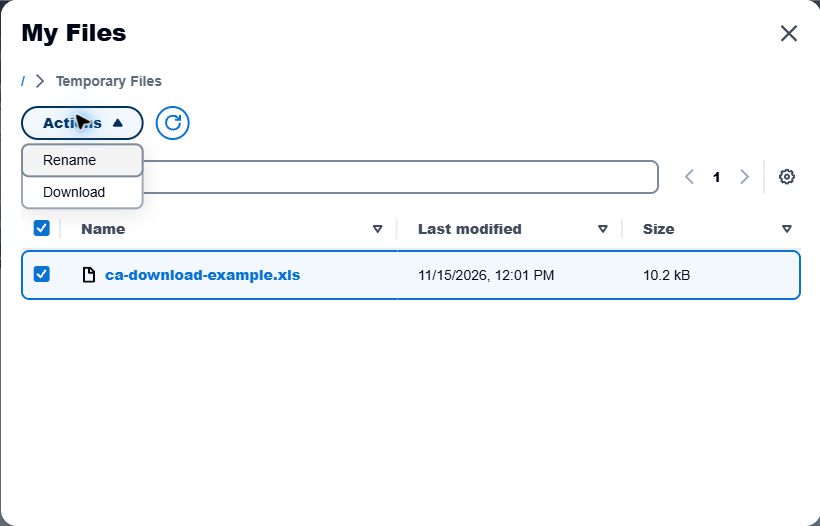
Select the checkbox beside the exported file.
-
Open Actions and select Download.
-
Find the file in your browser's downloads. If the browser asks where to save it, choose a location on your computer.
-
Open the downloaded file on your computer and verify its contents.
The available export formats depend on the CA or BI feature. Use file export rather than clipboard copying when you need to preserve report formatting or structure.
Download any files you need on your computer before ending the session.
Print downloaded files
To print a report or document using a printer connected to your computer, download the file from the remote session first.
- Save the report or document in CA or BI and follow the save and download steps above.
- Find the downloaded file on your computer.
- Open the downloaded file in an appropriate application on your computer.
- Print the file using your local printer.
This way you can print documents without configuring a printer in the remote session.