Manage your session
Save changes in Commerce Assistant (CA) or Business Intelligence (BI) and finish any downloads before you close the browser tab or end the session.
The session toolbar provides controls for display preferences, open windows, and session options.
End your session
-
Save your changes in CA or BI.
-
Download any files you need from My Files > Temporary Files to your computer. See Download files.
-
If you are in CA or BI, select Catalog in the session toolbar to return to the application selection page.
-
In the upper-right corner of the application selection page, open Profile and select End session.
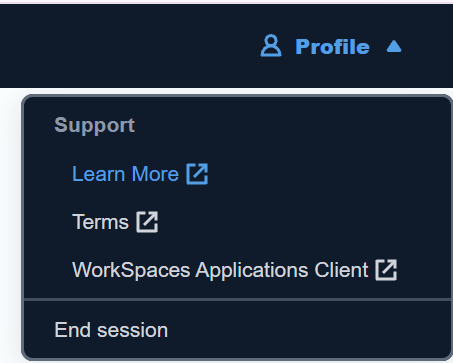
Ending the session removes its temporary files. Closing the browser tab containing the session does not end the session immediately; use End session when you have finished working.
Reconnect to a session
If you close the browser tab containing the session, lose your connection, or return after inactivity, you can reconnect while the session is preserved. See Store files for retention periods and what happens to temporary files.
Return to SCM > Settings > Access CA & BI > Launch CA & BI, select the application, and resume the session. Its settings and files in Temporary Files remain available while the session is preserved.
Use full screen or multiple monitors
Select Full screen in the session toolbar to expand the remote session. To return to the browser window, expand the toolbar and select Full screen again, or press and hold Esc.
Select Dual monitor to use the session's multiple-monitor display control. If the control is unavailable, continue in a single window or contact Client Experience.
If CA or BI does not open or a session control does not work as expected, contact Client Experience. Include your client account, the action you were performing, and the exact error message. Do not send passwords or sensitive exported data.