Snowflake data sharing dictionary
The DP2 Snowflake Data Sharing Dictionary documents 26 tables and 344 columns, including data types, descriptions, example values, and table relationships. Use the interactive version to search and browse the model, or download the Excel workbook to review the table definitions offline.
Open the Snowflake Data Sharing Dictionary (DP2)
Download the Snowflake Data Sharing Dictionary (XLSX)
Navigate the dictionary
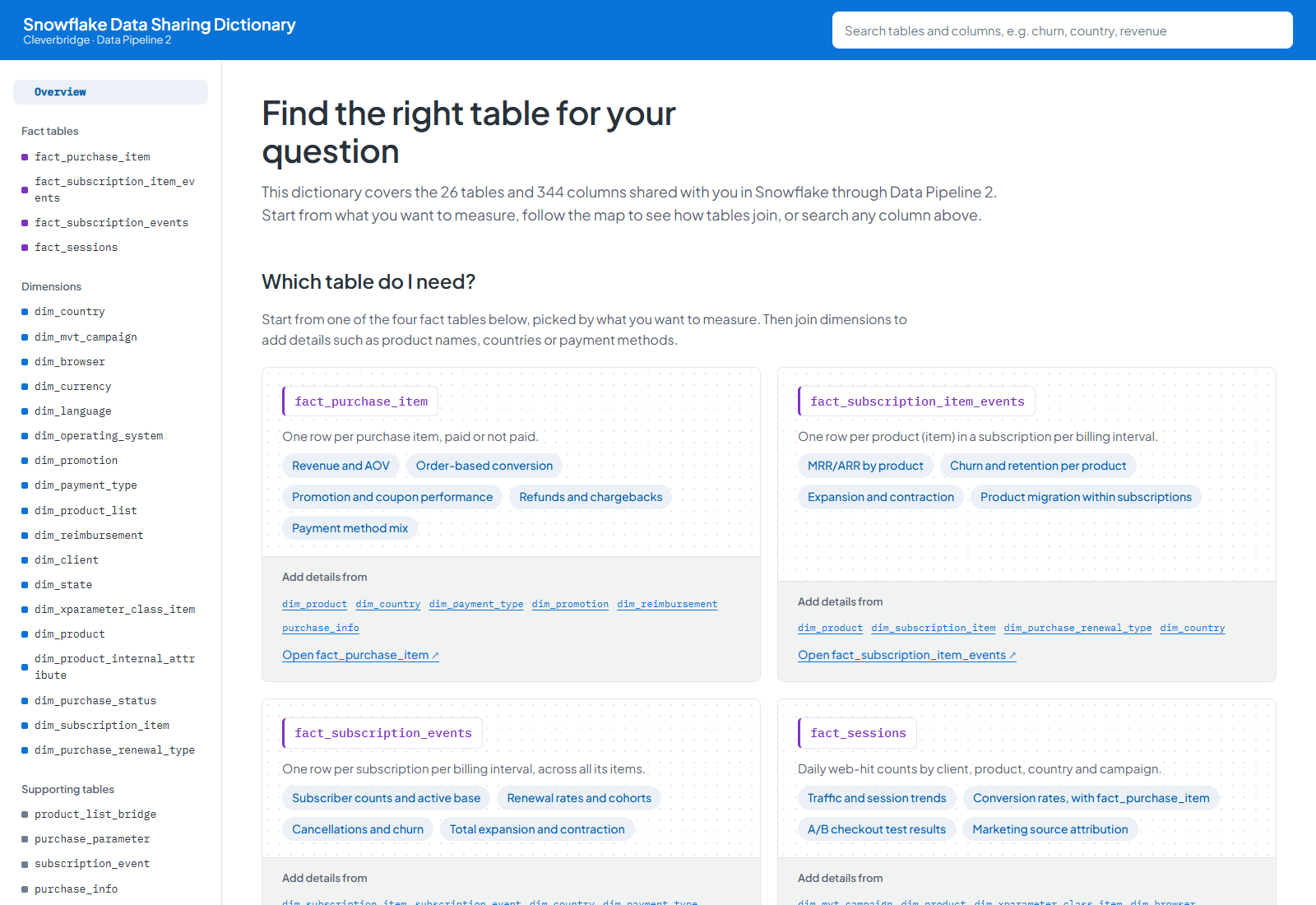
The dictionary has three main areas:
- Search at the top of the page lets you search across table names, column names, and their descriptions.
- Table navigation on the left lists the available fact, dimension, and supporting tables.
- Table details in the main area show information about the selected table, its relationships, and its columns.
On smaller screens, select Tables to open the table navigation.
Find a table or column
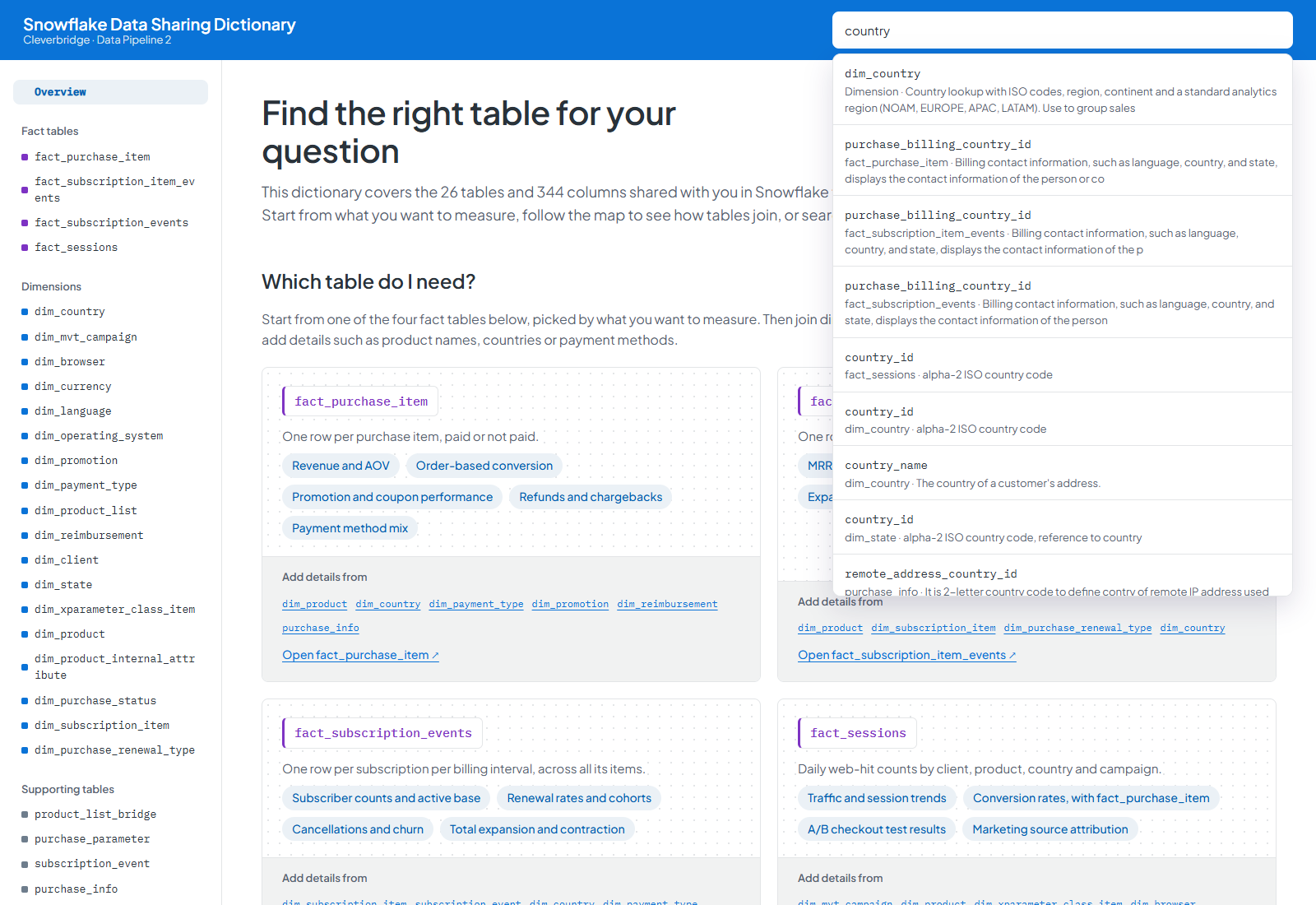
Use the search field at the top of the dictionary when you know the name of a table or column, or when you know the type of data you are looking for.
- Select Search tables and columns at the top of the page.
- Enter at least part of a table name, column name, or description. For example, search for
country,revenue, orchurn. - Review the matching tables and columns.
- Select a result.
When you select a table, the dictionary opens its table details.
When you select a column, the dictionary opens the table that contains it and takes you directly to that column.
Browse the available tables
You can also browse the data model without using search.
- Use the navigation on the left side of the dictionary.
- Choose one of the available table groups:
- Fact tables.
- Dimensions.
- Supporting tables.
- Select a table name to open it.
Understand a table
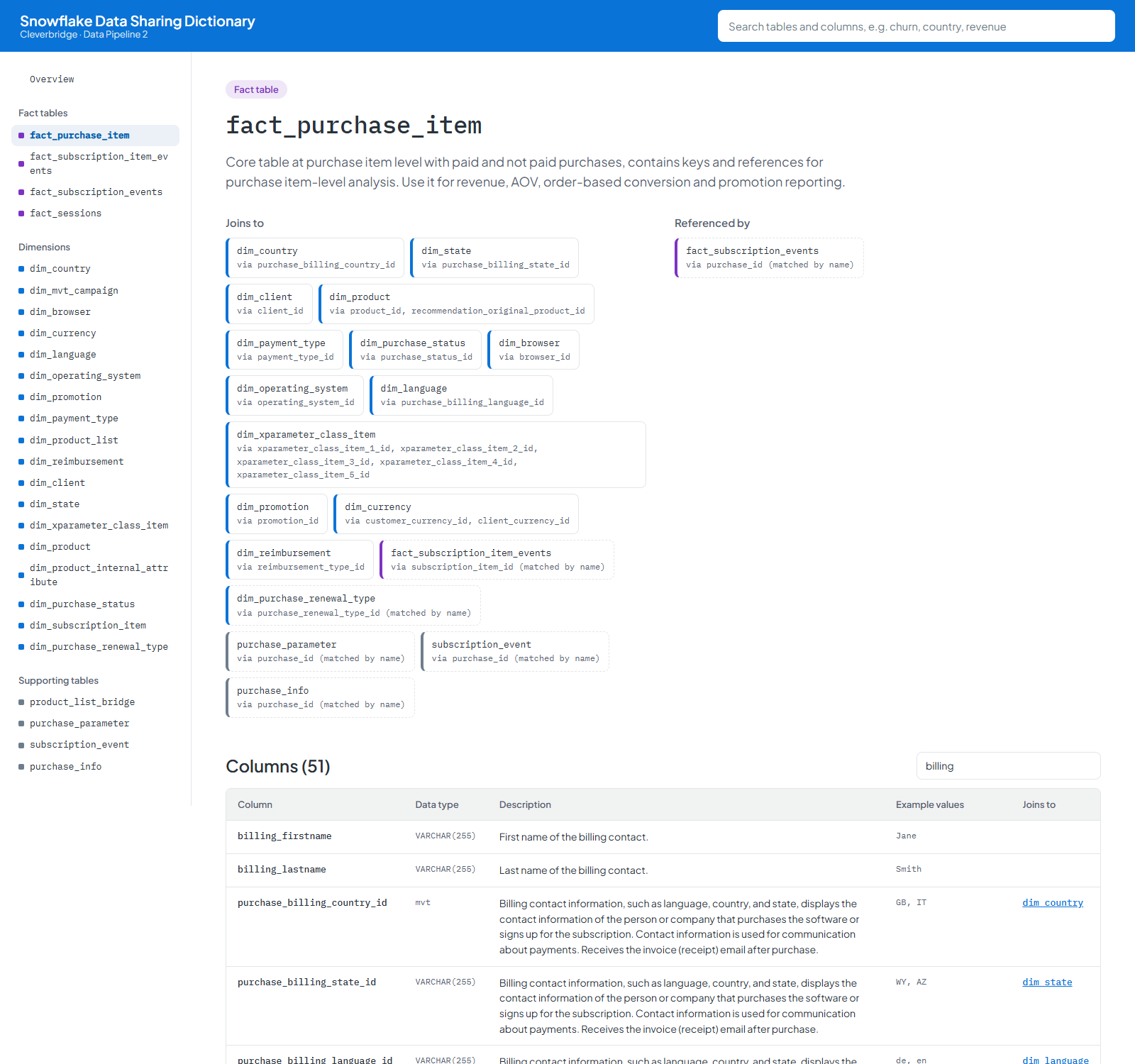
When you open a table, the dictionary displays the table type, table name, and a description of what the table contains and how it can be used.
Below the description, you can also see its relationships with other tables.
Joins to
The Joins to section lists tables referenced by the selected table.
Each entry shows:
- The related table.
- The column or columns used to connect the tables.
Select a related table to open it.
Referenced by
The Referenced by section shows tables that reference the table you are currently viewing.
Use this section when you want to understand where the selected table is used elsewhere in the shared data model.
Review the columns in a table
The Columns section contains the fields available in the selected table.
For each column, the dictionary provides:
- Column: The field name.
- Data type: The Snowflake data type.
- Description: An explanation of the value stored in the field.
- Example values: Examples of values you may find in the field.
- Joins to: The related table, when the column can be used to connect to another table.
Use this information when preparing queries to confirm that you have selected the appropriate field and understand the values it contains.
Filter columns
Some tables contain many columns. You can narrow the list without scrolling through the complete table.
- Open the table you want to inspect.
- Go to the Columns section.
- Select Filter columns.
- Enter part of a column name or description.
The list updates as you type and displays only matching columns.
Follow table relationships
You can move through the data model directly from a table.
In the Joins to, Referenced by, or Joins to column, select a related table name to open that table.
The dictionary distinguishes between different types of relationships:
- A regular relationship is based on a documented key.
- A relationship shown with a dashed border is matched by a shared column name rather than a documented key.
Use the join information as a guide when determining which tables can be combined in your Snowflake queries.
A relationship based on a shared column name does not necessarily represent a formally documented key. Review the relevant fields before using the relationship in your analysis.
Return to the dictionary overview
To leave a table and return to the dictionary overview, select Overview in the table navigation or select Snowflake Data Sharing Dictionary in the header.
Open the Snowflake Data Sharing Dictionary (DP2)
Download the Snowflake Data Sharing Dictionary (XLSX)