Talk to Your Data
Talk to Your Data (TTYD) connects your AI assistant to Cleverbridge analytics data, so you can analyze revenue, subscription, and payment performance by asking questions in plain language.
TTYD uses Model Context Protocol (MCP), an open standard for connecting AI assistants to data sources.
Before you start
Prerequisites
Before connecting TTYD, make sure:
- TTYD is enabled for your account. To request access or confirm availability, contact Client Experience.
- Your organization’s IT, security, or compliance team has approved the connection. To provide them with the necessary information, refer them to Information for your IT or security team.
- Your AI platform supports the Cleverbridge app or compatible remote MCP connections. Platform-specific requirements apply when connecting TTYD. For example, see Apps in ChatGPT and Custom connectors in Claude.
- You have the required Cleverbridge reporting permissions. If necessary, ask an administrator to review your user privileges in SCM. See Manage user privileges.
Things to know
- TTYD is read-only. It can retrieve and analyze data. It cannot change data, settings, products, or subscriptions, and it cannot contact your customers.
- Your permissions apply. You can only analyze clients and data you are already authorized to access in Cleverbridge. TTYD does not grant additional access.
- Complex requests can take longer. Splitting large or complex requests into smaller steps usually helps.
- Validate important results. AI assistants can misinterpret requests or make calculation errors. Verify important figures against SCM reports, invoices, clearing reports, payout statements, or other official records.
Prompts, queries, and results transmitted through TTYD are not used by Cleverbridge to train AI models. Their retention and use by the selected AI provider are governed by your organization’s plan, agreement, and workspace settings. For the platforms officially supported by Cleverbridge, see Enterprise privacy at OpenAI and Anthropic’s guidance on model training and data retention.
Available data
TTYD uses the same analytics data as Analyze in SCM.
Data coverage
Depending on the metric, you can analyze:
- Revenue and orders, including revenue and order performance.
- Subscriptions, including MRR, ARR, NRR, churn, renewals, new business, active subscribers, and ARPU. See Subscription metrics for definitions.
- Payments, including payment success, authorization, declines, refunds, and chargebacks. See Payment metrics for definitions.
- Dimensions, including product, country, region, payment method, renewal type, currency, and reporting period.
Not every metric can be combined with every dimension. See Available metrics and dimensions for supported combinations and Filters and sorting tools for available filtering options.
Availability and scope
- Data is refreshed daily and is available from January 2023 onward.
- TTYD identifies clients by their Cleverbridge client ID.
- Each request can analyze one client. A single request cannot combine multiple clients or Client Groups.
- TTYD cannot access SCM configuration data outside analytics, customer service history, external CRM data, or official clearing and payout statements.
- Data from your own systems is only included if you add it to the conversation.
How answers are generated
TTYD retrieves the relevant Cleverbridge data. Your AI assistant then interprets your question, analyzes the data, and presents the answer. Results can vary depending on the assistant, the selected model, and the wording of your request.
For every request, TTYD checks the signed-in user’s SCM analytics privileges and only retrieves data that the user is allowed to access.
TTYD works best for exploratory and multi-step analysis, such as comparing periods, combining metrics, or investigating a change. For a quick standard report, Analyze in SCM may be faster.
Connect TTYD
Cleverbridge officially supports TTYD with ChatGPT and Claude. The Cleverbridge app has completed OpenAI’s app review process and is available in the ChatGPT directory. In Claude, TTYD is available as a custom remote MCP connector tested by Cleverbridge.
Because TTYD uses MCP, it may also work with other platforms that support compatible remote MCP connections, such as Microsoft Copilot Studio or MCP-enabled agent environments in Visual Studio Code. Cleverbridge does not currently test or provide platform-specific setup instructions for these platforms.
How the connection works
The exact interface differs by platform, but the connection follows the same general flow:
- Add the Cleverbridge app or remote MCP server to your AI platform.
- Sign in with your Cleverbridge credentials and authorize access.
- Enable Cleverbridge in a conversation.
- Ask a question that identifies the client, reporting period, and metric you want to analyze.
Your existing Cleverbridge permissions determine which clients and analytics data are available through the connection.
Connect with ChatGPT or Claude
You only need to complete the full authorization flow the first time you connect. After that, you can enable TTYD in new conversations.
- ChatGPT
- Claude
The Cleverbridge app is available only in approved ChatGPT workspaces. A workspace administrator may need to make it available before you can connect.
- Open ChatGPT and switch to your Cleverbridge workspace.
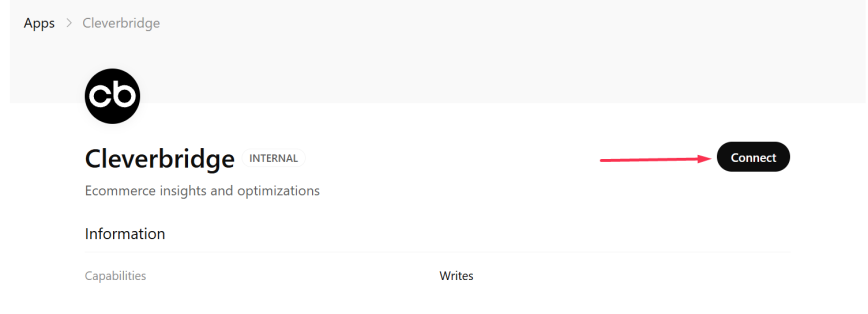
- Open Plugins. If your workspace shows Apps instead, open Apps. Then select Cleverbridge.
- Select Connect.
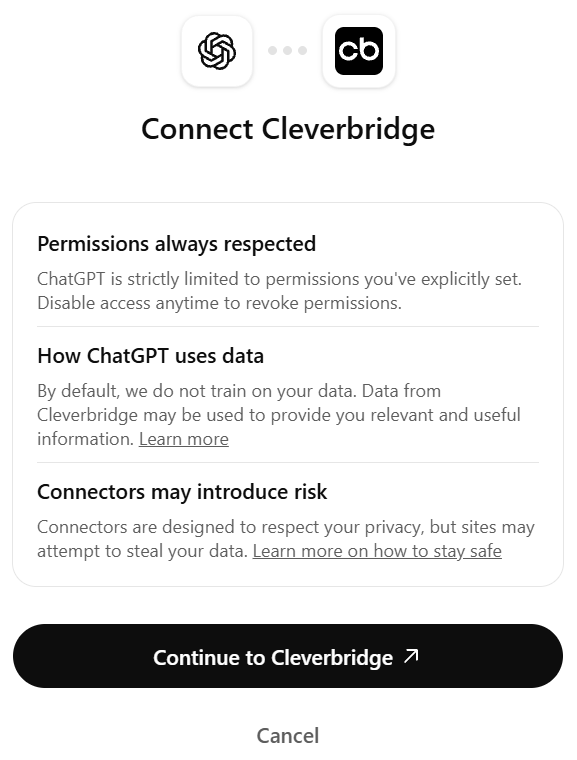
- Continue to Cleverbridge to complete authorization: Sign in with your Cleverbridge credentials if prompted and approve access. Then return to ChatGPT and start a new chat with Cleverbridge enabled.
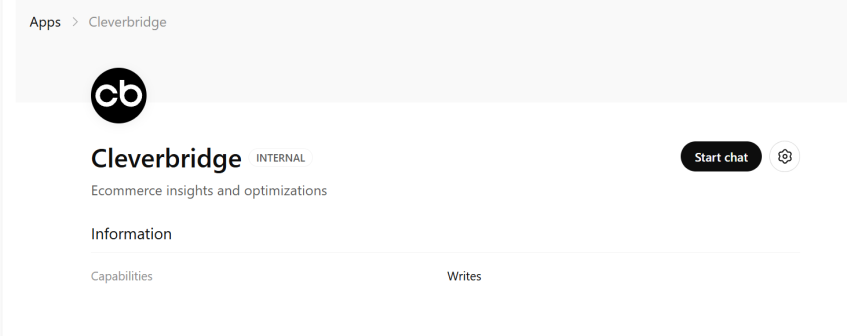
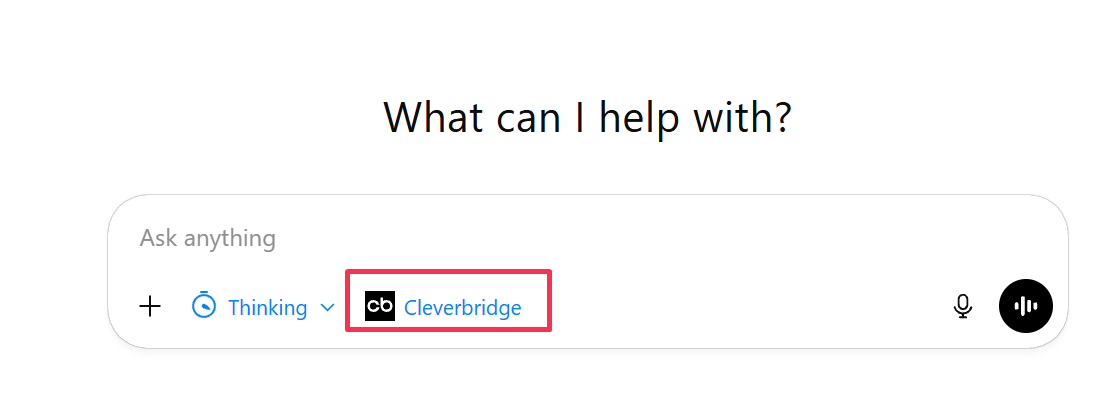
- Confirm that Cleverbridge appears in the message composer, and then ask your first analytics question.
For current instructions, see Plugins in ChatGPT.
In Claude, TTYD is available as a custom connector. An organization owner may need to add it before members can connect.
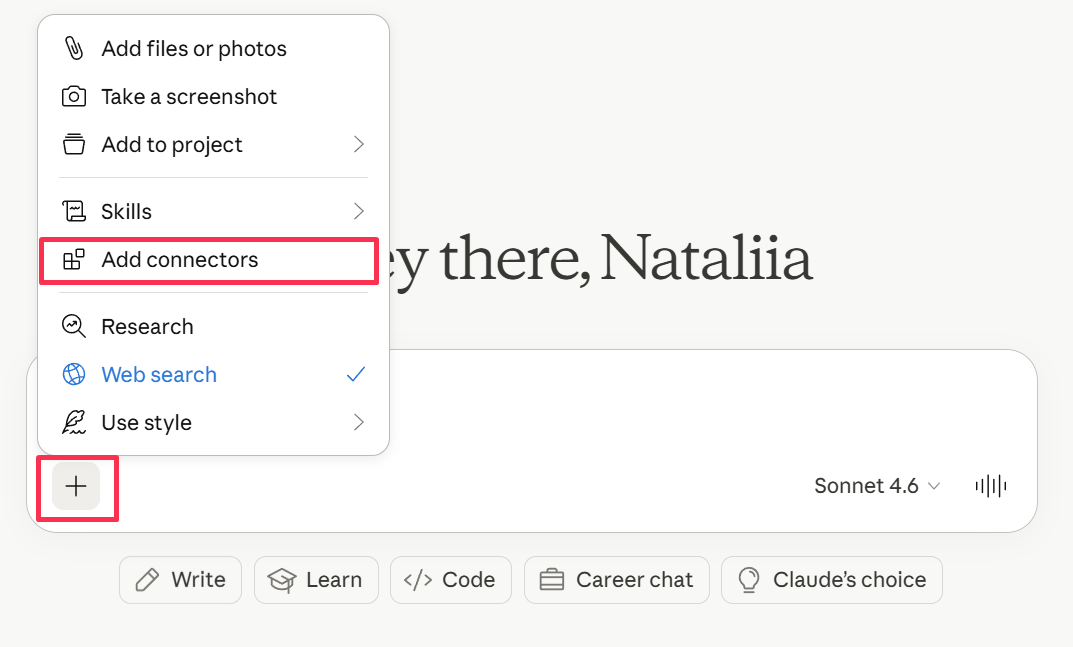
- Start a conversation, select +, and then select Add connectors.
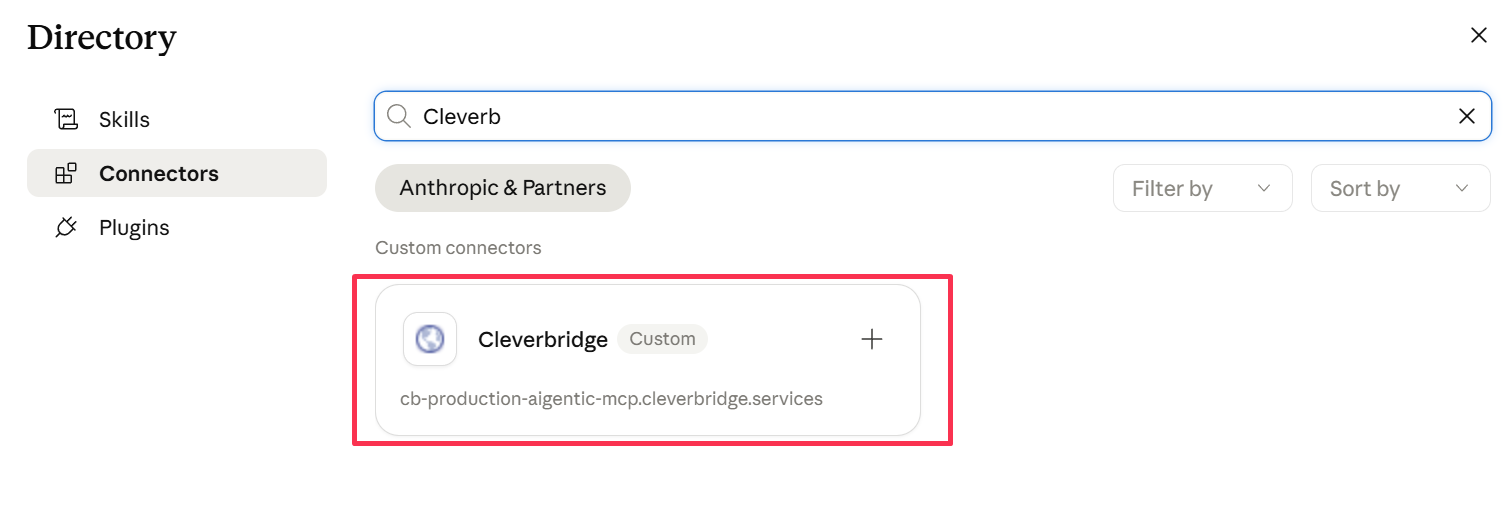
- Search for Cleverbridge, and then select it.
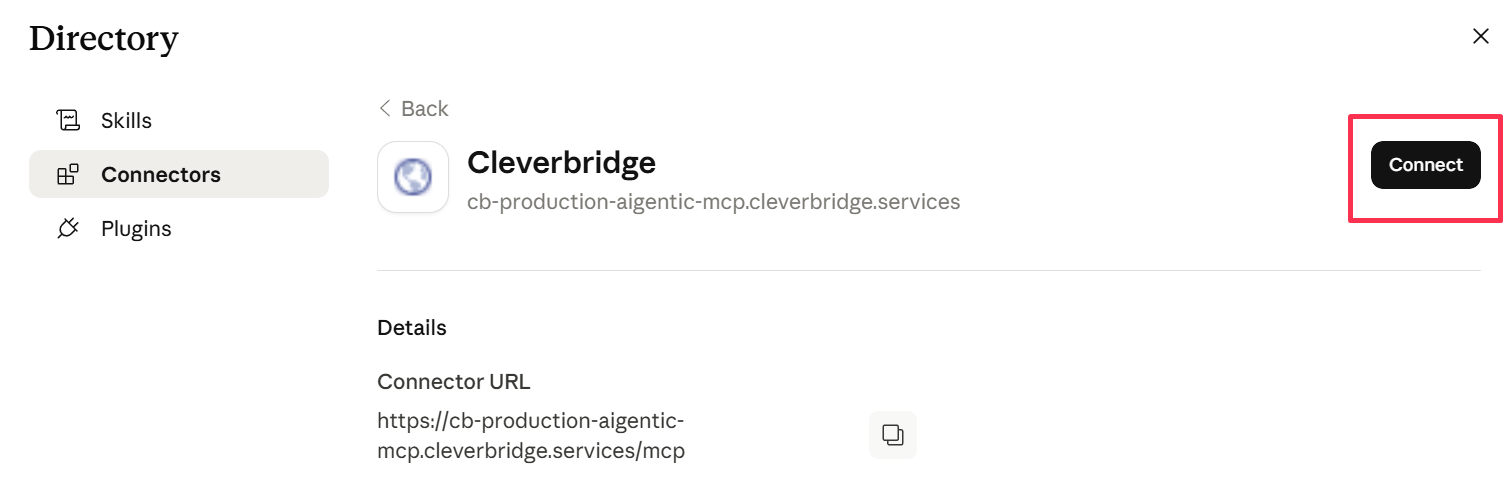
- Review the connector URL, and then select Connect.
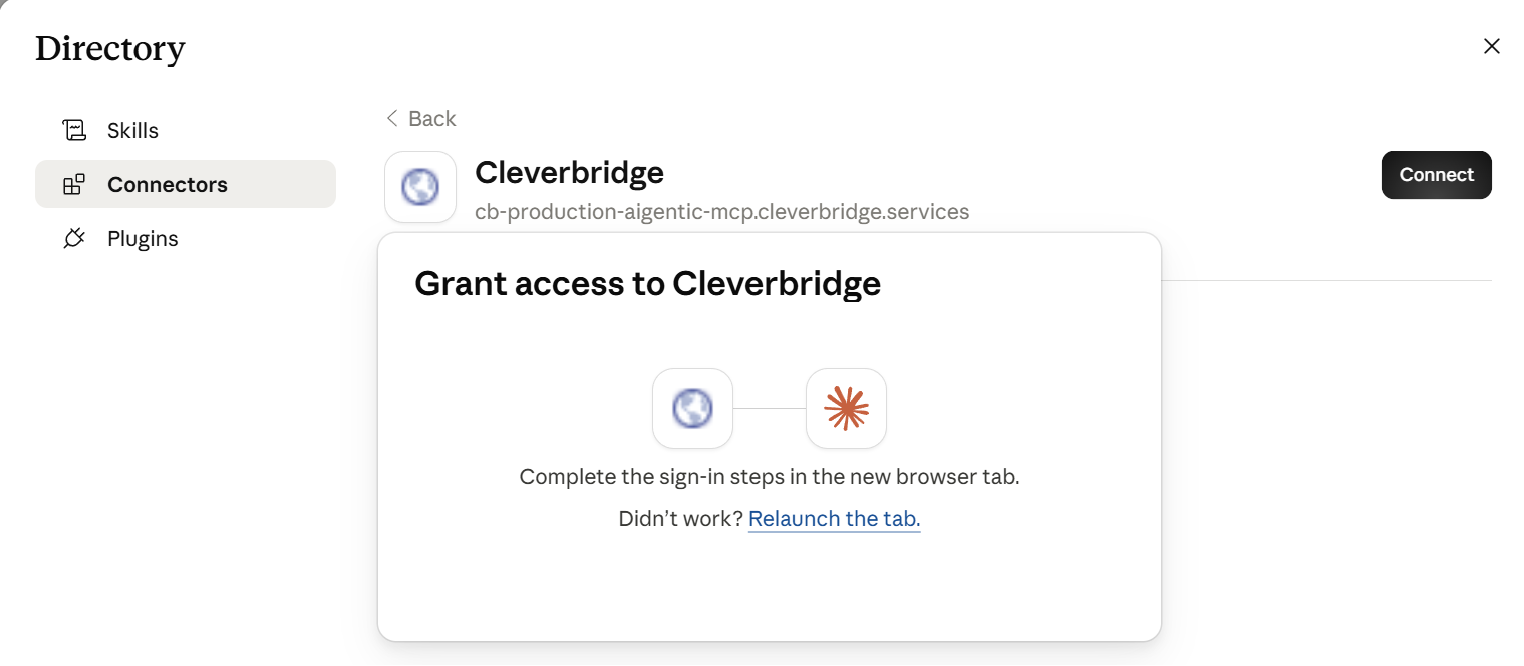
- Complete the sign-in and authorization steps in the browser tab that opens.
- Return to Claude and confirm that the connector is enabled before asking your first analytics question.
For current plan-specific instructions, see Get started with custom connectors using remote MCP.
Connect another MCP-compatible assistant
If your AI assistant or agent platform supports compatible remote MCP servers and OAuth authentication, you may be able to connect it to TTYD using the following server URL:
https://cb-production-aigentic-mcp.cleverbridge.services/mcp
Add the server as a custom remote MCP connection, complete the Cleverbridge authorization flow, and enable it in a conversation.
The exact configuration and available functionality depend on the selected platform. Refer to the platform’s documentation for instructions on adding a remote MCP server. Cleverbridge does not currently provide platform-specific troubleshooting for platforms other than ChatGPT and Claude.
If something does not work as expected, see Troubleshooting and FAQ.
Use TTYD
Start with a small request that you can verify against a familiar SCM result.
Prompt
Show Net Revenue by month for client [client ID] for the last six completed
months. Return a table and a brief summary. State the reporting period,
currency, filters, and metric definition you used.
Check that the response identifies the intended client and reporting period. Compare a familiar value with the corresponding result in SCM before continuing with broader analysis.
For reusable prompt patterns and additional analysis scenarios, see TTYD prompt examples.
Validate your results
TTYD retrieves the data; the AI assistant performs the analysis and presentation. Responses can vary between models and between repeated requests.
To make a result easier to review:
- Ask the assistant to state the metric, reporting period, currency, dimensions, and filters it used.
- Confirm that the metric and dimension combination is supported.
- Compare a familiar value with the corresponding result in SCM.
- Ask the assistant to separate observations from possible explanations.
- Validate business-critical calculations before using them in a decision.
For financial reconciliation, use official clearing reports rather than TTYD or SCM performance analytics. Reporting-period timing, currency conversion, transaction status, and other factors can produce legitimate differences. See Performance data vs. clearing reports.
If something does not work as expected, see Troubleshooting and FAQ.