Subscription statuses and update options
Overview
Every subscription in Cleverbridge has a status that reflects its current state in the customer lifecycle—such as active, pending cancellation, or expired. These statuses determine what actions are available, both to you as the merchant and to your customers, and they influence how the subscription appears in the Subscription Management Portal and in backend tools.
You can view a subscription's status and manage related updates directly in the Subscription Management Portal. The same information is also available in the Subscription section of the Customer Profile in SCM. For more details, see Customer Profile.
Statuses
We need to distinguish between subscription statuses and subscription item statuses. So, a subscription can contain more than one item/product if both items have an identical interval length. For example, if the customer purchases two of your subscription products in the same cart and both those products have an identical interval length, this is considered and billed as one subscription. This means the customer won't be billed under two separate invoices. There is one subscription ID for all items, but all items can have different item statuses.
Subscription statuses
The following subscription statuses are available:
| Status | Description |
|---|---|
| Active | The customer will be billed automatically on the next renewal date. The customer has paid for the current billing interval and is entitled to receive service from you until the next renewal date. How the subscription is renewed depends on the customer payment profile (manual renewal with offline payment options or automatic renewal with online payment options). |
| Deactivated | The subscription will not be renewed automatically on the renewal date. There are different scenarios how this status can be assigned to a subscription. For instance, the subscription will not be renewed if a customer decides to stop the auto-renewal or if customer service receives a complaint and consequently stops further renewals by a chargeback or a full refund request. You will receive the following notifications for the Deactivated subscription status:
|
| Finished | The subscription product was set up and the checkbox End subscription after this many billing events was selected. All required rebilling events are complete for a subscription. |
| Grace | In case a customer doesn't immediately pay, the subscription is in a grace period. The customer may still be able to use the product. When the customer pays, the billing date moves forward. If the customer doesn't pay after a period of time, the subscription goes into hold. |
| Handled by Client | The client controls the entire subscription process. Cleverbridge does not handle anything for the client. |
| Hold | A scheduled payment was missed. Cleverbridge didn't receive payment for a subscription. Example A renewal date for the subscription has come, and the customer has withdrawn their approval for the subscription renewal payment or their payment is not successful. In this case:
The |
| New | Initial status before the first payment. |
Subscription item statuses
The following subscription item statuses are available:
Subscription statuses and subscription item status combinations
This table explains the meaning of different combinations of the two statuses.
Subscription intervals vs subscription item intervals
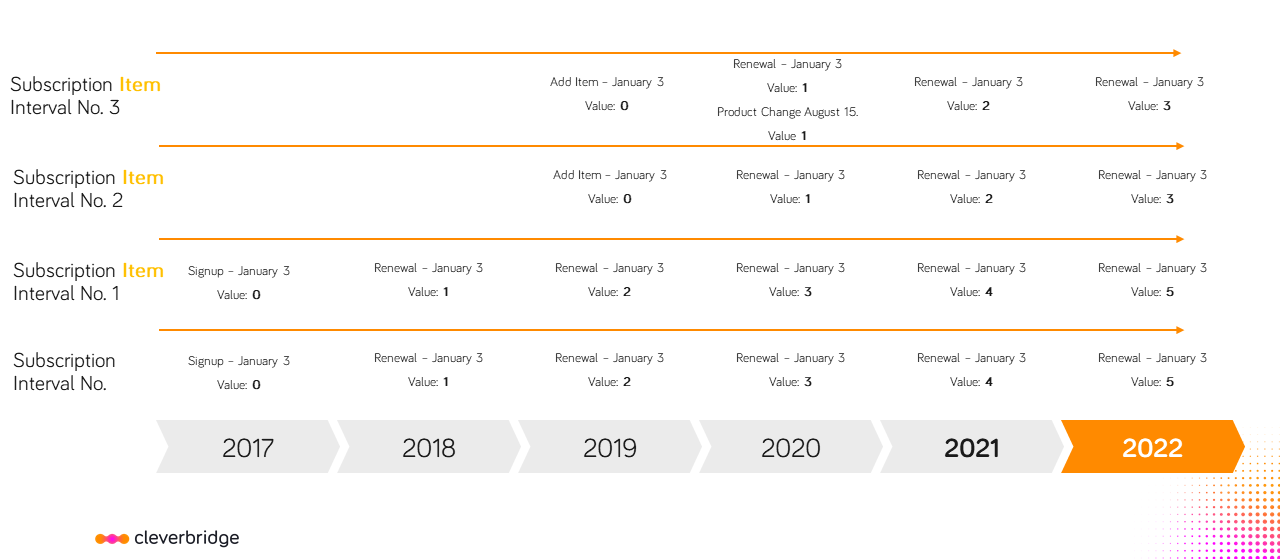
The platform tracks both the subscription lifecycle and the lifecycle of each item within the subscription. Select a tab to understand how each interval number is counted.
- Subscription interval
- Subscription item interval
Subscription interval number
Every newly created subscription gets an interval number assigned to it. The initial subscription purchase, or sign-up, is equivalent to interval 0. With every subsequent renewal of the subscription, the subscription interval number is incremented by 1. Interval 1 is equivalent to the first subscription renewal, interval 2 to the second subscription renewal, and so on.
Every subscription can contain x subscription items, which all renew on the same date.
If a customer has more than one ongoing subscription, each subscription is set to renew on its own individual date, depending on the initial date of the subscription purchase and the subscription length: Subscription 1 renews on January 3; subscription 2 renews on July 19, etc. The renewal of multiple items within each individual subscription, however, is set to renew on the same date.
Subscription item interval number
Every newly created subscription item gets an interval number assigned to it. The initial subscription item purchase is equivalent to interval 0. With every subsequent renewal of the subscription item, the subscription item interval number is incremented by 1. Interval 1 is equivalent to the first subscription item renewal, interval 2 to the second subscription item renewal, and so on.
All subscription items in one subscription (Subscription 1) have the same renewal date: January 3.
At the bottom you can see the running Subscription Interval Number. In the rows above, you can see the respective running Item Interval Numbers
Update Options for subscriptions
There following actions can be performed to a Subscription:
Reporting scenarios
Select the scenario that matches the subscription structure to understand how subscription and item intervals appear in reporting.
- Single-item subscription
- Multi-item subscription
Subscriptions with one single subscription item
Provided the subscription item remains the same and has not been replaced by another subscription item throughout the duration of the subscription, reporting on subscription interval number and subscription item interval number will come back with identical results.
Subscriptions with multiple subscription items
When reporting on the subscription level, any addition of items is counted as a single renewal.
When reporting on subscription item level, additional item(s) are counted as purchase (item interval 0) and existing items are counted as renewals. This leads to more events being reported: for example, 1 renewal + 1 purchase in a 2-item subscription.
- In XML, Subscription Interval Number and Subscription Item Interval Number are called SubscriptionIntervalNo and IntervalNo, respectively.
- In JSON, Subscription Interval Number and Subscription Item Interval Number are called subscriptionIntervalNumber and intervalNumber, respectively.