
Manage tax exemption documents

The Tax Exemptions dashboard in SCM provides an overview of tax-exempt purchases. Use it to search for, review, add, and update tax exemption documents.
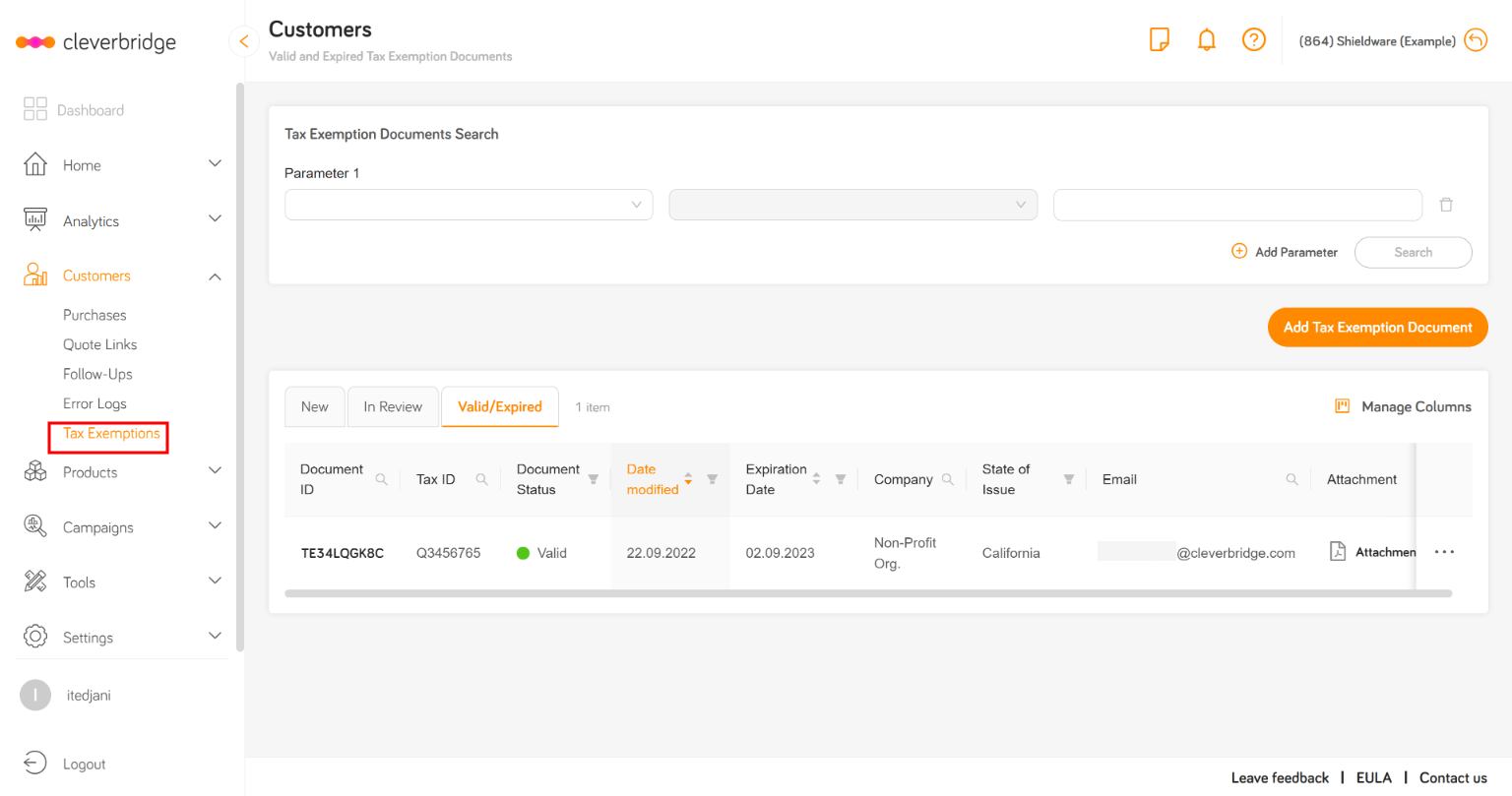
SCM Tax Exemptions dashboard

Search for a tax exemption document

Under Parameter 1, select a search parameter to narrow the results and locate the required tax exemption document.


SCM tax exemption document search

SCM tax exemption search results

The Document Status field indicates whether the document has been validated. Possible values are New, In Review, Valid, and Expired.

Add a tax exemption document

To add a tax exemption document:

  1. On the purchase overview page, select Add Tax Exemption Document. The Add Tax Exemption Document window opens.
note

The Add Tax Exemption Document button is available only in the Tax Exemptions section.

  1. Enter the document information.

General

FieldDescription
Reason for ExemptionReason for the tax exemption.
Tax ID TypeType of ID used for the tax exemption.
Tax IDUnique tax ID that identifies the company.
Date Certificate IssuedDate when the exemption certificate was issued.
State of IssueFederal state where the tax exemption document was issued.
Expiration DateDate when the company's exemption expires.
AttachmentSelect this field to upload or view the tax exemption document.
note

Use the ... menu to validate a document or mark it as invalid.
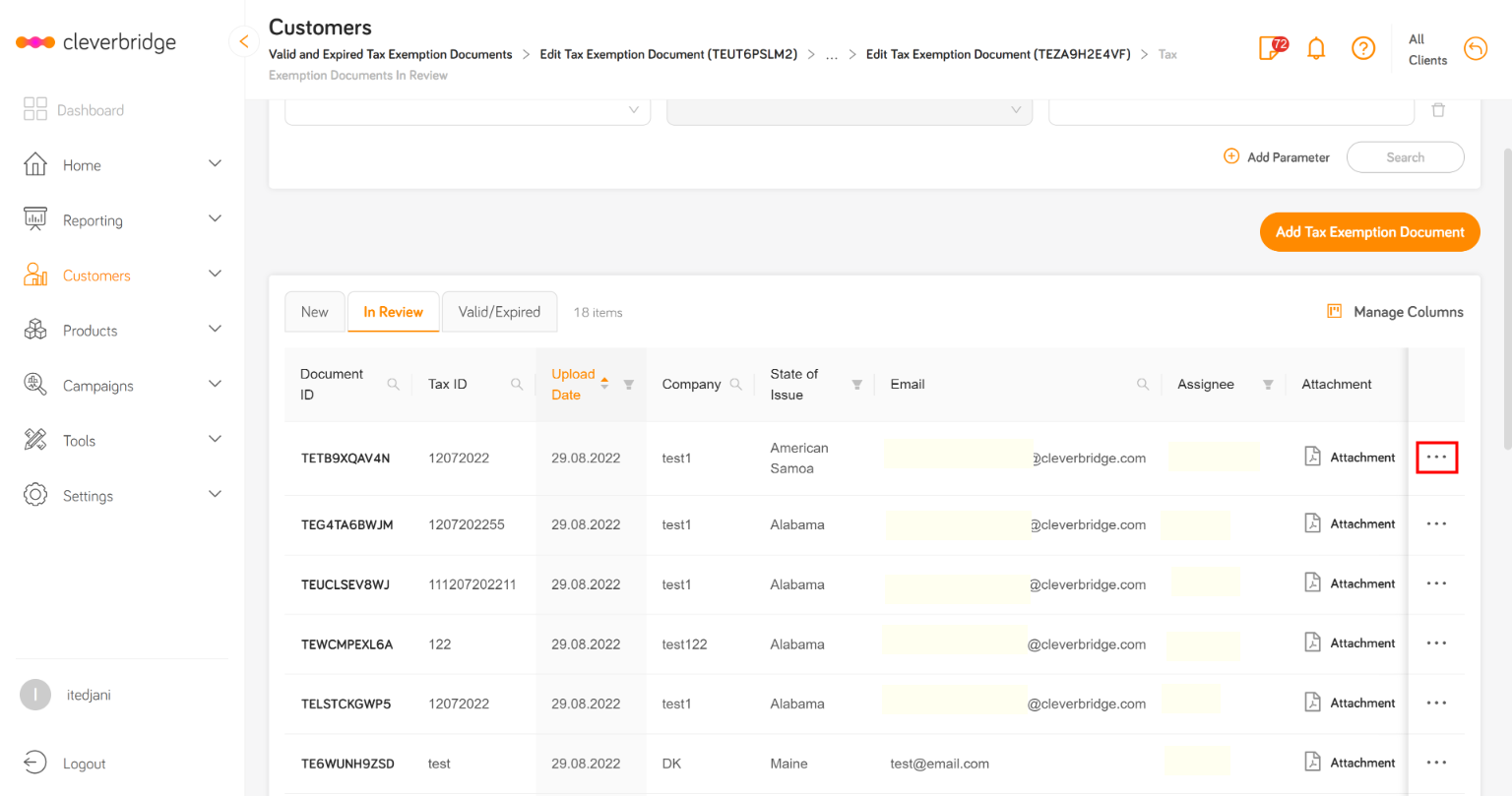
Tax exemption validation options

Expired documents appear in the Valid/Expired section of the tax exemption documents table.
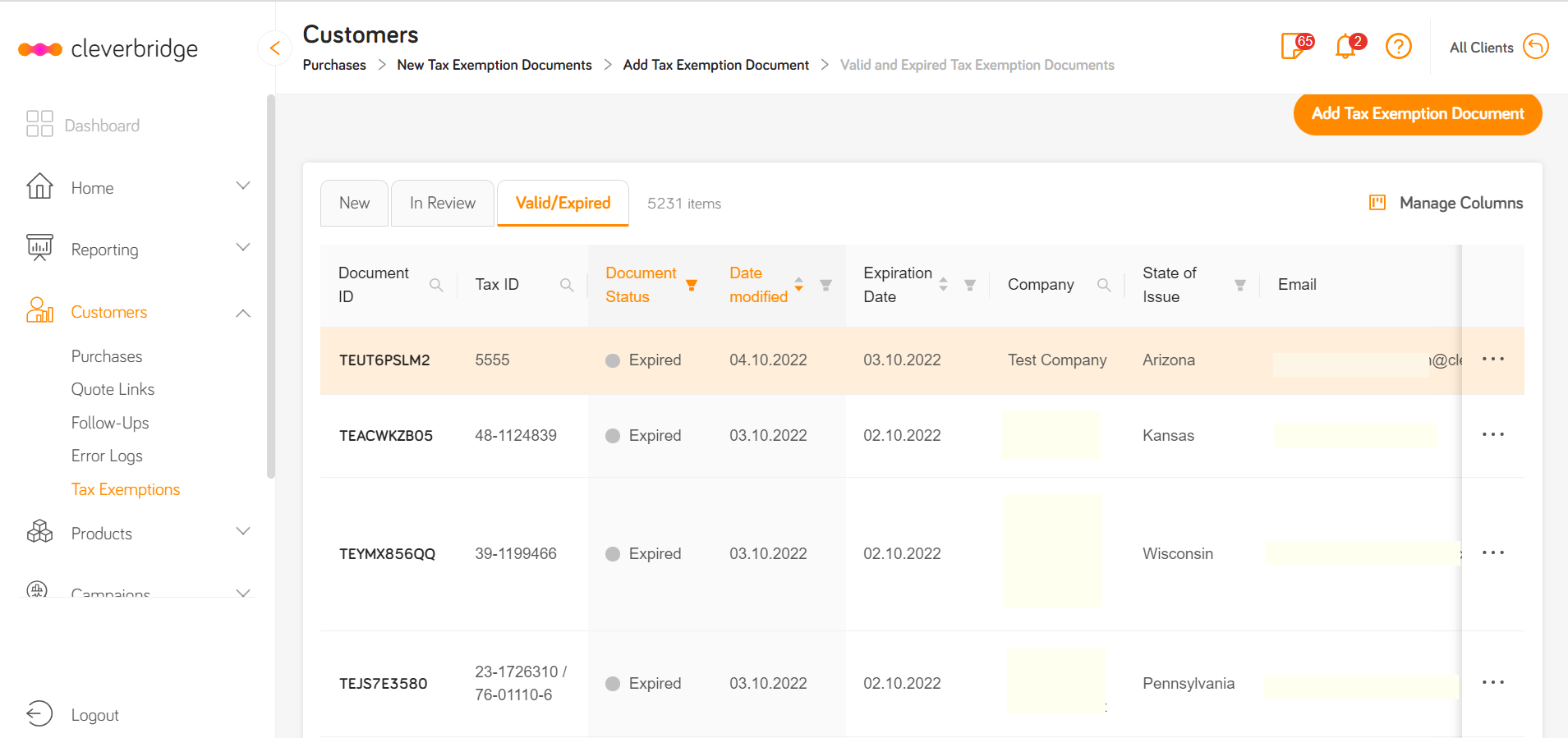
Expired tax exemption documents

Contact

FieldDescription
CompanyName of the company to which the tax exemption document is assigned.
Type of BusinessType of business entity to which the exemption was issued.
First NameFirst name of the company's contact person.
Last NameLast name of the company's contact person.
EmailEmail address of the tax-exempt company.
PhonePhone number of the company.
AddressAddress of the company.
StateState where the company is located.
Zip/Postal CodeZIP or postal code of the company.
CityCity where the company is located.
  1. Enter additional information in the optional Notes field.
  2. Select Save & Close.

Did you find this doc useful?