Handle refunds
Overview
Refunds are a critical aspect of maintaining customer satisfaction and trust—especially in B2B transactions. To support this, Cleverbridge provides a set of flexible tools that allow eligible clients to manage supported refunds directly in Subscription Commerce Manager (SCM). Whether you're issuing a full refund, returning part of a multi-item order, or applying a post-purchase coupon, SCM provides detailed options for handling eligible purchases.
The client-initiated refund options described in this article are available in Subscription Commerce Manager (SCM) only and are not available in Commerce Assistant (CA). If you use CA, see Purchases for information about viewing and working with purchase records. Contact our Client Experience team if you need to arrange access to SCM refund functionality.
The customer-facing refund self-service flow is separate. For information about customer refund requests and automatic refund eligibility, refer you customers to the Request refunds article in our Customer Help Center.
Supported payment methods for client-initiated refunds
If you're eligible to manage your own customer support, you can independently process refunds for purchases made using the payment methods listed below:
- Credit and debit cards
- American Express
- Visa/Mastercard
- Discover
- JCB
- PayPal
- Alipay
- UPI
- Direct debit (Germany)
- Klarna
Refunds for offline payment methods generally require assistance from Cleverbridge because the required bank details may not be available to clients and currency conversion can introduce additional risk. For offline payment methods and any payment method not listed above, contact Customer Support for assistance.
Issue a refund
Once you've confirmed eligibility and identified the applicable payment method, you can initiate the refund process directly from SCM. This section walks you through the process of locating the purchase, selecting the appropriate refund type, entering the required information, and completing the refund.
Watch a training video to see the refund process in action and gain additional tips for handling different refund scenarios.
1. Access refund options
to access possible refund options:
- In SCM, open the main menu and navigate to Customer Management > Search.
- Make sure the Purchases tab is selected.
- Find the purchase for which you want to issue a refund.
2. Choose the refund option and define the General settings
- In the menu bar below the Purchase Details, open the Refund Options drop-down.
- Choose a refund option. The available options depend on the specific purchase.
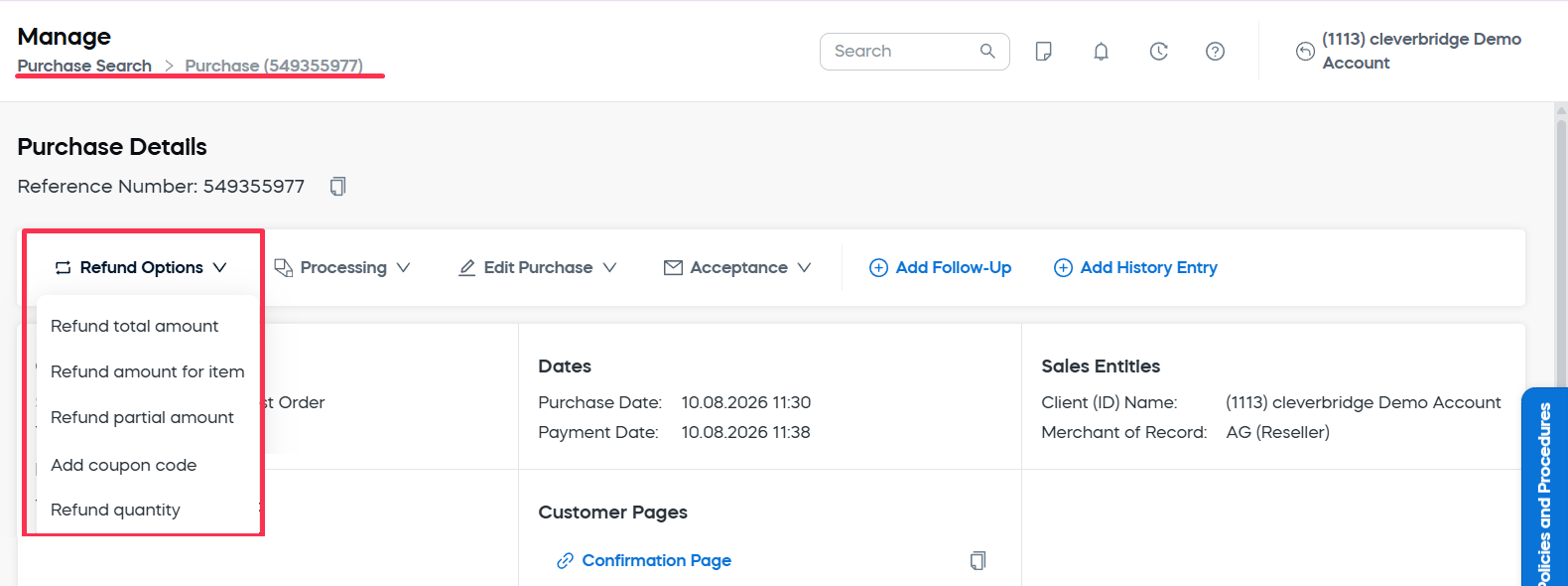
- When the refund option is chosen, you need to define the General refund details that depend on the refund type and are described below.
The following refund options are available:
- Full purchase
- Specific item
- Partial amount
- Coupon code
- Quantity
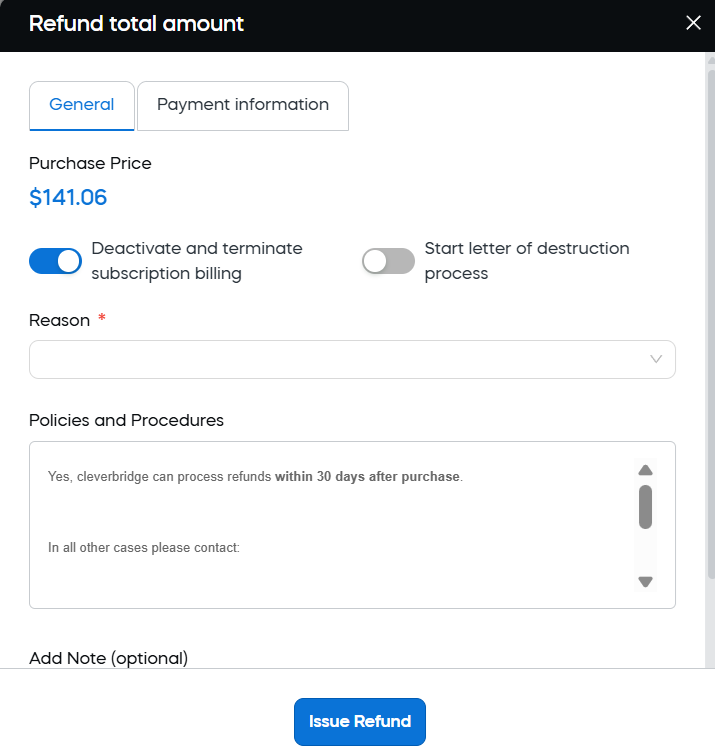
Refund total amount
The Refund total amount option issues a full refund for an entire purchase. This is typically used when a customer no longer wants the product or service, the order was placed in error, or there's a need to cancel the transaction entirely.
General settings to refund the total amount
- Purchase Price: Informational field that displays the total amount paid for the order.
- Deactivate and terminate subscription billing toggle: If enabled, automatically stops any ongoing subscription billing related to this order. The toggle is ignored for one-time orders.
- Start letter of destruction process: Enable this, if you need to initiate a process requiring the customer to formally agree to cease use and/or destroy licensed content or materials.
- Reason: The only mandatory field for total amount refund. Select a reason for the refund from the drop-down list. The reasons include customer error, duplicate order, cancellation of an unpaid PO, delayed shipping, etc.
- Policies and Procedures: Informational field outlining the applicable refund policy, including time limits, processing guidelines, and any special instructions.
- Add Note field: Use this field to include internal notes or context for the refund, if needed.
Refund amount for item
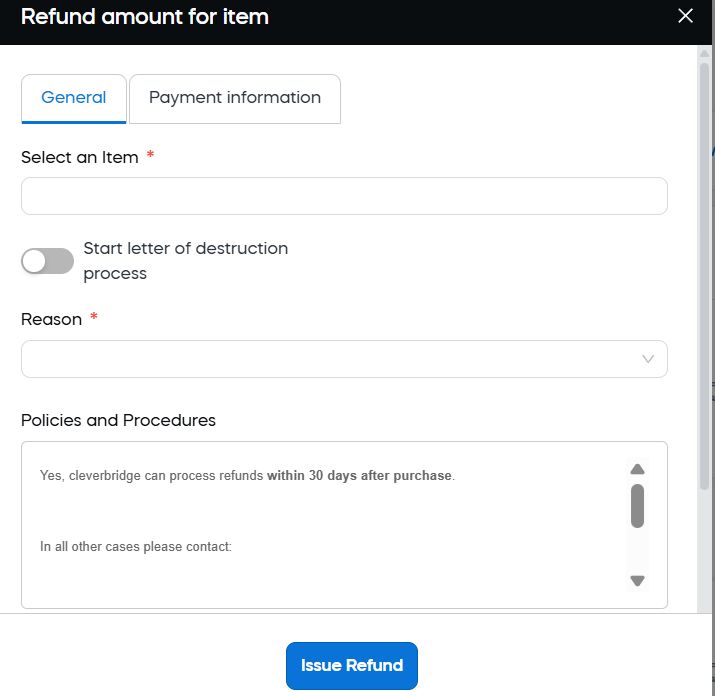
The Refund amount for item option refunds one or more specific items from a multi-item subscription. This is especially useful in cases where a single item in the order is defective, delayed, or not accepted by the customer, and a full refund of the entire purchase is not required. This option allows for precise refunding of only the affected product(s), helping preserve the rest of the transaction while still resolving customer concerns.
General settings to refund the amount for an item
- Select an Item: Mandatory field. Choose the item from the purchase for which you wish to issue a refund.
- Item Price: Displays the total price of the selected item.
- Start letter of destruction process: Enable this, if you need to initiate a process requiring the customer to formally agree to cease use and/or destroy licensed content or materials.
- Reason: Mandatory field. Select the appropriate reason for the refund from the drop-down list. Common options include such cases as damaged products, delivery delays, customer error, etc.
- Policies and Procedures: Informational field outlining the applicable refund policy, including time limits, processing guidelines, and any special instructions.
- Add Note field: Use this field to include internal notes or context for the refund, if needed.
Refund partial amount
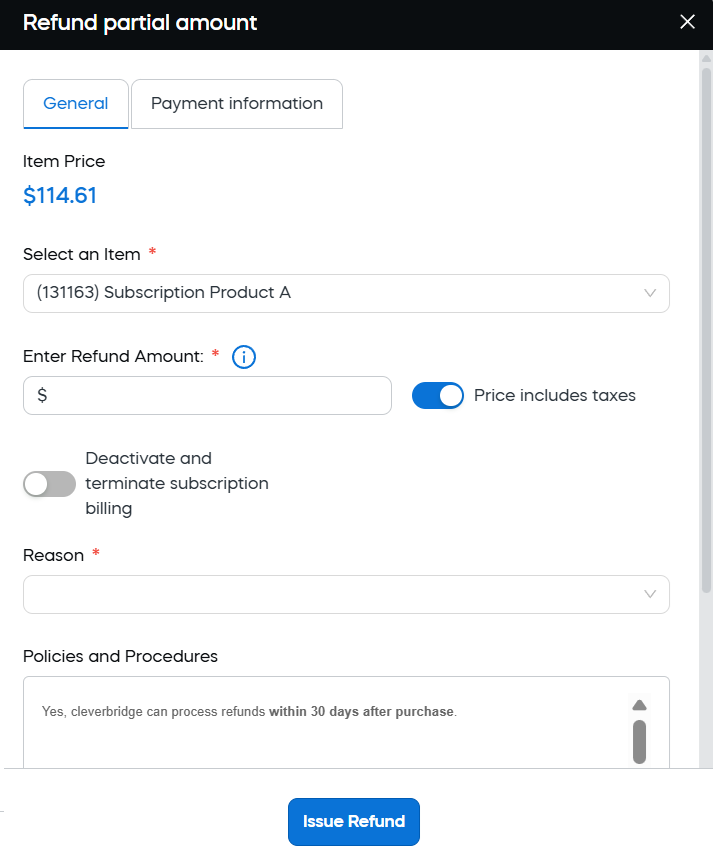
The Refund partial amount option issues a partial refund of a custom amount (by default, the amount includes taxes). This option allows you to return a specific monetary amount to the customer, rather than refunding an entire item or order. This option is useful in a variety of scenarios—for example, when issuing a goodwill refund, adjusting for overcharges, or covering a partial service failure. It offers flexibility to handle complex refund cases where fixed item-based options aren't suitable.
The refund value cannot exceed the price of a specific selected item. If a larger refund is necessary, you can repeat the process to refund additional amounts against other items in the purchase.
General settings to refund a partial amount
- Select an Item: Mandatory field. Choose the item from the purchase that you wish to refund.
- Item Price: Informational field that displays the total price of the selected item.
- Enter Refund Amount: Mandatory field. Enter the exact amount to be refunded. Please keep in mind that the amount cannot exceed the price of the selected item.
- Price includes taxes toggle: if enabled, the refund amount should reflect the tax-inclusive value.
- Deactivate and terminate subscription billing toggle: If enabled, automatically stops any ongoing subscription billing related to this item. The toggle is ignored for one-time orders.
- Reason: Mandatory field. Select the appropriate reason for the refund from the drop-down list. Common options include such cases as damaged products, delivery delays, customer error, etc.
- Policies and Procedures: Informational field outlining the applicable refund policy, including time limits, processing guidelines, and any special instructions.
- Add Note field: Use this field to include internal notes or context for the refund, if needed.
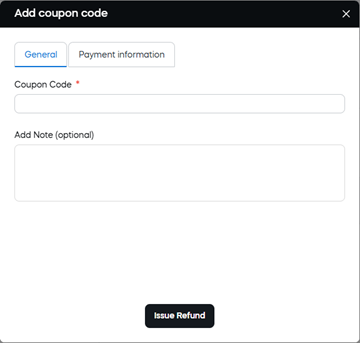
Add coupon code
The Add coupon code option applies a post-purchase coupon code and refunds the corresponding discount amount to the customer. This feature allows you to apply the coupon retroactively and refund the customer the amount that would have been discounted had the coupon been used at checkout. This is particularly helpful in customer service scenarios where the customer forgot to apply a promo code or experienced technical issues during the purchase process.
General settings to add coupon code retrospectively
- Coupon Code: Mandatory field. Enter the valid coupon code to be applied. The system will calculate and refund the discount value associated with this code.
- Add Note field: Use this field to include internal notes or context for the refund, if needed.
Refund Quantity
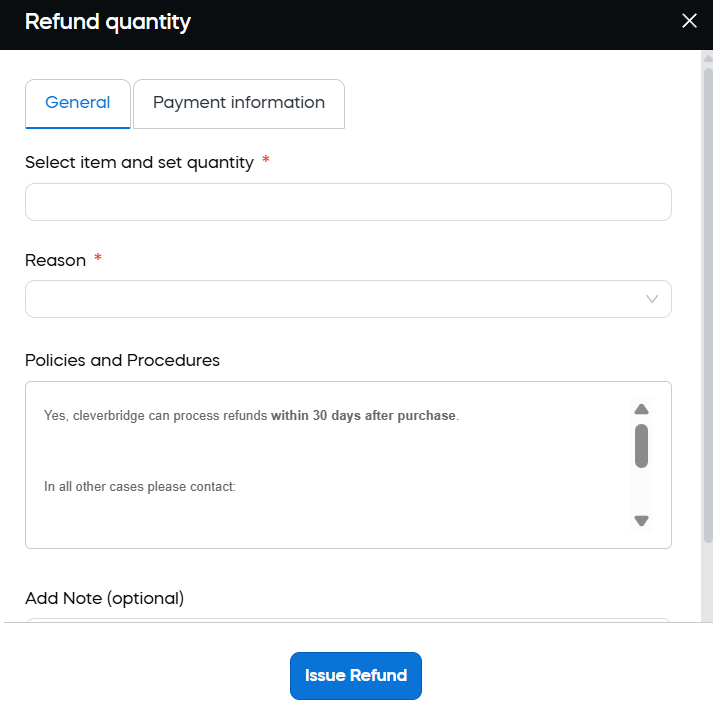
The Refund Quantity option issues partial refunds for a specific number of items or licenses within a purchase—without needing to refund the full item or transaction amount. This feature shall be used if the customers have initially purchased multiple units (for example, licenses or seats) but later request to reduce that quantity during the same billing interval. It is especially useful in subscription-based models with volume-based licensing or where quantity upgrades and downgrades are common during a subscription lifecycle.
General settings to refund quantity
- Select item and set quantity. Mandatory fields. Choose the product and specify how many units should be refunded. The number of units cannot exceed the total amount purchased.
- Reason: Mandatory field. Select the appropriate reason for the refund from the drop-down list. Common options include such cases as delivery delays, customer error,invoice modification, etc.
- Add Note field: Use this field to include internal notes or context for the refund, if needed.
3. Finalize the refund
When all the details are provided, click the Issue Refund button to complete the refund process.
After the refund is processed, Cleverbridge sends the customer a refund confirmation email together with the corresponding refund document. This applies to all supported payment methods.