Pay with UPI
Overview
Unified Payments Interface (UPI) is India's real-time, bank-to-bank payment system. It lets you pay directly from a supported bank account through a bank-linked UPI app, without entering card or bank account details at checkout.
At Cleverbridge checkout, select UPI and scan the displayed QR code with your preferred UPI app. You then review and approve the payment in the app. For eligible subscriptions, UPI AutoPay also lets you authorize future renewal payments. Depending on the payment amount, a subscription payment is processed through UPI AutoPay or must be completed as a separate one-time UPI payment.
Screenshots are for illustration purposes only. Your checkout and UPI app may look different.
Before you start
Before you start the payment, make sure that you:
- Install a supported UPI app on the mobile device that you will use to scan the QR code. If you do not already have one, choose an app from the official NPCI list and install it from your device's app store.
- Link a UPI-enabled bank account to the app. If you are unsure whether your bank supports UPI, check the official NPCI list of UPI members and follow the account setup instructions in your app.
- Set up your UPI PIN or another authentication method required by the app. If setup is incomplete, follow the instructions in your UPI app or contact your bank.
- Have sufficient funds in the bank account that you plan to use.
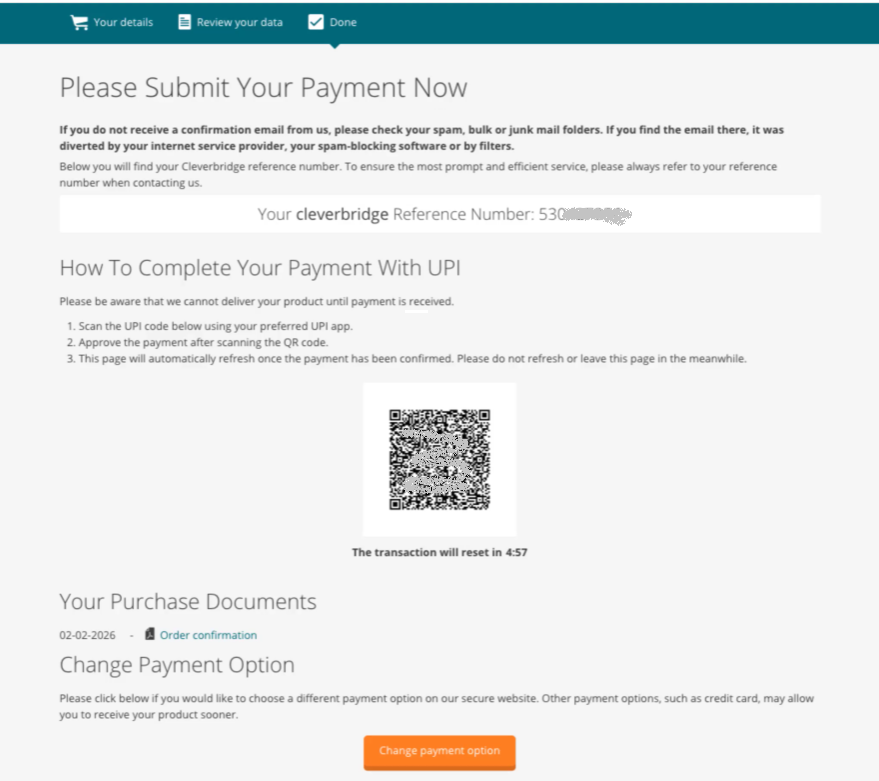
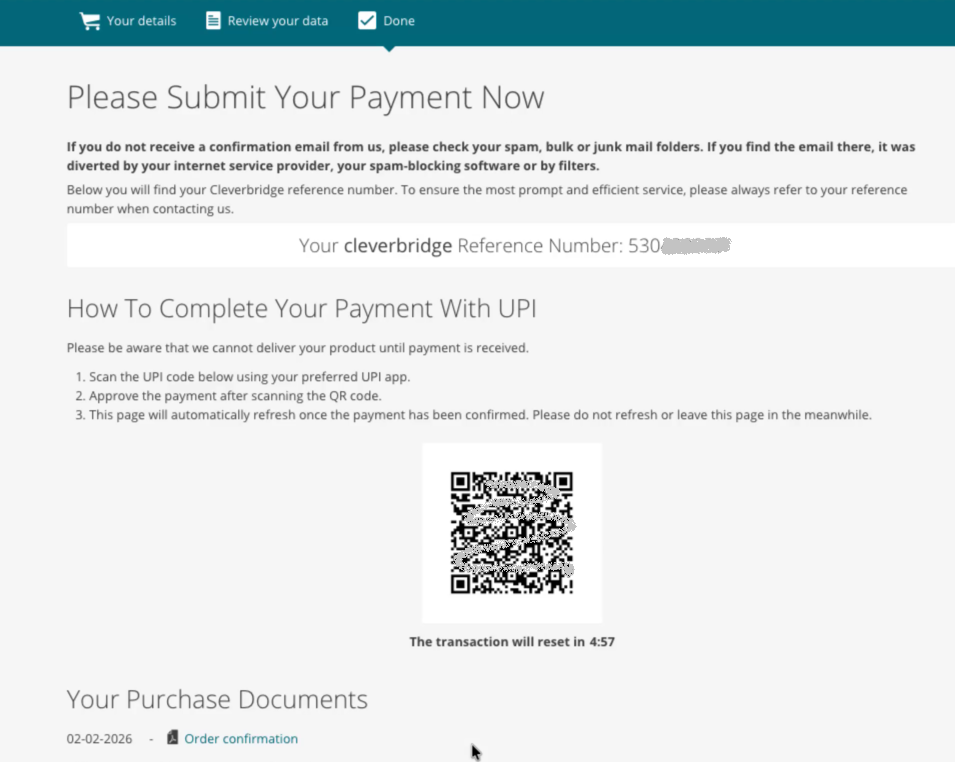
The QR code displayed by Cleverbridge is valid for five minutes. Complete the payment before it expires. If you do not complete the payment within that time:
- The QR code expires.
- The confirmation page refreshes automatically.
- Select Pay Now to generate a new QR code.
- Scan the new code and approve the payment in your UPI app.
- Subscription payment
- One-time payment
Pay for a subscription
The payment flow depends on the subscription amount:
- For amounts up to INR 25,000, the initial payment also creates a UPI AutoPay mandate for future renewals.
- For amounts above INR 25,000 and up to INR 100,000, no mandate is created. You complete both the initial payment and each renewal as separate one-time UPI payments.
- For amounts above INR 100,000, UPI is not available.
Complete the initial payment
-
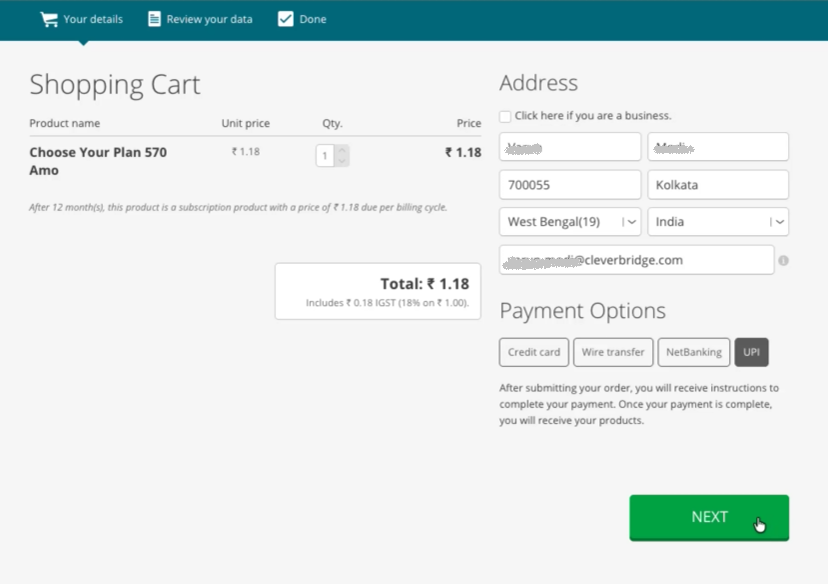
On the Cleverbridge checkout page, select UPI as the payment method.
-
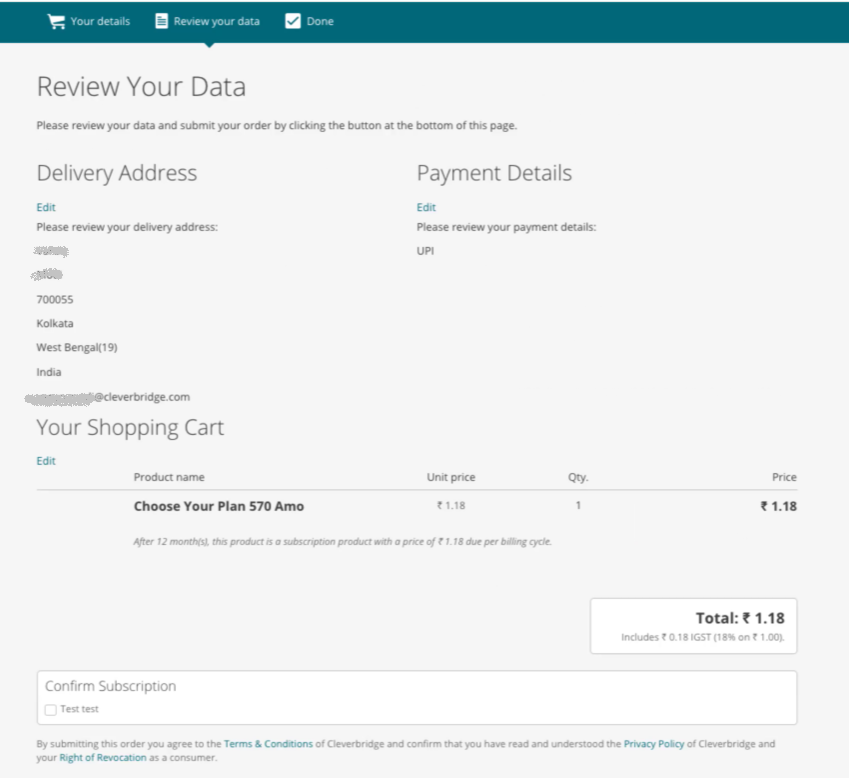
Review the subscription details and confirm the order.
-
Cleverbridge opens the confirmation page and displays a dynamic UPI QR code.
-
Open your preferred UPI app and scan the QR code.
-
Review and approve the initial payment. For subscription amounts up to INR 25,000, your app also asks you to approve a UPI AutoPay mandate for future renewals. For higher supported amounts, the initial payment is completed as a one-time UPI payment and no mandate is created.
-
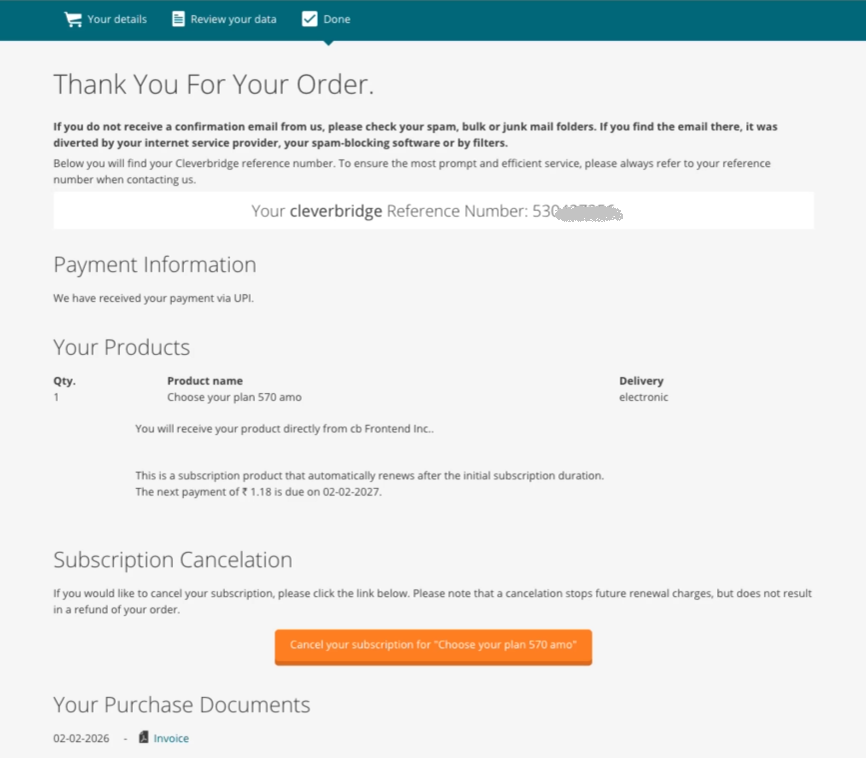
After the payment succeeds, the Cleverbridge confirmation page refreshes and your invoice becomes available. Cleverbridge also sends the invoice to you by email.
What happens at renewal
The action required at renewal depends on the payment amount:
If you revoke or cancel the UPI AutoPay mandate in your UPI app, future renewal payments fail. Canceling the mandate does not refund payments that have already been completed.
Pay for a one-time purchase
-
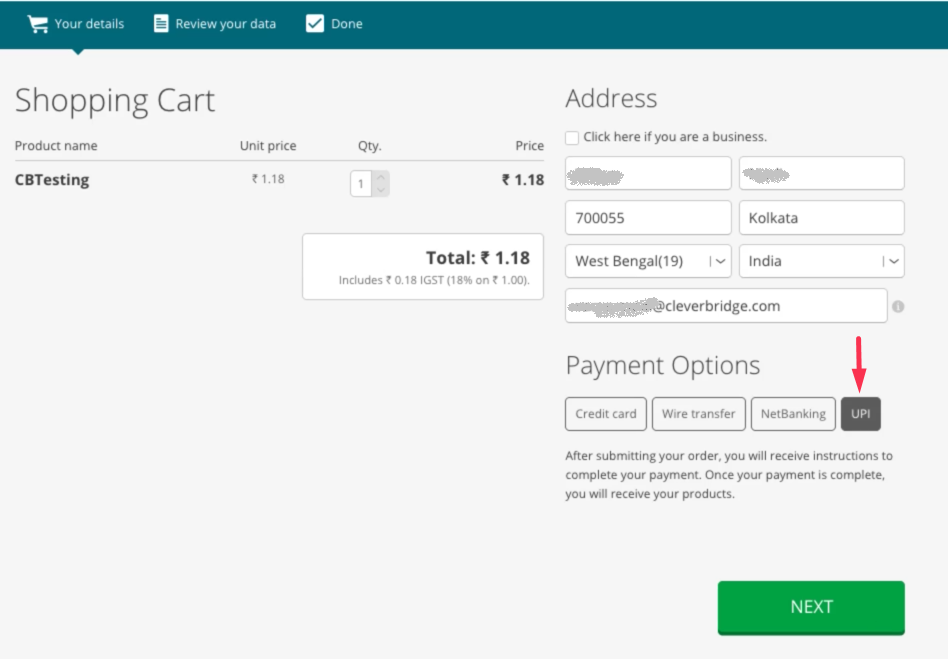
On the Cleverbridge checkout page, select UPI as the payment method.
-
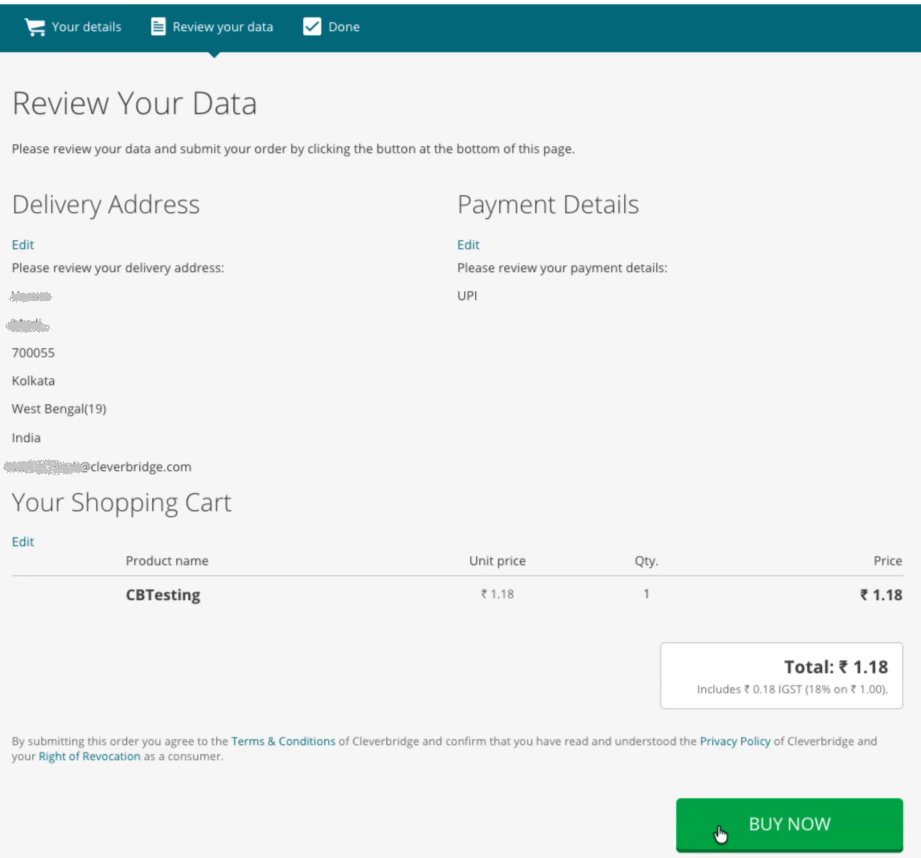
Review the order information and confirm the purchase.
-
Cleverbridge opens the confirmation page and displays a dynamic UPI QR code.
-
Open your preferred UPI app and scan the QR code.
-
Review the payment details, select a linked bank account, and approve the payment. Your app may ask you to enter your UPI PIN or use another authentication method.
-
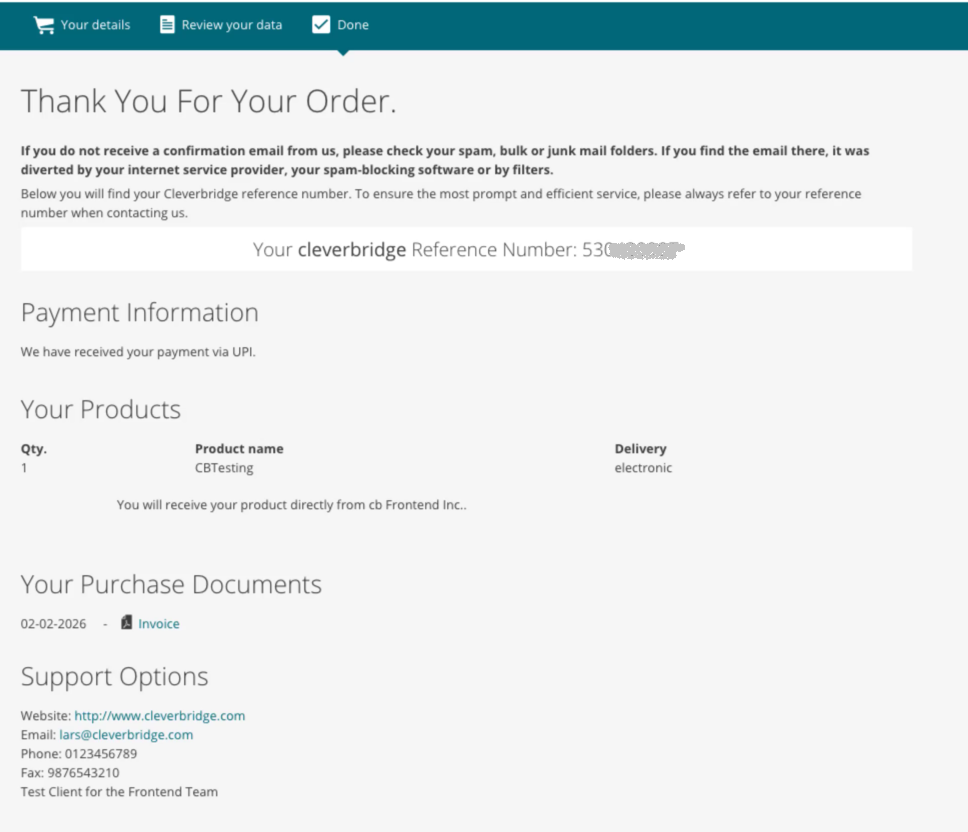
After the payment succeeds, the Cleverbridge confirmation page refreshes and your invoice becomes available. Cleverbridge also sends the invoice to you by email.
If the payment fails
If the payment is declined or cannot be completed, Cleverbridge sends you a payment declined email. Use the Change Payment Link in the email to choose another payment method or create a new UPI AutoPay mandate, and then complete the outstanding payment.
Depending on the renewal amount, a subscription renewal can also fail when:
- Your UPI AutoPay mandate has expired or been canceled.
- You do not complete the required approval in your UPI app for a renewal above INR 15,000 and up to INR 25,000.
- You do not complete the required one-time renewal payment for an amount above INR 25,000 and up to INR 100,000.
Refunds
After Cleverbridge processes a refund, the amount is returned to the UPI ID used for the original payment.
UPI refunds usually appear within one to two business days, but may take up to seven business days. Cleverbridge sends you a refund confirmation email and a refund document when the refund is issued.
If the refund does not appear after seven business days, contact Cleverbridge Customer Support and provide your Cleverbridge reference number.
Refunding a subscription payment does not revoke its UPI AutoPay mandate. The subscription status and the mandate are managed separately.