Offer Google Pay payments
Overview
Google Pay lets an eligible customer select a supported card saved to their Google Account without entering the card details directly in the Cleverbridge checkout. In the documented Cleverbridge flow, a Google Pay sheet opens from the express checkout area.
This page explains Google Pay from the client's perspective. You can share the Pay with Google Pay guide with customers who need help completing a payment.
Google Pay at a glance
Google Pay is available for online and in-app payments in multiple countries and regions, but support varies by country, device, and payment method. See Countries or regions where you can make payments with Google and the Google Pay API web overview.
Why offer Google Pay
Google Pay can help you reach customers who prefer to use a card already saved to their Google Account. According to the Google Pay API web overview, Google Pay provides access to hundreds of millions of cards saved to Google Accounts worldwide.
Offering Google Pay can help you:
- Provide a familiar payment option to customers who already use Google Pay.
- Let customers select an eligible saved card instead of entering its details directly in the Cleverbridge checkout.
- Keep wallet selection and authorization within an in-page payment sheet.
- Support additional cardholder authentication when it is required for the transaction.
Cleverbridge order flow
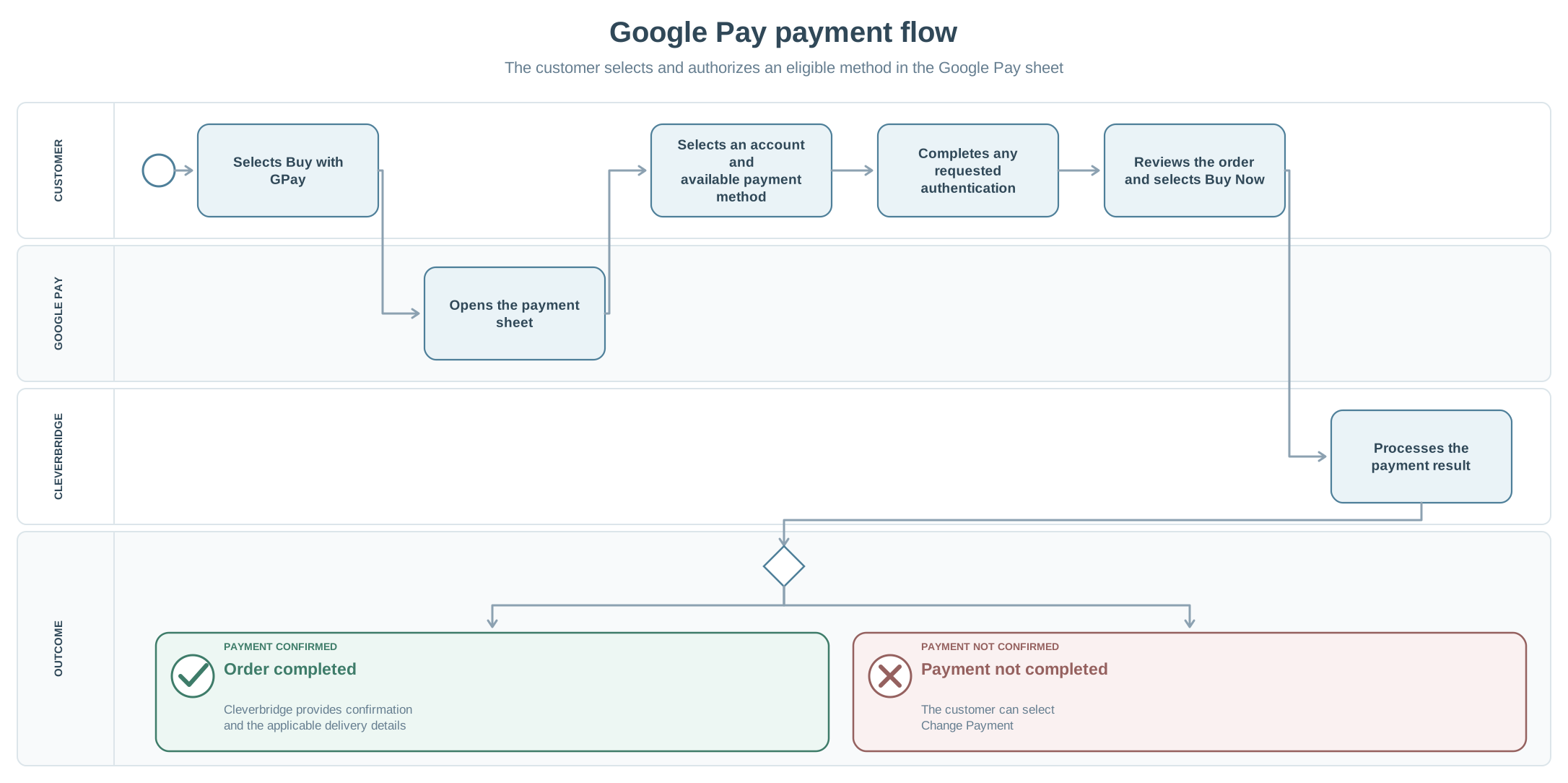
- The customer selects Buy with GPay in the express checkout area.
- In the Google Pay sheet, the customer selects their Google Account and an available payment method.
- The customer selects Pay and completes any authentication requested by Google Pay or the card issuer.
- The customer selects Next.
- The customer reviews the Cleverbridge order and selects Buy Now.
- If the payment succeeds, Cleverbridge confirms the order. If the payment fails because authentication was not completed, the customer can select Change Payment and choose another method.
Authentication and payment results
Google Pay or the card issuer can request additional authentication. For more information about cardholder verification, see Strong Customer Authentication (SCA).
If authentication is not completed and the payment fails, the documented checkout flow lets the customer select Change Payment and choose another available payment method.