Manage selection text
Overview
Use Selection Text to let customers choose between product variations in the cart, such as language versions, license periods, number of licenses, subscription billing intervals, or other product characteristics.
Selection Text is managed in SCM under Configure > Selection Text.
Use Selection Text when the variation should be shown as product-related text in the cart, for example below the product name or in a separate cart column.
For product version or billing-plan choices managed through Configure > Selection Menus, see Selection menus.
Shieldware, Inc. sells products in the European market, including Belgium, a country with three official languages:
- French
- Dutch
- German
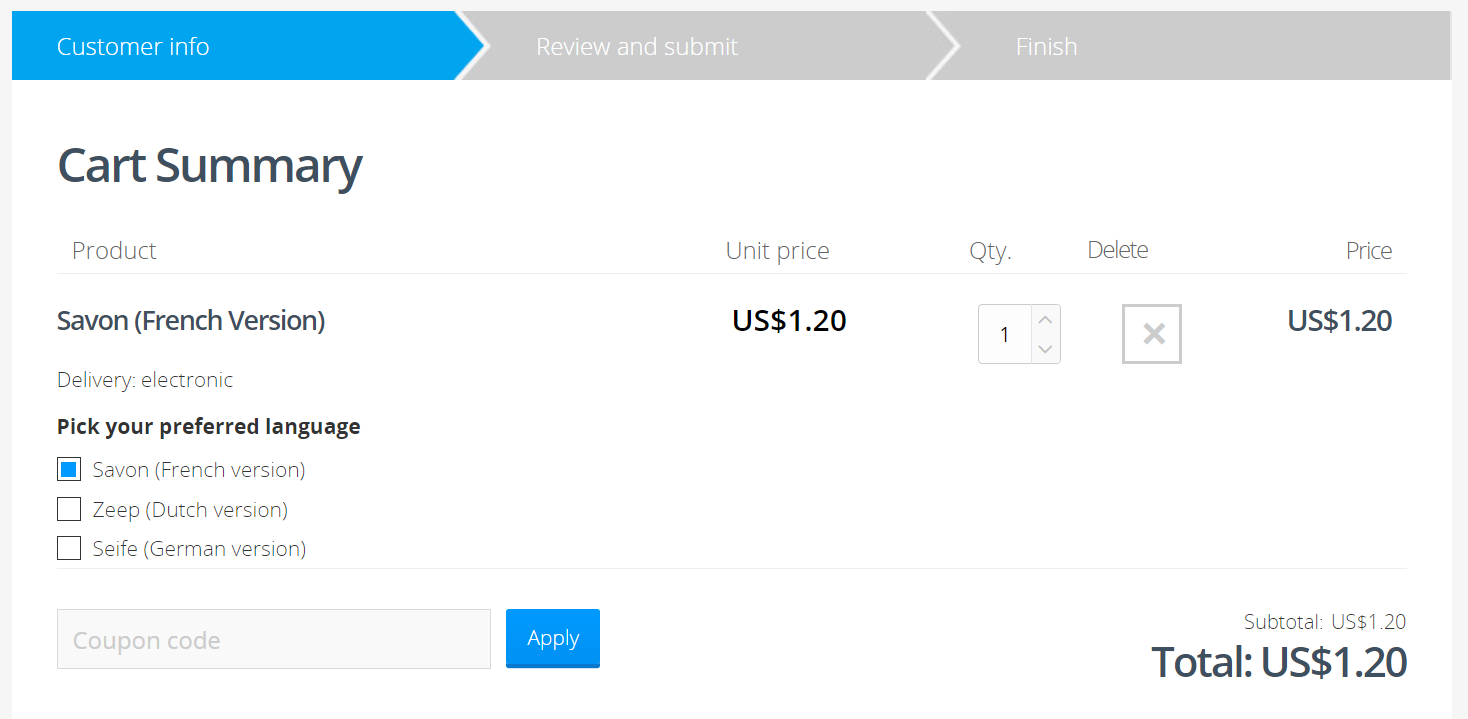
To support customers in this market, Shieldware offers its cleaner utility software, Soap, in multiple languages. Customers can choose the language version that suits them best.
In the following example, customers can select from different language versions of the product.
Create selection text
Setting up Selection Text involves three main steps:
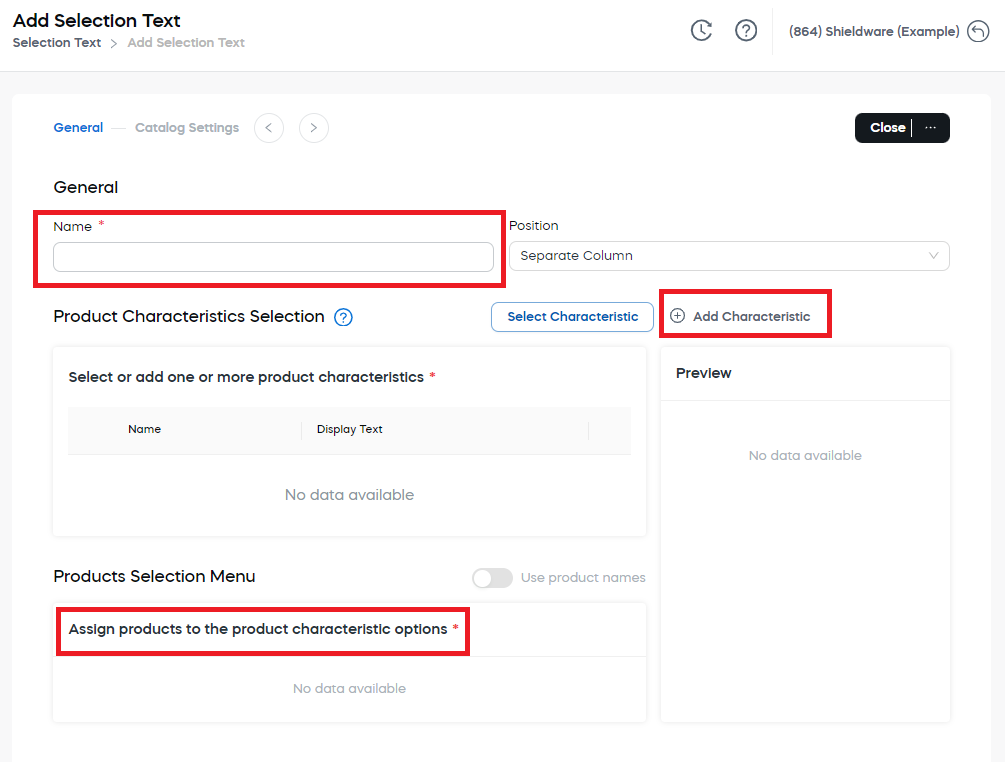
- Define the name and position.
- Set up a product characteristic.
- Assign products to characteristic options.
Define name and position
To define the name and position:
- Go to Configure > Selection Text in SCM.
- Click Add Selection Text.
- Enter a name for the product variation.
- Select a position.
The position determines where the product variation is displayed in the cart.
Set up a product characteristic
A product characteristic is the option group that customers choose from in the cart. For Selection Text, a characteristic can represent language, license period, number of licenses, subscription billing interval, or another product variation.
You can select an existing product characteristic or create a new one.
Select a product characteristic
To select an existing product characteristic:
- Click Select Characteristic.
- Select one or more product characteristics for use in this product variation.
- Click OK.
In the Preview section, you can see the selected product characteristic as it will display in the checkout process or shopping cart.
Add a product characteristic
To add a product characteristic:
-
Click + Add Characteristic.
-
Enter a name for the product characteristic.
-
In Control Type, select whether the product characteristic options should display as a drop-down list or as radio buttons in the cart.
-
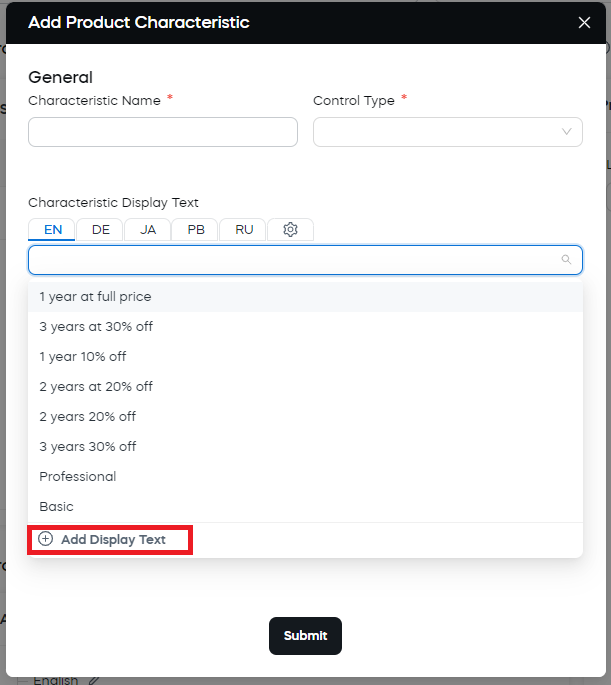
In Characteristic Display Text, select a text element to display as a header in the checkout process or shopping cart when the product variation is shown in a separate column.
-
Optional: To add a new text element, click + Add Display Text at the bottom of the drop-down list.
 Important
If you enter display text that has not been added before, click + Add Display Text. Otherwise, the display text is not saved.
-
Add options to the product characteristic:
- Click + Add Characteristic.
- In Option Name, enter an internal name for the option.
- In Option Display Text, select a text element to display for the option in the cart.
- Optional: To add a new text element, click + Add Display Text at the bottom of the drop-down list.
- Repeat these steps to add as many options as needed.
- Order the options by dragging and dropping them. This determines the order in which they display in the cart.
-
Click Submit.
Display text controls what customers see in the cart, such as headers, option names, product variation labels, or cart column labels.
Assign products to options
Every product characteristic option in the hierarchy must have one product assigned to it.
The assigned product determines which product is added to the cart when the customer selects that option.
To assign products:
- In the product characteristics hierarchy, click Assign Product next to a product characteristic option.
- Select a product and click OK.
- Optional: To override the default text element selected for this product characteristic option, click the Edit icon next to the option and select a text element.
- Repeat these steps for the remaining product characteristic options in the hierarchy.
- Click Save and Close.
Use product names
If the Product Column position is selected, you can enable Use product names.
This setting overrides the text elements selected for the product variation and displays the names of the assigned products instead.
In the following example, Use product names is disabled. The product variation displays below the product, with the selected text elements.
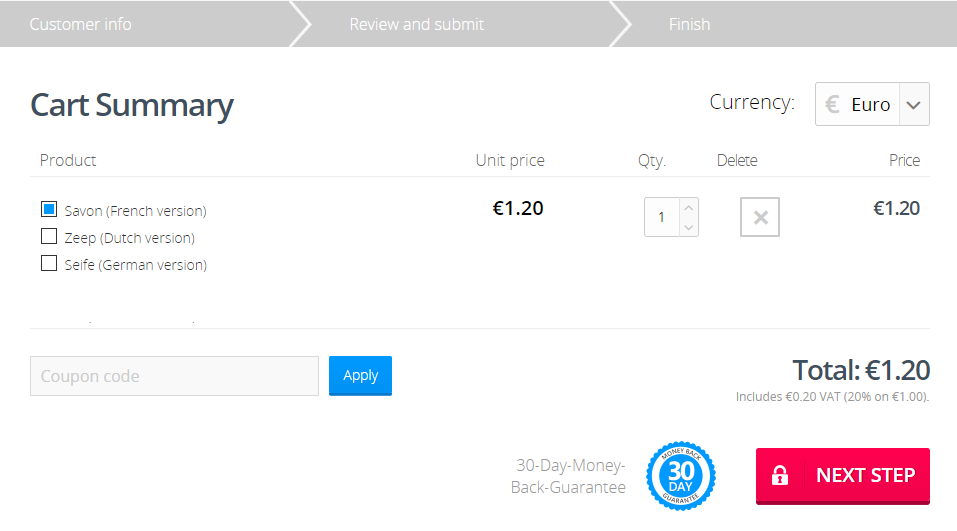
In the following example, Use product names is enabled. Product names override the selected text elements, and the product variation replaces the product in the cart.
Catalog settings for Selection Text
It is recommended that you add catalog settings in Commerce Assistant (CA). Only add catalog settings if a Cleverbridge-maintained catalog already exists.
Use Catalog Settings to enter information that is relevant when a product variation is used in a catalog.
Name
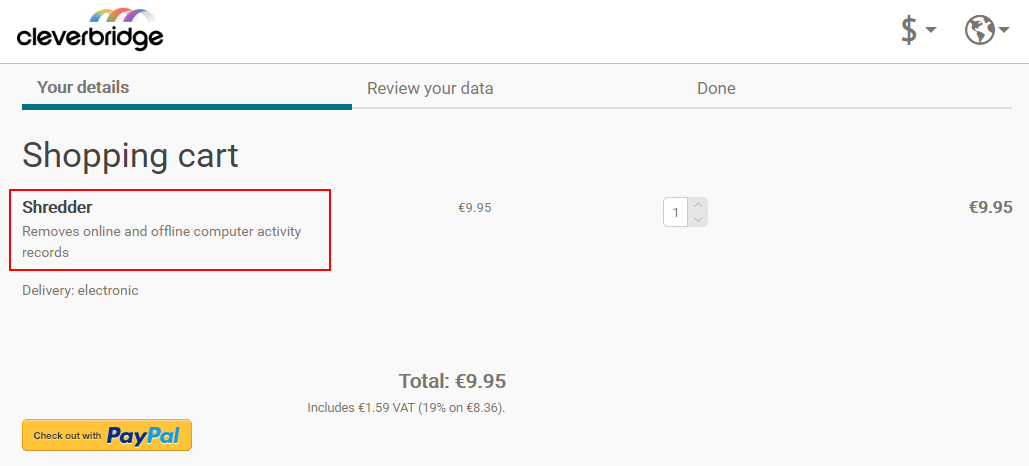
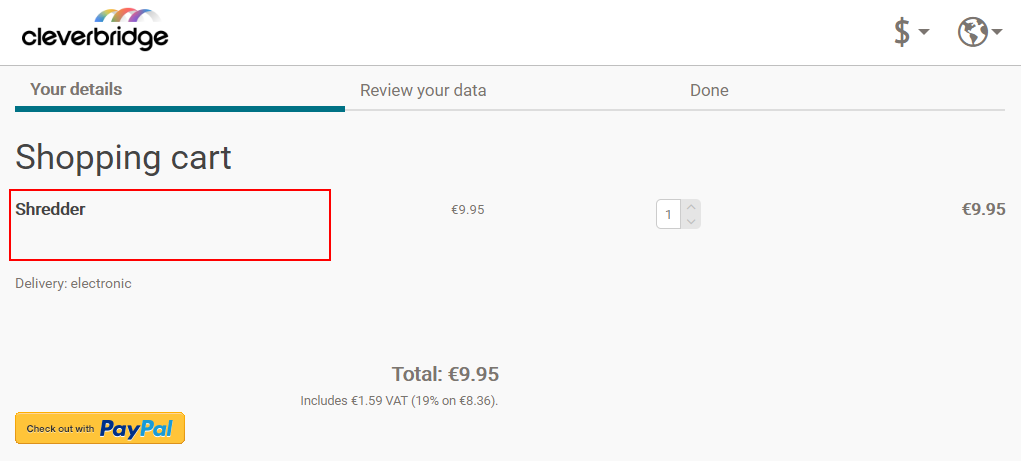
Due to legal requirements for Cleverbridge as an online reseller, a description of the product's essential features must be shown to customers before they complete their purchase. The description should be short, clear, and detailed so customers can make an informed decision.
If the product name is already descriptive, no further action is needed. If the product name does not clearly explain what the product does, use Additional Name Information to provide the essential features description.
In the following example, the essential features description provides more information about the product:
In the following example, the essential features description is not provided, making it unclear to customers what the product is used for:
For more information, contact Client Experience.
URL and Meta Information
Examples of SEO URL keywords are antivirus, security, and removecookie.
Example URL:
https://www.shieldwareexamplecompany.com/123/catalog/categoryname.antivirusfromshieldware/antivirus.security
Not all crawler-based search engines use keywords. The text in the body of the catalog page is usually more important for search ranking.
Images
Use Images to insert product images for the product selection.
Catalog Descriptions
Use Catalog Descriptions to enter descriptions that display for the product variation in the catalog.