Using products and selections
Overview
After products and selections are configured, you can use them in customer-facing flows such as checkout links, shopping carts, quotes, catalogs, product pages, campaigns, and support or partner communication.
This article focuses on using existing products and selections. To create or configure them, see Set up products and Selections.
Use direct product links
Use direct product links when you want to send customers to a predefined cart, checkout, quote, partner checkout, or partner quote. This is useful when the customer should not have to browse for the product manually. For example, you can use direct product links in:
- campaign landing pages,
- business emails,
- support-assisted purchase flows,
- partner offers,
- renewal communication,
- sales-assisted quote workflows.
Direct links are especially useful when the buying path should be short and controlled. You can predefine the product and, depending on the link destination, also define quantity, pricing, discounts, localization, customer details, tracking parameters, and other link-specific behavior.
For detailed steps, see Use SCM Link Generator.
Use product selections
Use product selections when customers should choose between related product options in the cart. This lets customers compare options before buying, for example:
- product versions,
- editions,
- product packages,
- language versions,
- license periods,
- subscription durations,
- billing plans,
- number of licenses.
Selections can improve the buying experience because they keep related options together instead of forcing customers to navigate separate product links. They can also support upsell scenarios by showing higher-value versions or longer subscription plans next to the initial option.
Add selections to generated links
Selections can also be added to generated links.
Use this when you want to send customers to a predefined cart or checkout flow while still letting them choose between product variations. For example, a campaign link can open a cart with a product selection where the customer chooses between Basic, Professional, and Enterprise editions.
In SCM Link Generator, selections are added from the Selection Text tab in the Products & Pricing area. After adding a selection, you can define which product is selected by default and set quantity values for the generated link.
For detailed steps, see Use SCM Link Generator.
Use dynamic products
Use dynamic products when you need a checkout-specific variation of an existing product without permanently changing the original product setup.
A dynamic product can change product information for a specific checkout flow, such as:
- product name,
- internal product ID,
- additional product information,
- price,
- discount,
- currency-specific prices,
- subscription details.
Dynamic products are useful for one-time or customer-specific scenarios, such as special pricing deals, custom partner links, temporary product variations, or product changes that should not become separate products.
Dynamic product changes can be defined in Link Generator in the Products & Pricing area. For detailed steps, see Use SCM Link Generator.
Enable dynamic products and custom pricing
Before dynamic products can be used, they must be enabled for the account in Commerce Assistant (CA).
To enable dynamic products for the account, go to Setup > Account Setup > General > Additional Details, select Allow dynamic products, and enter a Seed for dynamic products.
For more information, see Account setup.
If you want to override the product price or add a dynamic discount, custom product pricing must also be allowed for the original product.
In SCM, enable Allow custom product price in the product's pricing settings. For more information, see Product pricing settings.
Dynamic pricing can also be enabled in CA under Products & Delivery > Products > Suggested Retail Price > Price Options.
If you only want to customize product information, such as the product name, internal product ID, or additional product information, you do not need to enable custom product pricing.
Create dynamic product variations
You can create dynamic product variations in two main ways:
- Use Link Generator to define link-specific product information or pricing without manually writing checkout URL parameters.
- Use dynamic product checkout parameters when the dynamic product should be created directly through a checkout URL.
For Link Generator instructions, see Use SCM Link Generator.
For dynamic product URL parameters, see Checkout Process Parameters > Dynamic Products.
You can also access Link Generator in CA. For more information, see CA Link Generator.
A dynamic discount created in Link Generator can work in addition to a promotional discount added through campaign settings. Avoid combining a dynamic discount with a coupon code unless the combined discount is intended.
Use catalogs and product pages
Use catalogs and product pages when customers should browse or compare a product line instead of being sent directly to one predefined cart.
Catalogs are useful when you want to present a group of products, product categories, or product pages in a customer-facing format. They can help customers discover products, compare product groups, and navigate a product line before choosing what to buy.
Catalogs are especially useful when you need to:
- present a product line instead of a single product,
- group products into categories,
- control the order in which products appear,
- highlight product groups such as top sellers or promotions,
- display region-specific products and pricing,
- customize product-line presentation with banners, product images, and descriptions.
Each Cleverbridge-hosted catalog and product page has a unique URL. Catalog and product page content can adapt based on customer IP address and language preferences, which helps present relevant products and prices for a specific region or language.
For catalog setup in CA, see Catalogs.
Create catalog links
Catalog links can be generated with SCM Link Generator.
Use catalog links when you want to send customers to:
- the top-level page of a catalog,
- a specific catalog category,
- a specific product in a catalog.
A catalog link is useful when the entry point should be a product-browsing experience rather than a cart with predefined products. This can be helpful for campaign pages, partner pages, product-line pages, or regional offers.
When creating a catalog link, Link Generator lets you select the configuration, catalog structure, group, and catalog item. The selected group controls the order of products on the catalog page.
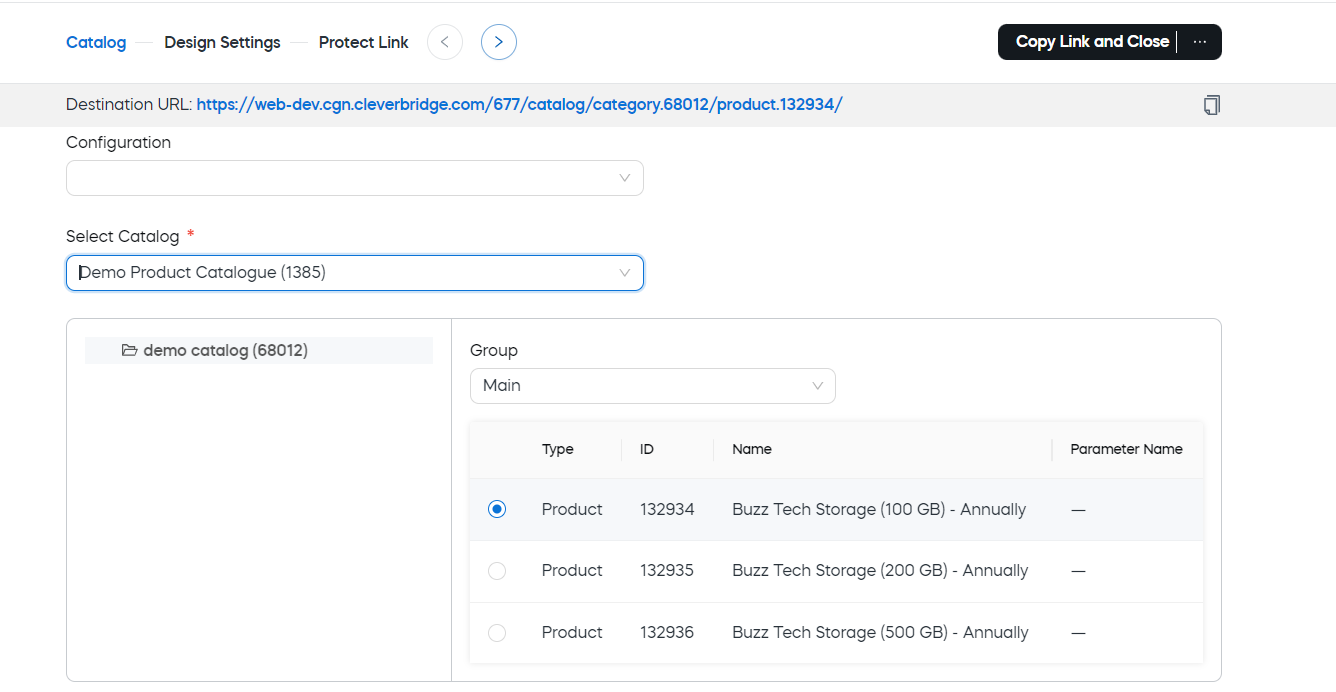
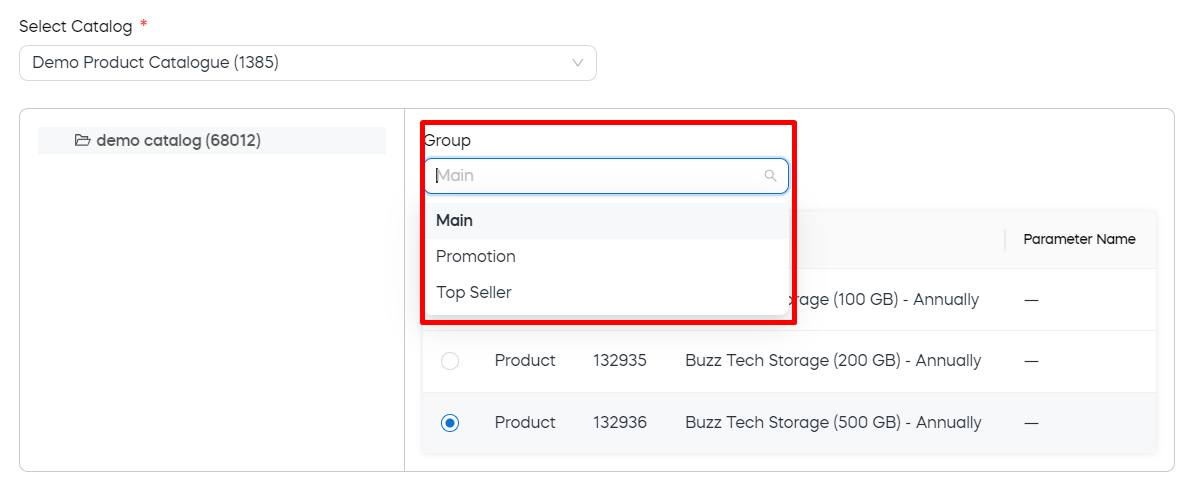
For detailed steps, see Use SCM Link Generator.
Use products and selections with campaigns
Use products and selections with campaigns when a generated link should include recommendations, coupon codes, or other campaign-specific behavior.
This can be useful when you want to:
- promote a specific product or product group,
- include compatible recommendations,
- apply a coupon code automatically,
- let customers enter a coupon code in the cart,
- create campaign-specific links for email, ads, partners, or support.
Only recommendations compatible with the selected products display in checkout.
For broader incentive setup, see Customer incentives.
Use products and selections with localization
Use localization settings when a generated link should open a checkout experience for a specific market, region, or customer segment.
Depending on the link destination, you can define or restrict settings such as:
- country,
- language,
- currency,
- available countries,
- available languages,
- available currencies.
This is useful when a campaign or partner link should open with the right market context already selected, or when customers should only be able to choose from a defined list of countries, languages, or currencies.
For broader localization guidance, see Localize checkout.
Use products and selections with tracking and URL parameters
Use tracking and URL parameters when product or selection usage needs to be connected to reporting, campaigns, or downstream systems.
This is useful when you need to:
- attribute revenue to a campaign,
- pass internal data through checkout,
- connect checkout activity to analytics,
- support partner or affiliate reporting,
- predefine custom checkout behavior.
For tracking setup, see Set up x-parameters.
For URL parameter usage, see Use URL parameters.
Use customer details in generated links
For some link destinations, Link Generator can prefill customer details in the cart, checkout, or quote.
This is useful for sales-assisted, support-assisted, partner, or B2B workflows where the checkout should already contain customer information.
Customer details can include:
- billing contact information,
- delivery contact information,
- licensee contact information.
For detailed steps, see Use SCM Link Generator.
Protect generated links
Use protected links when the generated URL contains many parameters, sensitive settings, or link-specific configuration that should not be visible to customers.
Protected links can help you:
- hide complex URL parameters,
- control the checkout destination settings,
- limit link validity,
- limit the maximum number of submitted orders,
- reuse saved protected links,
- manage link details later.
For setup and management details, see Use SCM Link Generator.