Create cart promotions
Overview
Cart promotions encourage customers to purchase more by applying a discount to the total cart value. You can offer a percentage discount, a fixed discount amount, or a volume scale discount.
Unlike item-level promotions, cart promotions apply to the entire cart rather than to individual products, regardless of which products customers add.
Use an item-level promotion when the discount should apply only to selected products. Use a package discount when customers must purchase a qualifying combination of products.
How cart promotions work
When you set up a cart promotion, you define:
- The discount pricing method, such as a percentage discount or an absolute discount.
- The minimum number of product items required in the cart to trigger the promotion. For example, you can apply the discount only when the cart contains at least three product items.
- An optional volume scale discount with different discount tiers based on the number of product licenses in the cart.
- The subscription intervals to which the discount applies. For example, you can apply the discount only to the initial purchase or include additional billing intervals.
- Coupon codes that customers can use to apply the discount.
If you use price scales, also known as a volume pricing method, in your product settings, the scaled product prices appear in the checkout and form part of the cart subtotal. The cart promotion is then calculated based on that subtotal, and the final price appears as the cart total.
Requirements and limitations
Consider the following requirements and limitations before setting up a cart promotion:
- All subscription products in the cart must have the same billing interval.
- Do not combine cart-level and item-level promotions for the same product item.
- If a customer applies a new coupon to a subscription item, the new coupon replaces the previous coupon, and the previous promotion no longer applies.
- For a volume scale discount to take effect, all subscription products in the cart must have the same billing interval.
All subscription products in the cart must have the same billing interval. For example, all subscription items can be billed every six months. If the cart contains subscription products with different billing intervals, such as six-month and twelve-month products, the promotion does not take effect.
You can combine perpetual and subscription products in the same cart, and the cart promotion applies as long as the subscription products share the same billing interval.
Set up a cart promotion
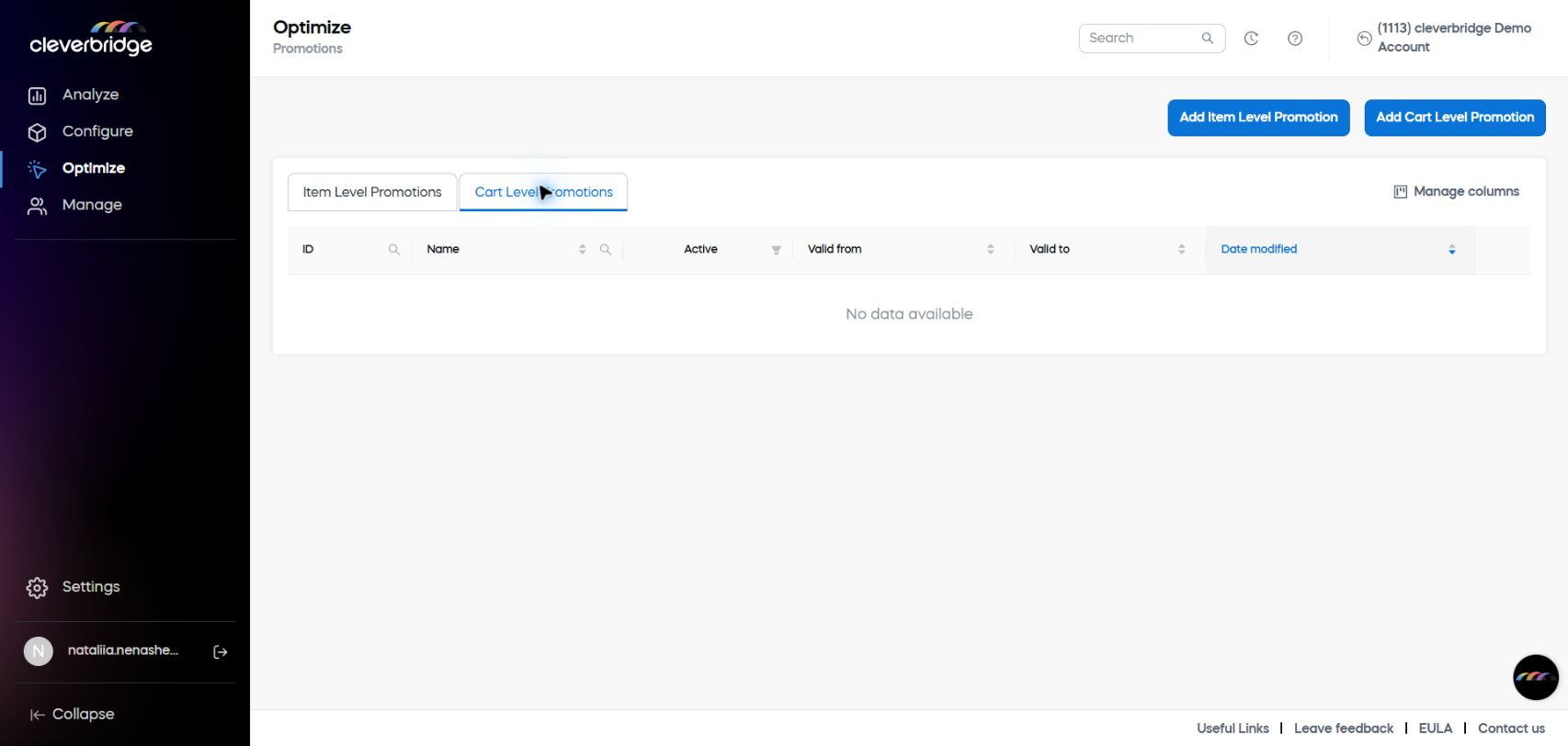
In SCM, the Cart Level Promotions tab lists the cart promotions configured for your account.
The General & Price tab contains the general, validity, discount, pricing, and price-configuration settings.
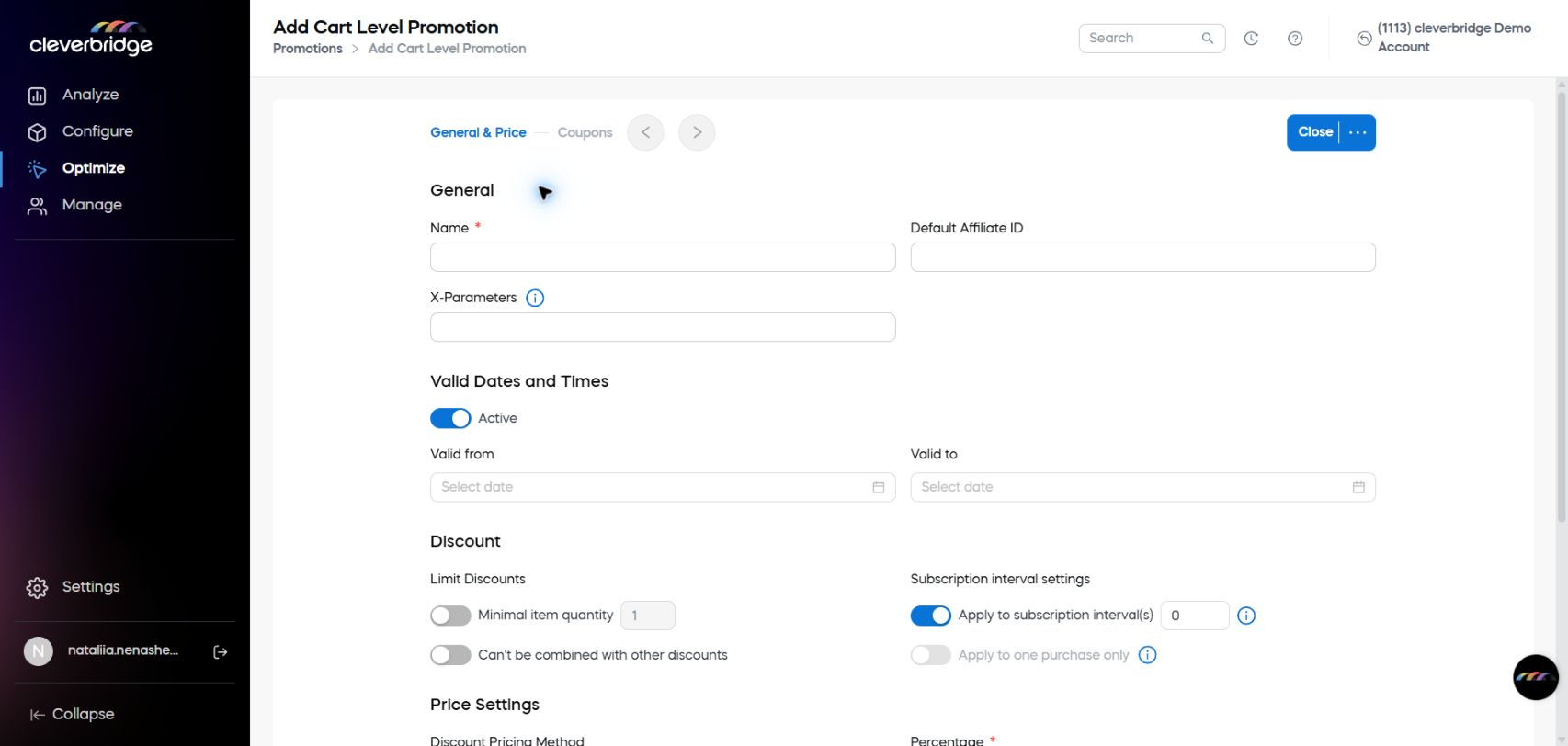
Complete the following shared steps, and then use one of the configuration examples to define the discount settings for your use case.
- In SCM, go to Optimize > Promotions and click Add Cart Level Promotion.
- In the General section, enter a name for the promotion.
- In the Valid Dates and Times section, leave the Active toggle enabled to make the promotion available for use. Disable it if you want to save the promotion as a draft and activate it later.
- Set the Valid from and Valid to dates, and click OK to define the promotion period.
- Configure the Discount and Price Settings sections as described in the relevant use case.
- In the Price Configurations section, leave the toggle disabled.
- In the Coupons section, specify the coupon use limit.
- Click Add Coupons, and follow the onscreen instructions to add coupons to the promotion. Each use case below provides an example coupon code.
- Click Save and Close. The new promotion appears in the Cart Level Promotions table.
For more information about the parameters in this flow, see Implement item level promotions > Add an item level promotion.
Apply a cart promotion in the checkout
To trigger a cart promotion, follow the instructions in Implement item level promotions > Trigger a promotion.
For subscription examples, see Combine a subscription with a promotional discount.
Configuration examples
The following use cases demonstrate how to configure different cart promotion pricing methods.
- Absolute discount
- Item threshold
- Volume scale
Absolute discount
Use an absolute discount when you want to subtract a fixed amount from the cart subtotal.
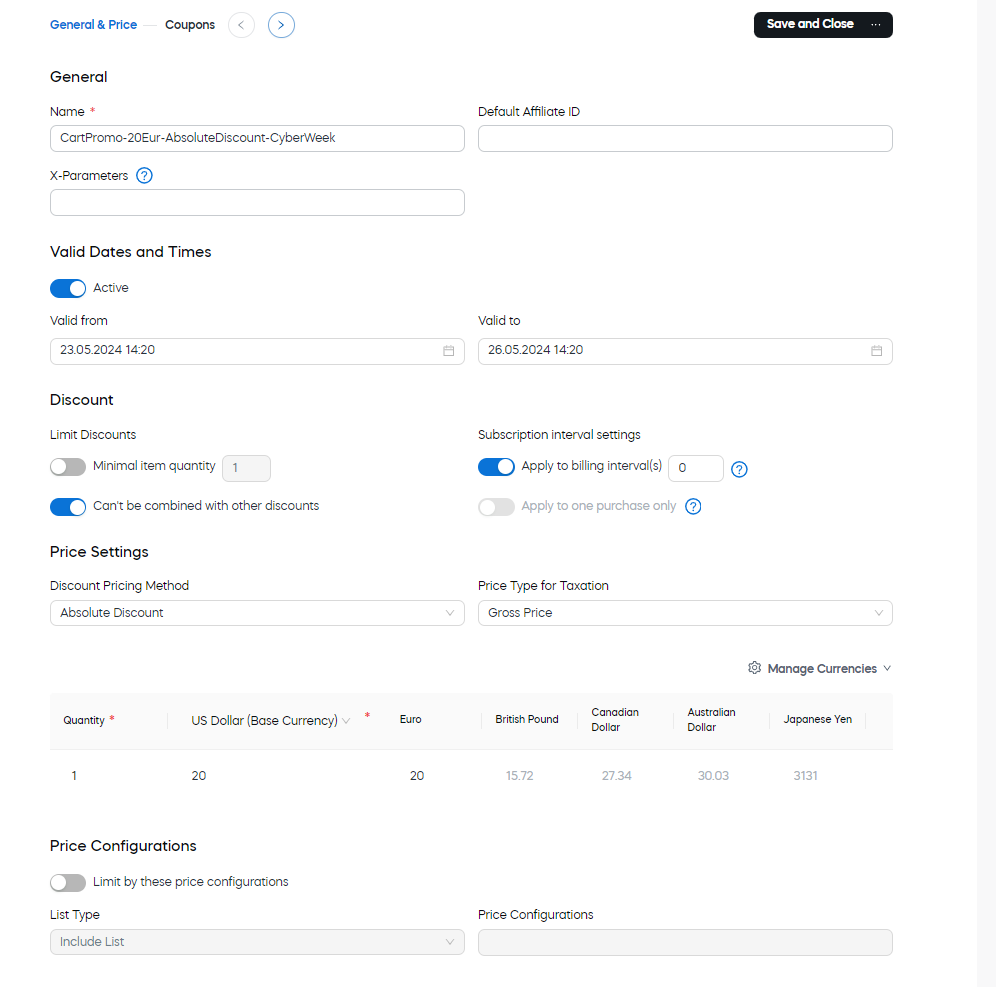
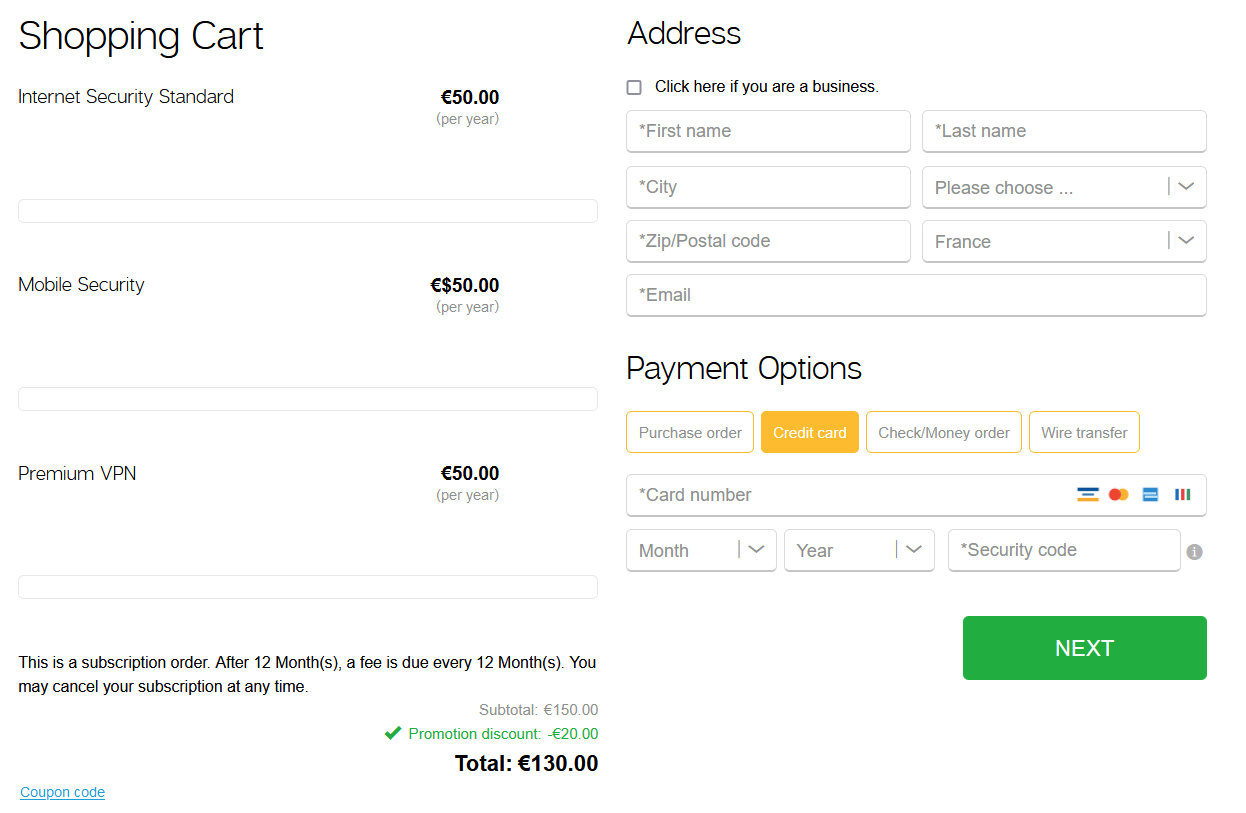
In this example, you offer customers a discount of 20 EUR during Cyber Week. The promotion applies to all products in your account and cannot be combined with another promotion. Customers receive 20 EUR off the cart price, regardless of which products they buy or how many products they buy, as long as all subscription products in the cart share the same billing interval. Use the following settings in addition to the shared setup steps:
- In the Discount section, enable the Can't be combined with other discounts toggle. Leave all other toggles in their default settings.
- In the Price Settings section, select Absolute Discount as the discount pricing method.
- In Price Type for Taxation, select Net Price or Gross Price, depending on the price to which you want to apply the discount.
- In the currency table, enter a discount value of 20 EUR. Make sure that you specify the discount value for the base currency.
- Add a coupon code. For example, manually add
cyber-week-promo.
The currencies you can add and the prices or discounts you can define depend on your user permissions and the currencies available for the account. If you cannot add a currency or define a value for an additional currency, contact your Customer Success Manager.
The following screenshot shows example settings in the General & Price section.
The applied promotion is visible in the checkout summary as 20 EUR off the subtotal price.
Percentage discount with an item threshold
Use a minimum item quantity when you want the percentage discount to apply only after the cart reaches a defined number of product items.
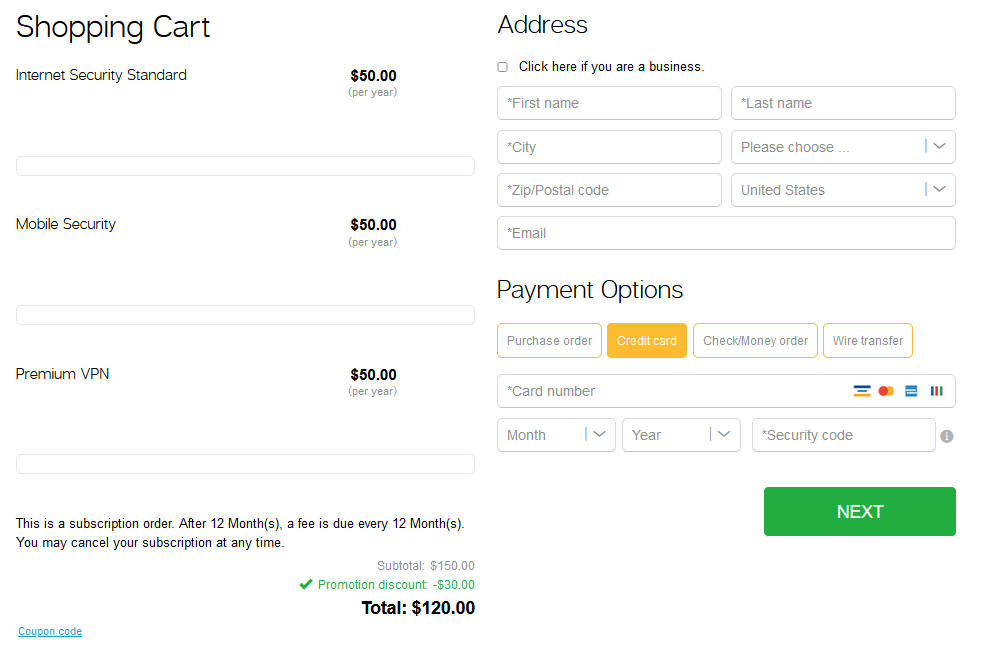
In this example, you offer a 20% discount during Cyber Monday to customers who buy at least three products. The promotion applies to all products in your account and cannot be combined with another promotion. If a customer buys only two products, the promotion does not take effect. Use the following settings in addition to the shared setup steps:
- In the Discount section, enable the Minimal item quantity toggle, and enter
3as the number of product items required to activate the promotion. - Enable the Can't be combined with other discounts toggle. Leave all other toggles in their default settings.
- In the Price Settings section, select Percentage Discount as the discount pricing method, and enter
20%as the discount value. - Add a coupon code. For example, manually add
20%OFF-cyber-monday.
The following screenshot shows example settings in the General & Price section.
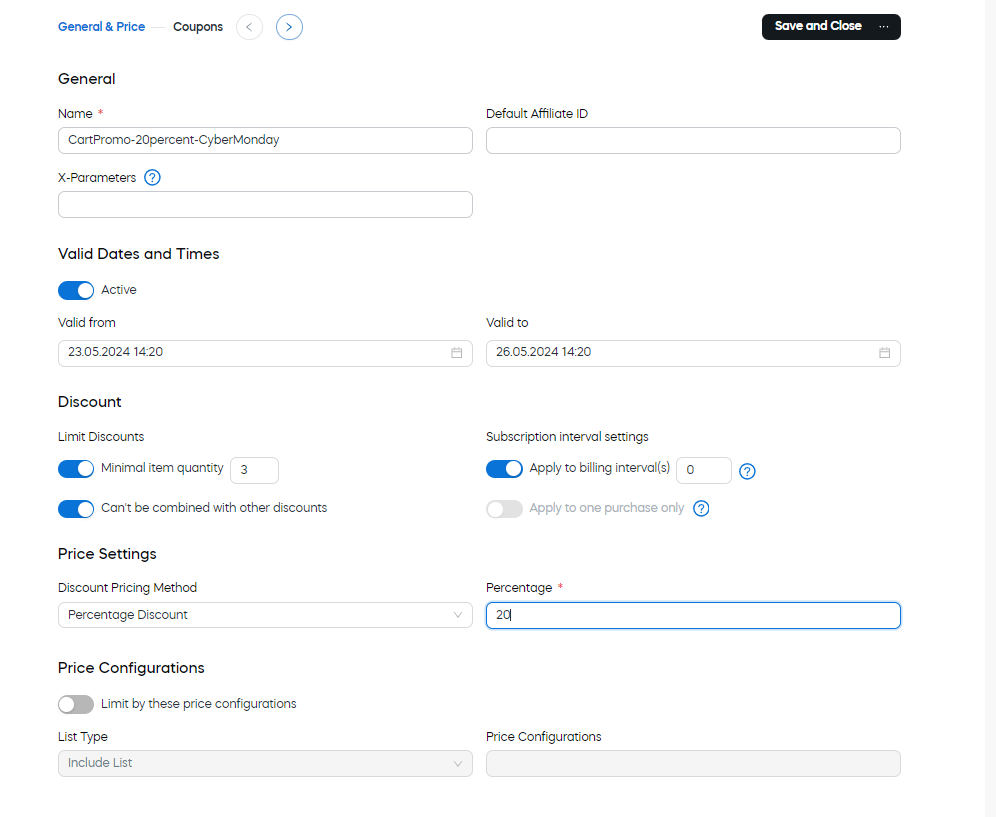
The threshold that activates the promotion is three product items. If a customer buys only two products, the promotion does not take effect.
The applied promotion is visible in the checkout summary as 20% off the subtotal price, resulting in a discount of USD 30.
Percentage volume scale discount
Use a percentage volume scale discount when you want to offer different discount percentages based on the number of licenses purchased.
In this example, you offer the following license quantity tiers:
- A 5% discount for customers who buy two licenses.
- A 10% discount for customers who buy three licenses.
- A 15% discount for customers who buy four licenses.
- A 20% discount for customers who buy five licenses.
The promotion applies to all products in your account and cannot be combined with another promotion.
How the discount tier is determined
The discount is based on the lowest license quantity among all product items in the cart.
For example, if a customer has two products in the cart, with two licenses of product A and five licenses of product B, the cart receives a 5% discount because the lowest item quantity is two.
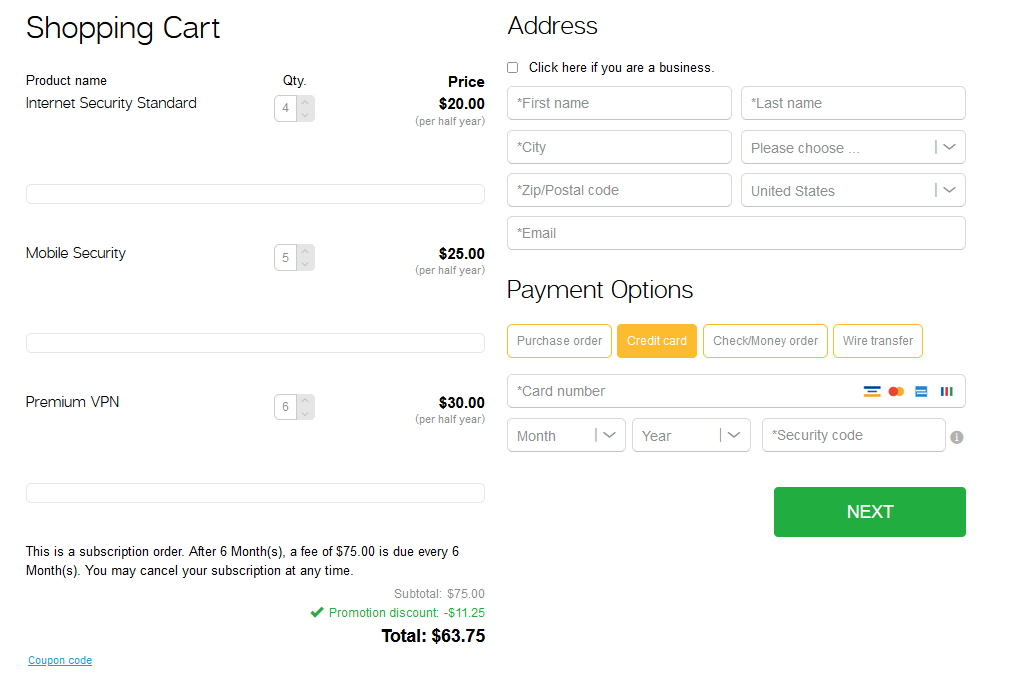
If a customer has three products in the cart, with four licenses of product A, five licenses of product B, and six licenses of product C, the cart receives a 15% discount because the lowest item quantity is four. Use the following settings in addition to the shared setup steps:
- In the Discount section, enable the Can't be combined with other discounts toggle. Leave all other toggles in their default settings.
- In the Price Settings section, select Percentage Discount (volume scale) as the discount pricing method.
- Add rows to define the percentage discount for each license quantity tier.
- Add a coupon code. For example, manually add
20%OFF-cyber-monday.
The following screenshot shows example settings in the General & Price section.
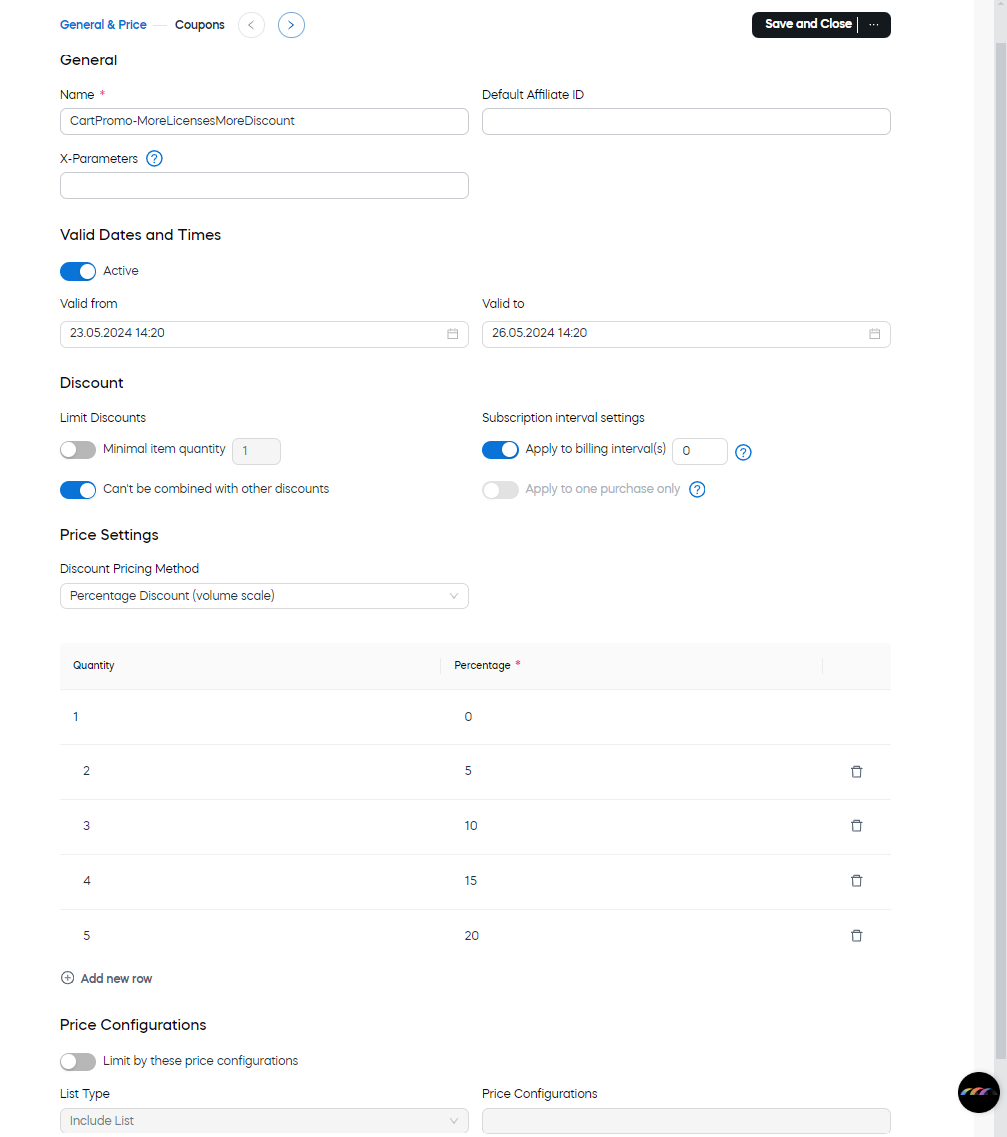
For this pricing method, the lowest number of licenses among all product items in the cart determines the discount tier:
- If a customer buys two products with one license each, the promotion does not take effect.
- If a customer buys one product with two licenses, the promotion takes effect.
The following examples show how the license quantities in the checkout determine the discount.
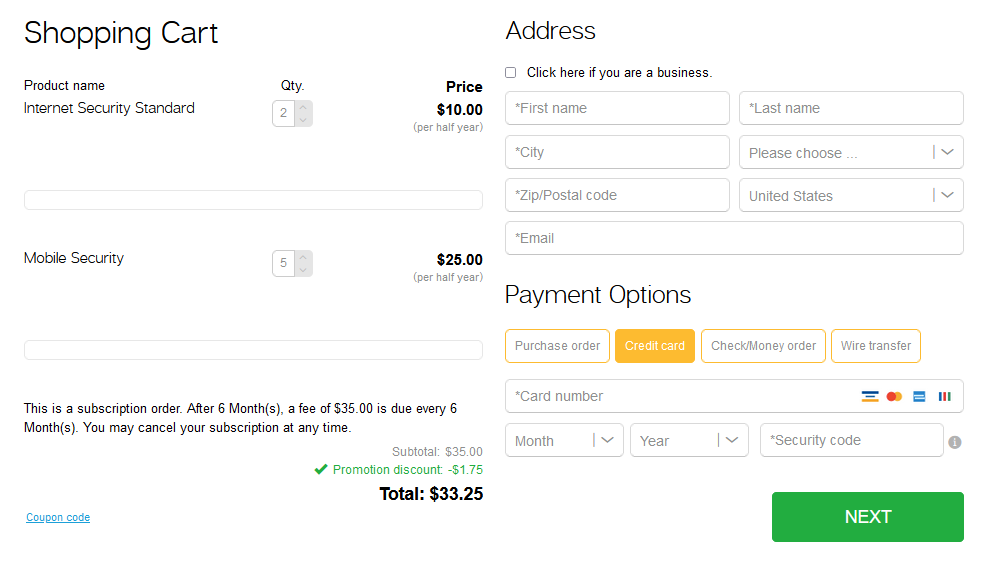
Example 1: 5% discount
The customer buys two products: two licenses of product A and five licenses of product B. The lowest license quantity is two, so the cart receives a 5% discount.
Example 2: 15% discount
The customer buys three products: four licenses of product A, five licenses of product B, and six licenses of product C. The lowest license quantity is four, so the cart receives a 15% discount.
For information about setting up promotions in Commerce Assistant (CA), see Promotions.