Create package discounts
Overview
Package deals encourage customers to purchase multiple products together by applying a special price to the combined purchase and renewed subscription. For recurring products, this can help you grow your existing business and increase annual recurring revenue (ARR).
Package discounts are currently not available for Checkout 2.0.
In the Cleverbridge platform, a package discount (PD) is a discount type that activates a special price when multiple products are purchased together. You activate the package discount price configuration in the cart by passing a parameter in the checkout URL.
Combining dynamic pricing and package discounts is not recommended.
Use an item-level promotion when the discount should apply only to selected products. Use a cart promotion when the discount should apply to the entire cart without requiring a qualifying product combination.
How package discounts work
A package discount applies when the products in the cart meet the conditions defined in the package discount configuration. You can control:
- Which products are eligible through a product list.
- How many cart items are required to trigger the discount.
- Which discount pricing method is applied.
- Whether volume pricing is used.
- Which URL parameter activates the package discount.
Package discounts apply only to recurring products that share the same billing interval. For example, creating separate product lists for monthly, yearly, and two-year subscriptions helps ensure that the package price is applied to products with the same renewal date.
Create a package discount
In SCM, the Package Discounts table lists the package discounts configured for your account.
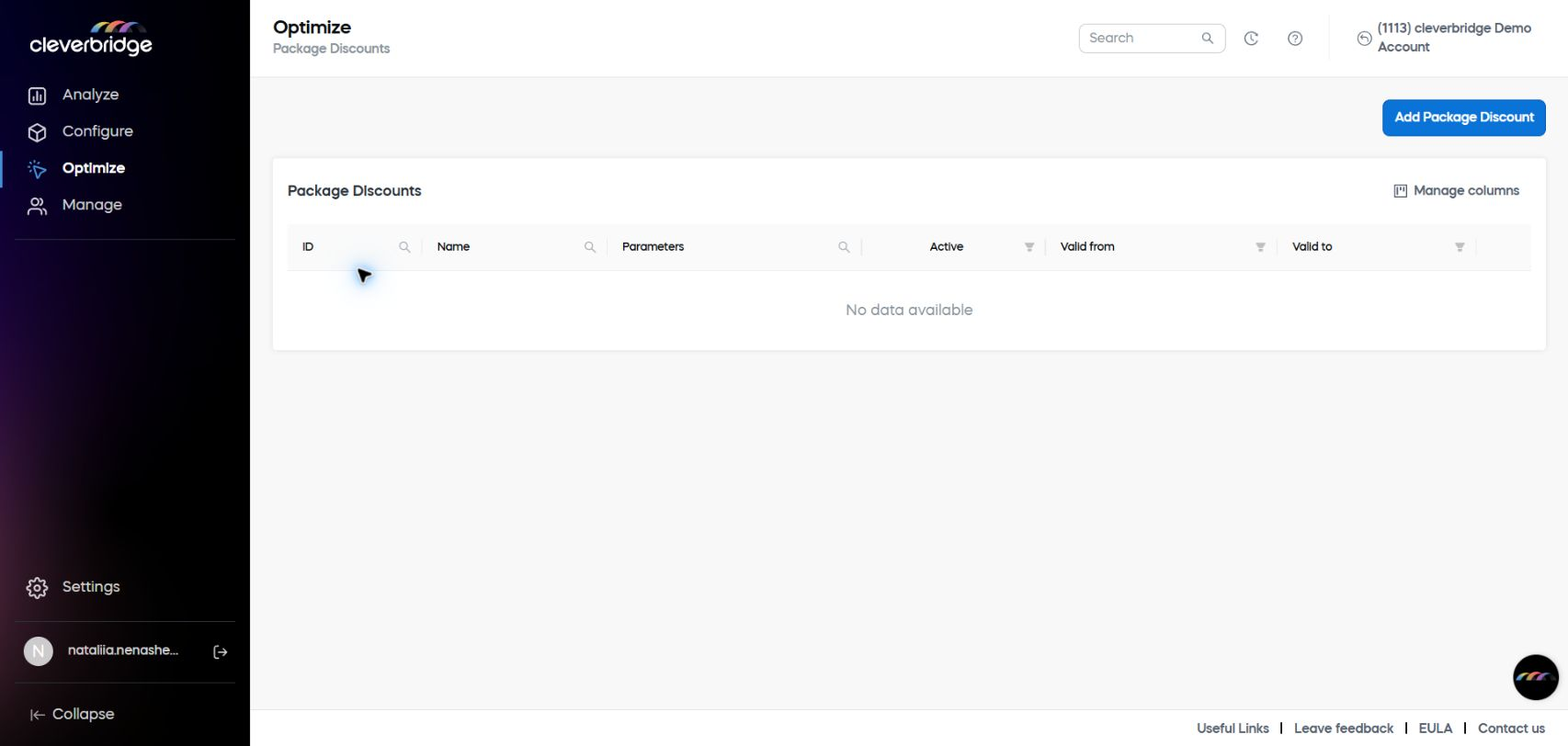
Before creating a package discount, set up the products and their pricing. For instructions, see Add a product.
At a high level, package discount setup has three parts: define the eligible products, set the item threshold, and configure the discount settings.
The General tab contains the name, validity, and activation-parameter settings.
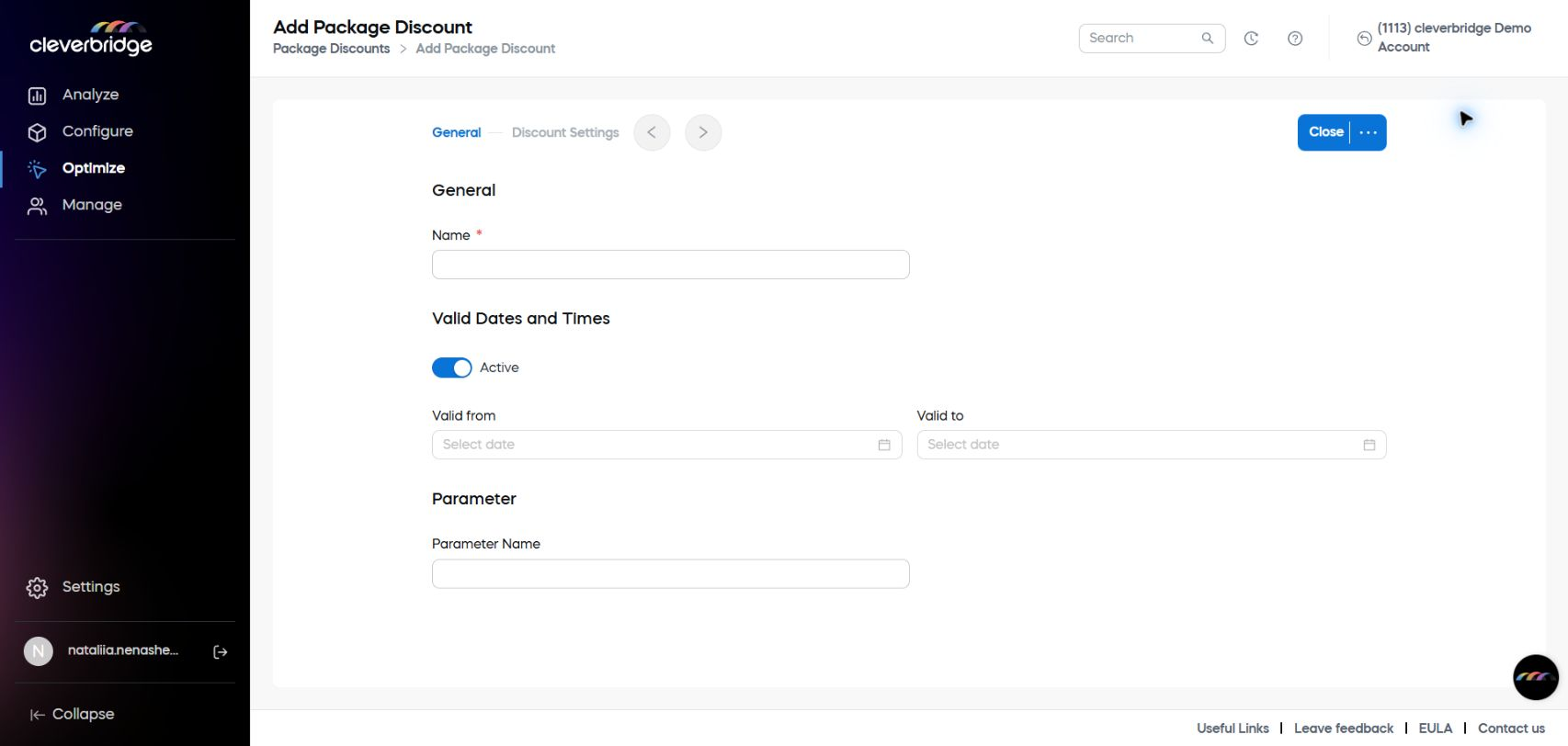
Define the eligible products
Use a product list to control which products receive the package discount when customers add them to the cart together. If you do not select a product list, the package discount applies to all products.
Product list requirements
Before configuring the package discount, define a product list that contains the products you want to discount. For instructions, see Create and manage product lists.
The package discount applies only to recurring products with the same billing interval. Setting up separate product lists for monthly, yearly, and two-year subscriptions helps ensure that the discounted package price is applied successfully to products with the same renewal date.
Set the item threshold
The item threshold defines how many products must be present in the cart before the package discount is applied. You can configure multiple thresholds in the same package discount.
Threshold examples
For example, you can configure the following thresholds:
- If the customer cart contains two items, the customer receives a 20% discount on the total cart amount.
- If the customer cart contains three items, the customer receives a 30% discount on the total cart amount.
- If the customer cart contains four items, the customer receives a 40% discount on the total cart amount.
Select a discount pricing method
Choose how the package discount changes the total cart price. You can also apply a volume scale to each available pricing method.
Available pricing methods
You can apply a package discount using the following discount pricing methods:
- Absolute discount.
- Percentage discount.
- Fixed price.
You can configure volume pricing for a package discount by using a volume scale with any of these methods.
The currencies you can add and the prices or discounts you can define depend on your user permissions and the currencies available for the account. If you cannot add a currency or define a value for an additional currency, contact your Customer Success Manager.
Configure the package discount
Create the package discount in SCM and define its activation parameter, threshold, product eligibility, pricing method, and price.
- In SCM, go to Optimize > Package Discounts.
- Click Add Package Discount, and enter a name for the package discount configuration.
- Add a parameter name for the package discount configuration.
- Select the discount pricing method and enter the applicable prices.
- Select the item threshold.
- Select a product list. If you do not select one, the package discount applies to all products.
- Select the price type for taxation, either net or gross price.
- If applicable, select a volume pricing method and define the volume pricing structure.
- Click Save and Close.
Package discount example
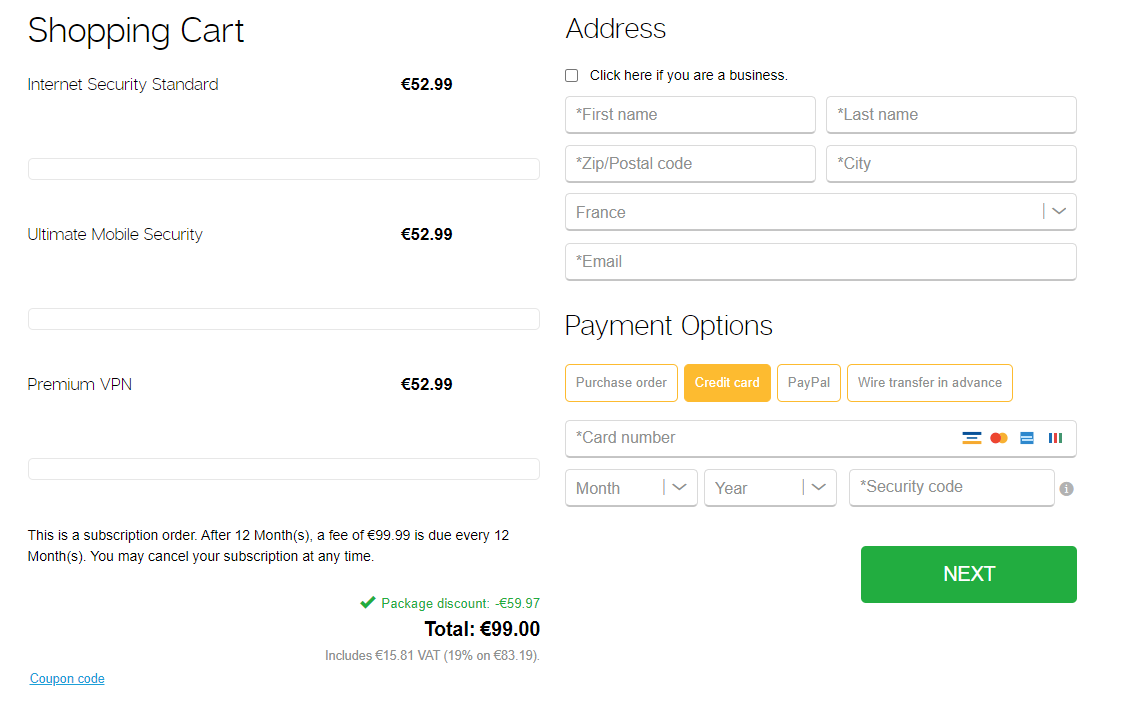
The following example shows how a package discount changes the total cart price after the required item threshold is met.
If the customer's cart contains three items, a fixed price of 99 EUR is applied to the total cart amount.
Activate the package discount
Pass the &packagediscount parameter in the checkout URL to activate the package discount price configuration in the cart.
Package discount checkout URL
https://www.cleverbridge.com/<clientID>/?scope=checkout&cart=<productID1>,<productID2>,<productID3>&packagediscount=<PD-value>
where:
<clientID>is your account ID.<productID1>,<productID2>, and<productID3>are the IDs of the products you want to include in the cart.<PD-value>is the package discount parameter name specified in SCM. In this example, the value could bepackagedeal.
For more information about checkout URL structure and parameters, see Configure links with URL parameters.
Package discount use cases
Use package discounts to support different sales scenarios:
- Bulk purchases
- Special offers
- Partner pricing
Apply a package discount to bulk purchases
For customers purchasing multiple products and multiple licenses for corporate or recreational use, combine a package discount with a volume discount.
When setting up your products, define the price for each license quantity and use the Top-down discount (packages) volume pricing method. For more information, see Volume pricing method > Top-down discount (packages).
Understand how the bulk-purchase price is calculated
The product-level volume price is applied first. The package discount is then applied when the cart meets the item and license quantity threshold.
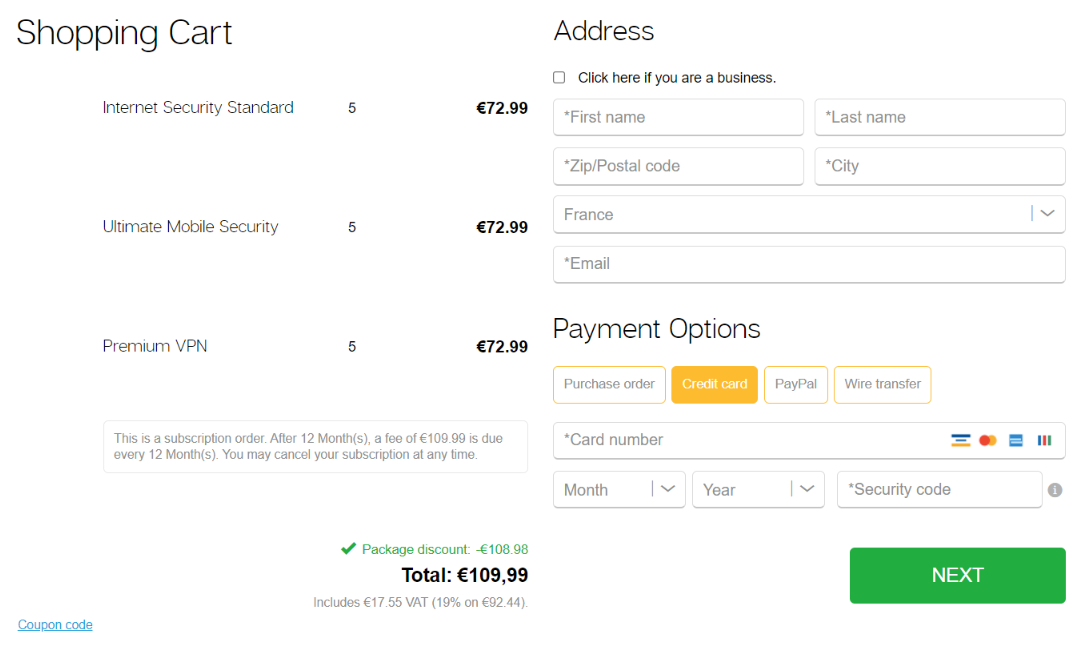
You are a software-selling company and want to use package discounts to trigger a special price for a bulk purchase.
If the customer cart contains three items and LicenseQuantity is five units per item, a fixed price of 109.99 EUR is applied to the total cart amount.
Conditions
For the product and pricing setup:
- The Top-down discount (packages) volume pricing method is selected.
- Volume pricing is set to 72.99 EUR per five licenses purchased for each product.
For the package discount configuration:
- A product list containing one-year subscriptions is selected.
- The Fixed Price (volume scale) discount method is selected.
- The package discount fixed price is set to 109.99 EUR for a cart containing three items with five licenses per item.
The product-level volume discount is calculated as follows:
The package discount is calculated as follows:
The calculation logic in the cart is:
- If
LicenseQuantityfor each cart item is five units, a fixed price of 72.99 EUR is applied to each item in the cart. - If the customer cart contains three items and
LicenseQuantityis five units per item, a fixed price of 109.99 EUR is applied to the cart.
Configure volume pricing
Create a package discount that uses a volume scale and applies the fixed package price after the cart meets the defined quantity and item thresholds.
Create a product list beforehand to control which products are included in the package discount configuration, especially when using the Fixed Price discount method. A product list helps prevent the cart price from becoming lower than the amount you intended to charge for the multi-product purchase.
- In SCM, go to Optimize > Package Discounts.
- Click Add Package Discount, and enter a name for the package discount configuration.
- Add a parameter name for the package discount configuration.
- Select the discount pricing method and enter the applicable prices. For this use case, select Fixed Price (volume scale).
- Select the item threshold.
- Select a product list.
- Select the price type for taxation, either net or gross price.
- Select the volume pricing method. For this use case, select Top-down discount (packages).
- Define the volume pricing structure by selecting the quantity and entering the fixed package price for the number of licenses purchased. For this use case, use:
- Click Save and Close. The package discount configuration is complete.
Activate the bulk-purchase offer
Pass the &packagediscount parameter together with the required product quantity in the checkout URL.
Bulk-purchase checkout URL
https://www.cleverbridge.com/<clientID>/?scope=checkout&cart=<productID1>,<productID2>,<productID3>&quantity=5&packagediscount=fixed
where:
<clientID>is your account ID.<productID1>,<productID2>, and<productID3>are the IDs of the products you want to include in the cart.
You can now generate a URL and offer package deals for bulk purchases. For more information about generating checkout URLs, see Create URLs using Link Generator.
Combine package discounts with special offers
Use package discounts during a special period, such as Cyber Week, to combine a package price with an additional time-limited discount.
Understand how the special-offer price is calculated
The first package discount sets the package price. A second package discount is then applied through a price rule to reduce the already-discounted cart amount.
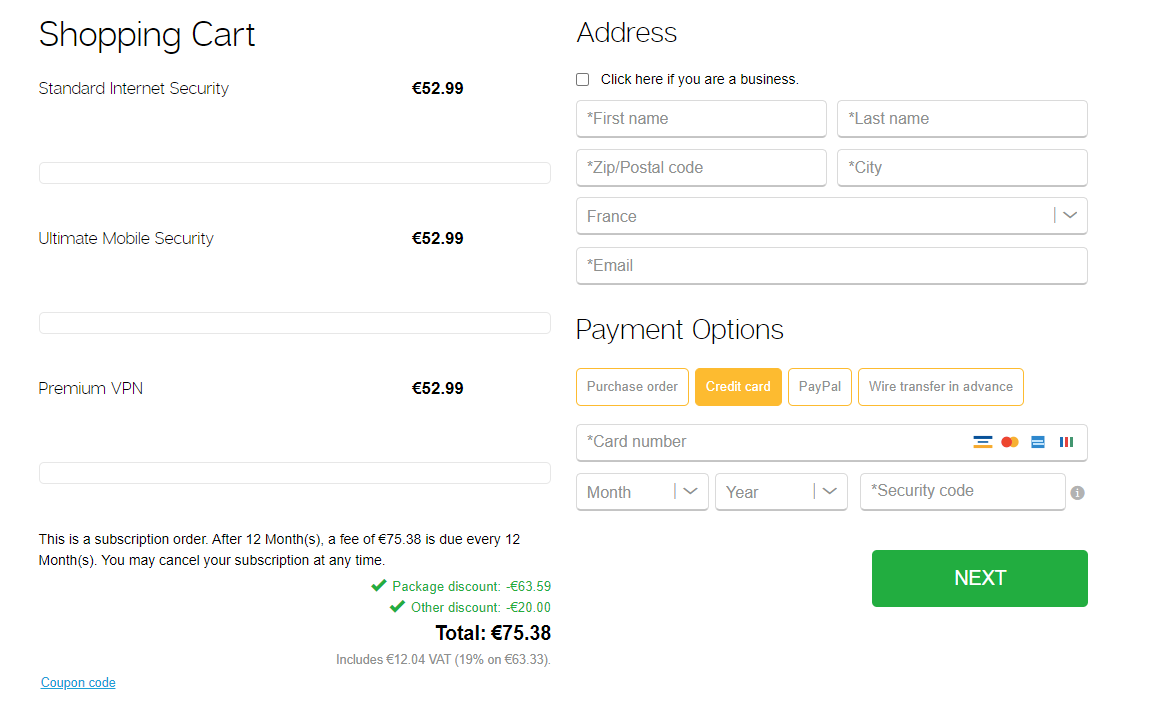
You are a software-selling company, and Cyber Week is approaching. You use two package discounts to trigger the required prices in the cart:
- If the customer cart contains three items, a fixed price of 95.38 EUR is applied to the total cart amount.
- If
Timeframe= CyberWeek, an absolute discount of 20 EUR is applied to the discounted cart amount.
Conditions
- Product pricing is set to 52.99 EUR per unit.
For the package discount configurations:
- A product list containing one-year subscriptions is selected.
- The Fixed Price discount method is selected for the first package discount.
- The first package discount sets a fixed price of 95.38 EUR for three items in the cart.
- A second package discount is created for Cyber Week with the parameter value
absolute20. It applies an absolute discount of 20 EUR as a price rule.
The setup is calculated as follows:
| Package discount | Price rule discount | |
|---|---|---|
| Number of cart items | 3 | |
| Original price | 158.97 EUR (3 x 52.99 EUR) | |
| Discount pricing method | Fixed price: 95.38 EUR | Absolute discount: 20 EUR |
| Discounted amount | 63.59 EUR | 20 EUR |
| Discounted cart price | 75.38 EUR | |
Create the special-offer package discount configurations
Create one package discount for the standard package price and a second package discount for the additional Cyber Week reduction. Skip this procedure if both configurations already exist.
- In SCM, go to Optimize > Package Discounts.
- Click Add Package Discount, and enter a name for the first package discount configuration.
- Under Discount Settings, select Fixed Price as the discount pricing method.
- Select the item threshold.
- Select a product list.
- Select the price type for taxation, either net or gross price.
- Set the fixed package price. For this use case, enter quantity
1and a price of 52.99 EUR. - Click Save and Close. The first package discount configuration is complete.
- Repeat the steps to create the additional package discount for Cyber Week. Use the same configuration except for the following settings:
- Select Absolute discount as the discount pricing method.
- Enter a discount of 20 EUR to apply to the cart.
Create the price rule
Create a price rule that combines the first package discount with the additional Cyber Week discount.
- In SCM, go to Configure > Tools > Price Rules.
- Click Add Price Rule, and enter a name for the price rule.
- Under Configuration Type, select Package Price Configuration.
- Under Package Price Configuration, select the first package discount configuration.
- Under Additional Package Discount, select the second package discount configuration created for Cyber Week.
- Add a Parameter Value to activate the price rule in the checkout URL.
- Click Save and Close. The price rule is complete.
Activate the special offer
Pass the &pricerule parameter in the checkout URL to activate both the package discount price configuration and the additional price rule discount.
Special-offer checkout URL
https://www.cleverbridge.com/<clientID>/?scope=checkout&cart=<productID1>,<productID2>,<productID3>&pricerule=<PR-value>
where:
<clientID>is your account ID.<productID1>,<productID2>, and<productID3>are the IDs of the products you want to include in the cart.<PR-value>is the price rule parameter value. In this example, the absolute discount value isabsolute20.
You can now generate a URL and offer package deals combined with special offers. For more information about generating URLs, see Create URLs using Link Generator.
Use a package discount for partners
If you already use a package discount to encourage customers to purchase products together, you can offer registered partners an additional discount on the package price.
Understand how the partner price is calculated
The first package discount sets the standard package price. A second package discount is applied through a price rule to provide the partner-specific reduction.
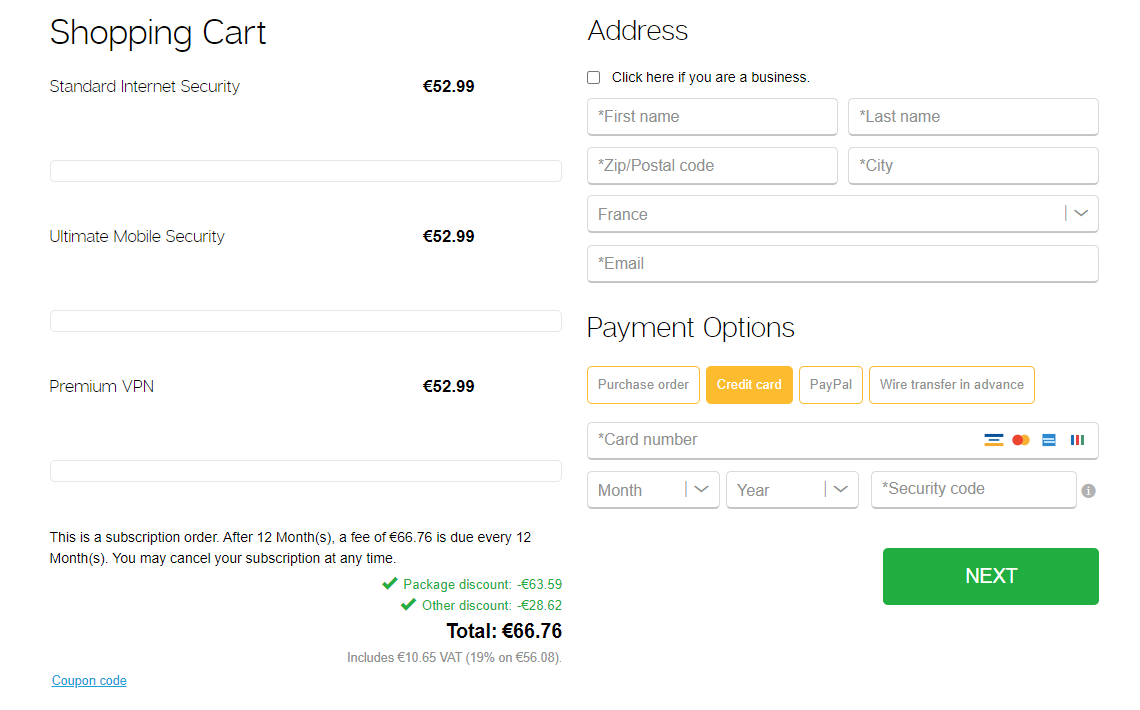
You are a software-selling company that uses partners to sell products worldwide. You want to offer partners a more attractive package deal than the one offered to regular customers. You combine two package discounts:
- If the customer cart contains three items, a fixed price of 95.38 EUR is applied to the total cart amount.
- If
Customer= Partner, a percentage discount of 30% is applied to the discounted cart amount.
Conditions
- Product pricing is set to 52.99 EUR per unit.
For the package discount configurations:
- A product list containing one-year subscriptions is selected.
- The Fixed Price discount method is selected for the first package discount.
- The first package discount sets a fixed price of 95.38 EUR for three items in the cart.
- A second package discount is created for partners with the parameter value
partner30. It applies a percentage discount of 30% as a price rule.
The setup is calculated as follows:
| Package discount | Price rule discount | |
|---|---|---|
| Number of cart items | 3 | |
| Original price | 158.97 EUR (3 x 52.99 EUR) | |
| Discount pricing method | Fixed price: 95.38 EUR | Percentage discount: 30% |
| Discounted amount | 63.59 EUR | 28.62 EUR |
| Discounted cart price | 66.76 EUR | |
Create the partner package discount configurations
Create one package discount for the standard package price and a second package discount for the partner-specific reduction. Skip this procedure if both configurations already exist.
- In SCM, go to Optimize > Package Discounts.
- Click Add Package Discount, and enter a name for the first package discount configuration.
- Under Discount Settings, select Fixed Price as the discount pricing method.
- Select the item threshold.
- Select a product list.
- Select the price type for taxation, either net or gross price.
- Set the fixed package price. For this use case, enter quantity
1and a price of 52.99 EUR. - Click Save and Close. The first package discount configuration is complete.
- Repeat the steps to create the additional package discount for partners. Use the same configuration except for the following settings:
- Select Percentage Discount as the discount pricing method.
- Enter a 30% discount to apply to the cart.
Create the partner price rule
Create a price rule that combines the standard package discount with the partner-specific discount. You can optionally limit the price rule to a region.
- In SCM, go to Configure > Tools > Price Rules.
- Click Add Price Rule, and enter a name for the price rule.
- Under Configuration Type, select Package Price Configuration.
- Under Package Price Configuration, select the first package discount configuration.
- Under Additional Package Discount, select the second package discount configuration created for partners.
- Add a Parameter Value to activate the price rule in the checkout URL.
- Optional: Under Conditions Settings, select a region to apply the package discounts to a specific region through the price rule. To create a region, click Add new.
Selecting a region allows you to localize partner pricing. The special discount then applies only to the market where the registered partner resells your products.
- Click Save and Close. The price rule is complete.
Activate the partner offer
Pass the &pricerule parameter in the checkout URL to activate the package discount price configuration and the partner-specific discount.
Partner-offer checkout URL
https://www.cleverbridge.com/<clientID>/?scope=checkout&cart=<productID1>,<productID2>,<productID3>&pricerule=<PR-value>
where:
<clientID>is your account ID.<productID1>,<productID2>, and<productID3>are the IDs of the products you want to include in the cart.<PR-value>is the price rule parameter value. In this example, the partner discount value ispartner30.
You can now generate a URL for partners with special pricing. For more information about generating URLs, see Create URLs using Link Generator.