Create item-level promotions
Overview
An item-level promotion gives customers an incentive to buy a product by changing its standard offer. For example, you can subtract a percentage or fixed amount from the regular product price, set a reduced fixed price, or define special prices for subscription billing events.
Item-level promotions can help you boost sales or reward loyal customers. Examples include:
- Freebies.
- Limited-time offers.
- Holiday specials.
Use a cart promotion when the discount should apply to the entire cart. Use a package discount when customers must purchase a qualifying combination of products.
View existing promotions
Go to Optimize > Promotions > Item Level Promotions.
The Item Level Promotions table provides an overview of all item-level promotions configured for your account. Use it to review promotion names, coupon codes, validity periods, and activation status. You can also display optional columns with configuration details, ownership information, and recent revenue and order performance.
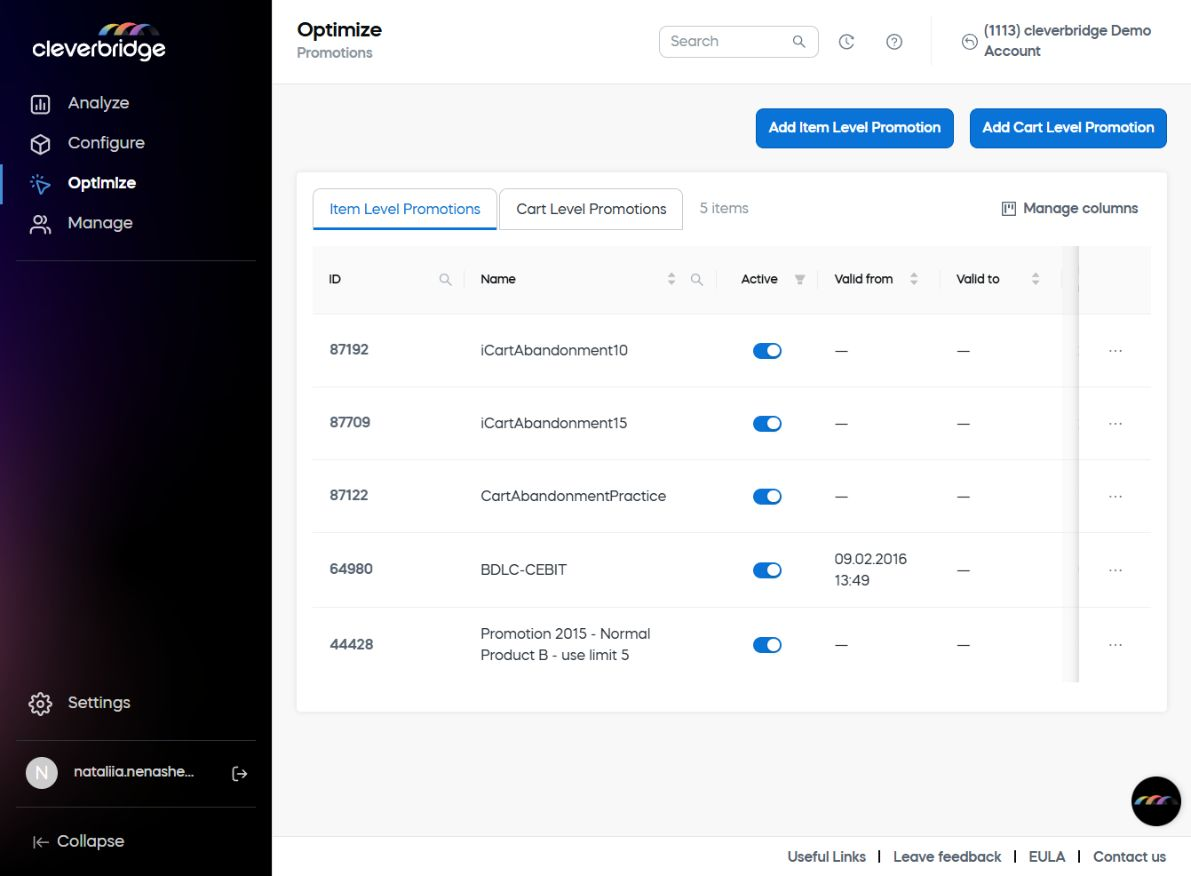
Item Level Promotions table fields
To customize the columns displayed in the Item Level Promotions table, select Manage columns.
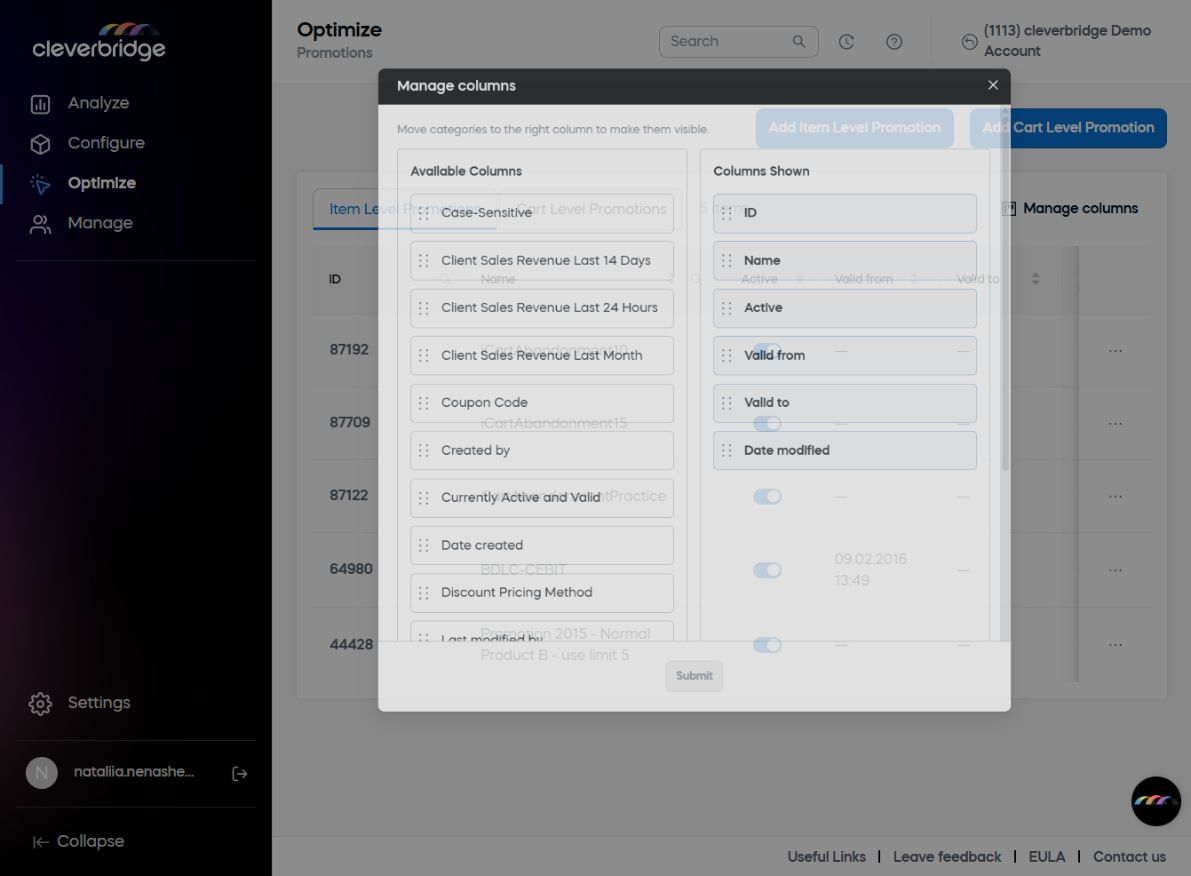
View all available fields
Add an item-level promotion
To add an item-level promotion, go to Optimize > Promotions.
Click Add Item Level Promotion and define the settings as described below:
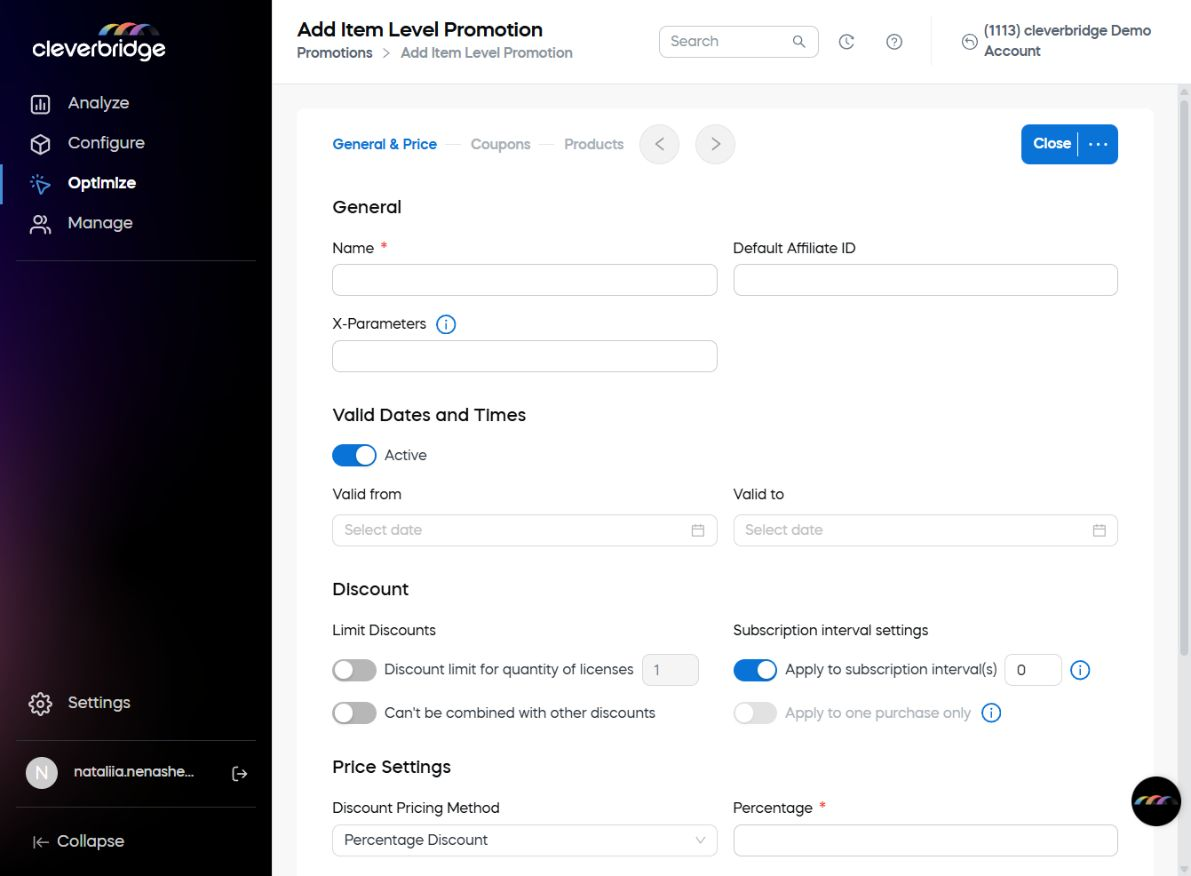
Define the promotion
The settings in General & Price define the promotion's overall characteristics, validity, restrictions, pricing, and eligible price configurations.
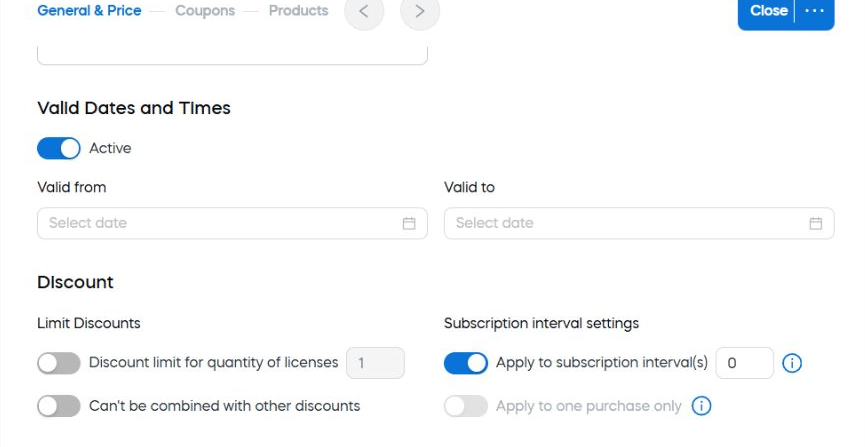
Define the promotion name
In Name, enter a unique name for the promotion.
Promotion naming recommendations
Use a consistent, descriptive structure that makes the promotion easy to identify later. A useful naming convention can include:
- The type of promotion.
- The associated product name.
- The price, country, or other relevant information.
For example:
Email – Internet Security Basic – Germany – GIFTFORYOU
Assign a default affiliate
To credit an affiliate for every purchase made with a coupon from the promotion, enter the affiliate's ID in Default Affiliate ID. Use this setting for affiliates who distribute coupons through media such as mailings or print media.
Add X-parameters
Use X-Parameters to add key-value pairs to purchases that use the promotion. For more information, see Set up x-parameters.
This setting overrides any X-parameters passed to the order process or previously stored in a cookie.
To credit Partnerize publishers for purchases made with promotional coupon codes, see Credit Partnerize publishers with item-level promotions.
Define the promotion period
The Valid Dates and Times settings determine whether and when the promotion is available.
Activate the promotion
Use Active to determine whether the promotion is available for use.
Set the valid dates and times
Use Valid from and Valid to to define when the promotion is available. If you do not enter valid dates and times, an active promotion remains available without a date restriction. The dates and times are based on your computer's settings.
- Enable the Valid from and Valid to toggles.
- Enter the date and time range for the promotion.
Configure discount restrictions
The Discount settings control the discounted quantity, combination with other discounts, and application to subscription billing events.
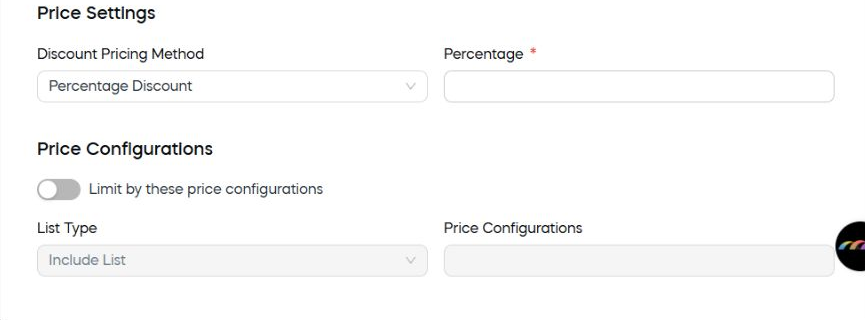
Limit the discounted license quantity
Use Discount limit for quantity of licenses to set the maximum number of units that can receive the discount when a customer purchases multiple units of the same product.
Example
The quantity limit is set to 2, and a customer purchases 5 units. The discount applies to the first 2 units, while the remaining 3 units remain at full price.
Control combinations with other discounts
Use Can't be combined with other discounts to prevent other Cleverbridge platform discounts, such as discounts from price configurations, from being combined with this promotion.
Behavior and limitations
This setting is useful when partners may have access to other platform discounts that you do not want to apply in addition to this promotion.
- Enable this option to prevent partners from receiving another discount after this discount is applied.
- Leave this option disabled if partners can receive additional discounts. The item-level promotion is deducted first, followed by the additional discounts.
- If a price configuration uses the Fixed Price price setting, its discount can still be combined with this promotion even when Can't be combined with other discounts is enabled.
- A dynamic discount created in SCM Link Generator can still apply in addition to this discount. To avoid this scenario, in Link Generator under Marketing, disable Enable coupon code entry field in cart.
Apply the discount to subscription billing events
The subscription settings determine how many billing events receive the promotion.
For more information and examples, see Combine a subscription with a promotional discount.
Apply to billing interval(s)
Use Apply to billing interval(s) to apply the discount to the initial purchase and a defined number of subsequent subscription billing events. Configure this option as follows:
- Enter
0to discount only the initial purchase. Later billing events use the full price. - Enter a number greater than
0to define how many rebilling events receive the discount in addition to the initial purchase. - Disable the toggle to apply the coupon to all subscription billing intervals.
A subscription product is billed monthly, and you create a promotion for the first six months free. Set Apply to billing interval(s) to 5. The discount applies to the initial billing event and the next five rebilling events. Starting with the seventh billing event, the customer pays the full monthly subscription price.
Apply to one subscription billing interval only
Use Apply to one subscription billing interval only to apply the discount to no more than one billing interval per subscription.
A subscription product is billed monthly. You create a promotion and select Apply to one subscription billing interval only. The discount applies to the initial billing event. Starting with the second billing event, the customer pays the full monthly subscription price.
You can select only one of the following settings in the Discount section:
- Apply to one subscription billing interval only under Limit Discount.
- Apply to subscription billing intervals under Subscription Interval Settings.
Select a discount pricing method
The Price Settings section determines how the promotion changes the product price. First, select a Discount pricing method. SCM then displays the additional fields required for that method.
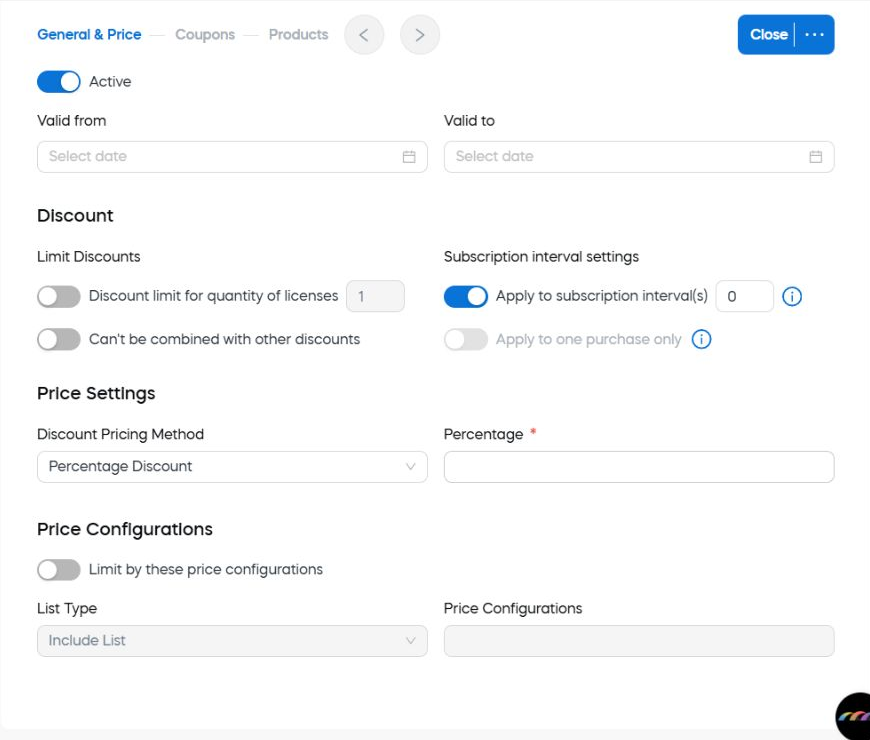
Cleverbridge provides four basic pricing methods, each of which is also available with a volume scale:
- Percentage discount.
- Absolute discount.
- Fixed price.
- Recurring price.
The currencies you can add and the prices or discounts you can define depend on your user permissions and the currencies available for the account. If you cannot add a currency or define a value for an additional currency, contact your Customer Success Manager.
- Discount existing price
- Replace existing price
- Set recurring prices
Discount the existing price
Use a percentage or absolute discount to subtract a percentage or fixed amount from the regular product price.
Percentage discount
Use Percentage Discount to subtract a specified percentage from the product price.
- From Discount pricing method, select Percentage Discount. The Percentage field appears.
- Enter the percentage to offer as a discount.
- Click Save.
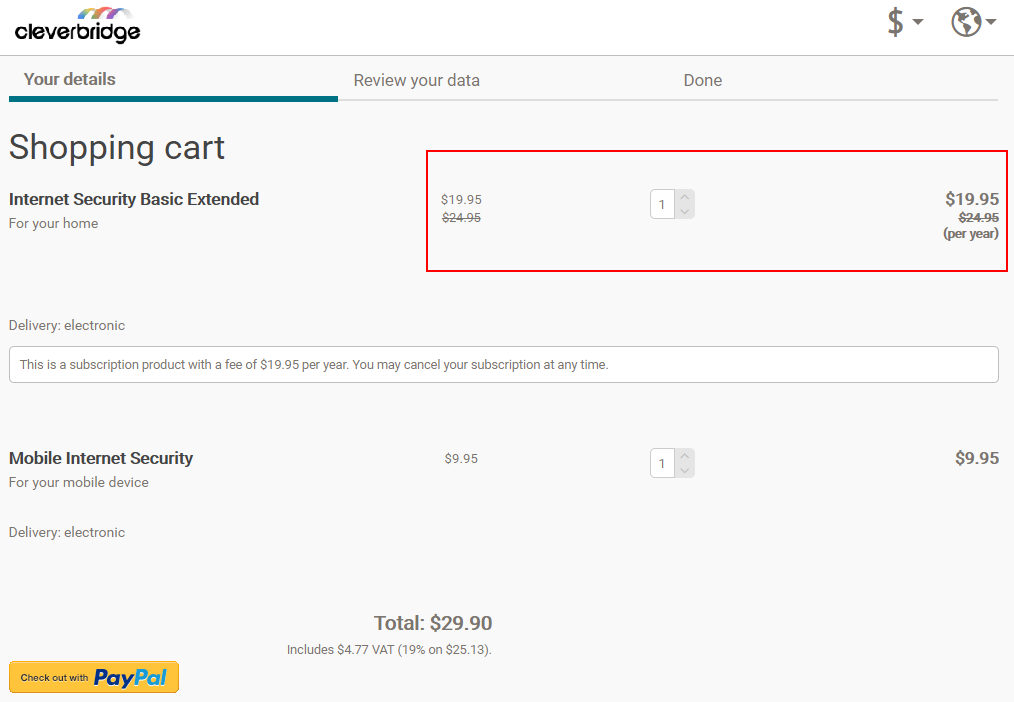
In the following cart, Internet Security Basic Extended has a 25% promotion. The promotion does not apply to Mobile Internet Security. The discount is deducted only from Internet Security Basic Extended, not from the total order price.

Percentage discount with volume scale
Use Percentage Discount (Volume Scale) to subtract different percentages based on the purchased quantity. This method is useful for products sold in multiple quantities.
- From Discount pricing method, select Percentage Discount (Volume Scale). A grid with quantities and percentages appears.
- In Quantity, enter the volume scale, with each row representing the next tier. For more information, see Volume pricing method.
- In Percentage, enter the discount percentage for each volume tier. For more information, see Volume pricing method.
- Click Save.
Absolute discount
Use Absolute Discount to subtract a specified amount from the product price.
- From Discount pricing method, select Absolute Discount.
- Select the Price type for taxation.
- Enter the discount amounts in the Price grid.
- Click Save.
Be careful when an absolute discount applies to multiple products with different prices. The promotion might reduce some prices more than intended.
In the following cart, Internet Security Basic Extended has an absolute discount of $5 from the original product price.
Absolute discount with volume scale
Use Absolute Discount (Volume Scale) to subtract different amounts based on the purchased quantity. This method is useful for products sold in multiple quantities.
- From Discount pricing method, select Absolute Discount (Volume Scale).
- Select the Price type for taxation.
- Configure the Volume pricing method. For more information, see Volume pricing method.
- Enter the discount amounts in the Price grid.
- Click Save.
Replace the existing price
Use a fixed price method to replace the regular product price with a lower promotional price.
Fixed price
Use Fixed Price to replace the original product price with a lower promotional price.
- From Discount pricing method, select Fixed Price.
- Select the Price type for taxation.
- Enter the promotional prices in the Price grid.
- To display both the original and discounted prices, enable Show original price and discounted price.
- Click Save.
Enable Show original price and discounted price only if you want both prices to appear.
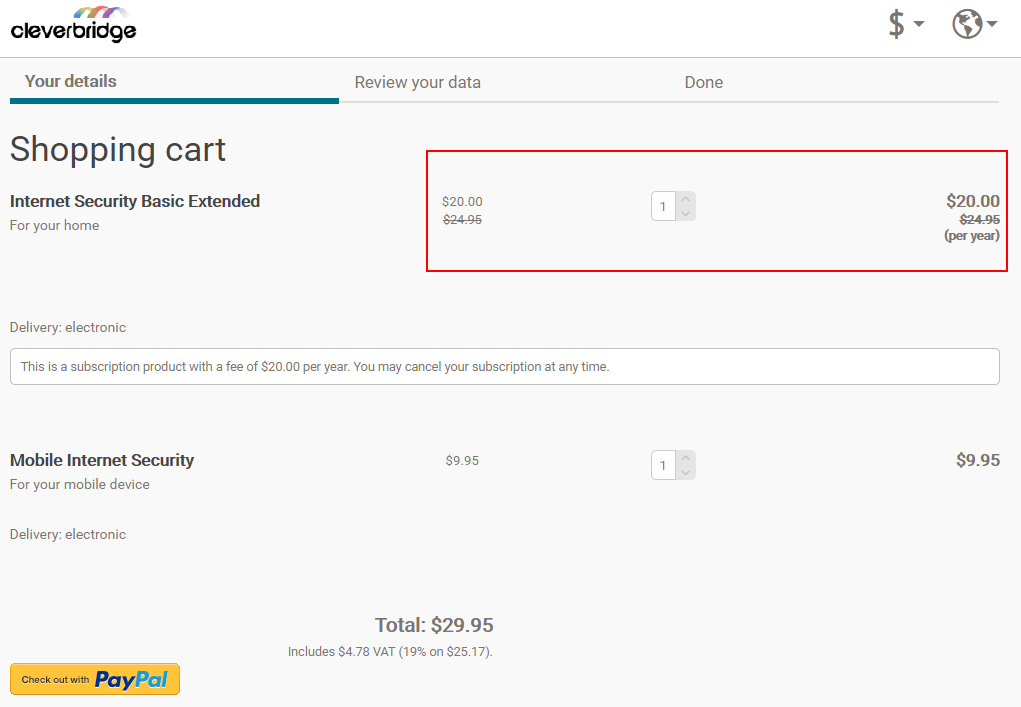
In the following cart, the original price of Internet Security Basic Extended is $24.95, and the discounted price is $20.
Fixed price with volume scale
Use Fixed Price (Volume Scale) to replace the original product price with different promotional prices based on the purchased quantity. This method is useful for products sold in multiple quantities.
- From Discount pricing method, select Fixed Price (Volume Scale).
- Select the Price type for taxation.
- Configure the Volume pricing method. For more information, see Volume pricing method.
- Enter the promotional prices in the Price grid.
- To display both the original and discounted prices, enable Show original price and discounted price.
- Click Save.
Enable Show original price and discounted price only if you want both prices to appear.
Set prices by subscription billing event
Use a recurring price method to define promotional prices for individual subscription billing events.
Recurring price
Use Recurring Price to define a different promotional price for each subscription billing event. These prices are lower than the original product price.
- From Discount pricing method, select Recurring Price.
- Select the Price type for taxation.
- Enter the prices for the billing events in the Price grid.
- Click Save.
The fictional company Shieldware sets the original price of its antivirus product, Internet Security, to $34.95 for one year of use. When a customer signs up for a subscription, Shieldware offers a discounted price for each billing interval.
Using the Discount tab, Shieldware sets the initial subscription payment, Interval 0, to $29.95 for one year of use. It then adds the following values to the price grid:
If one or more products associated with the Recurring Price discount are not configured as subscription products, SCM displays the warning At least one product is not a subscription. In this case, the Interval 0 discount is assigned to the non-subscription product.
Recurring price with volume scale
Use Recurring Price (Volume Scale) to define a different promotional price for each subscription billing event and purchased quantity. This method is useful for subscription products sold in multiple quantities.
- From Discount pricing method, select Recurring Price (Volume Scale).
- Select the Price type for taxation.
- Configure the Volume pricing method. For more information, see Volume pricing method.
- Enter the prices in the Price grid.
- Click Save.
If one or more products associated with the Recurring Price discount are not configured as subscription products, SCM displays the warning At least one product is not a subscription. In this case, the Interval 0 discount is assigned to the non-subscription product.
Limit the promotion by price configuration
The Price Configurations section limits the promotion to, or excludes it from, selected price configurations.
- Enable Limit by these price configurations.
- From List type, select one of the following:
- Exclude List to exclude selected price configurations from the promotion. Use this option when only a few price configurations should not be included.
- Include List to include only selected price configurations in the promotion. Use this option when the promotion applies to a limited number of price configurations.
- In Price Configurations, select the price configurations to include or exclude, depending on the selected list type.
For more information about combining price configurations and promotions, see Use a price configuration for combining discounts and coupons.
Create coupon codes
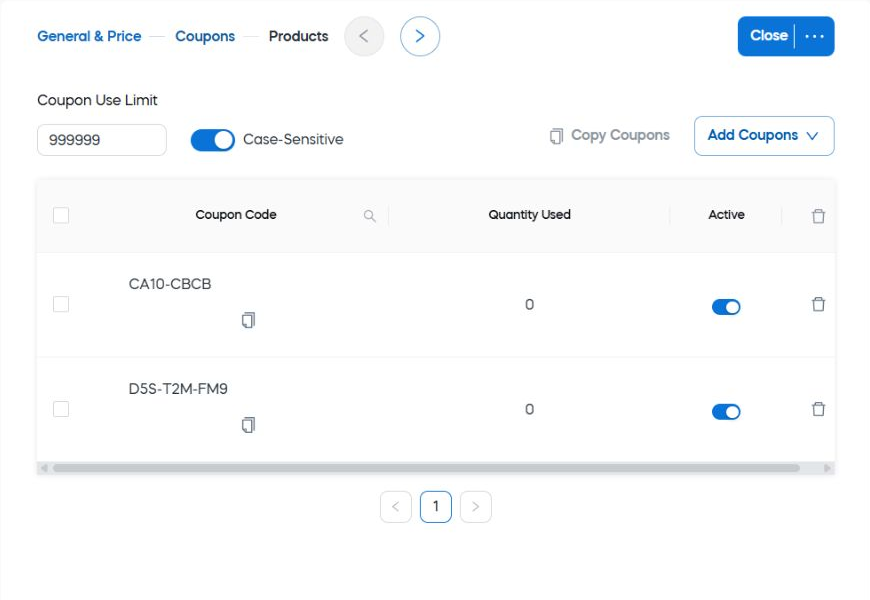
Use the Coupons section to configure coupon behavior and create new coupon codes or copy existing coupon codes into the promotion.
Configure coupon behavior
The settings at the top of the Coupons section apply to all coupon codes in the promotion.
Set the coupon use limit
Use Coupon use limit to restrict the total number of times a unique coupon code can be used for the promotion.
This field limits the total number of uses across all customers. For example, a limit of 1,000 allows the coupon code to be used 1,000 times. A limit of 1 means that only one customer can receive the discount before the coupon expires, regardless of the total number of customers.
Depending on your business model, use the coupon use limit to create urgency. For example, set the limit to 500 and promote the offer to the first 500 customers.
Make coupon codes case-sensitive
Enable Case-sensitive to require coupon codes to distinguish between uppercase and lowercase letters.
Set up coupon codes
You can generate new coupon codes in SCM or paste existing codes from another source.
Generate new coupon codes
Generate coupon codes when you want SCM to create the codes based on criteria you define.
- Click Add Coupons > Generate Coupons. The Generate Coupons window opens.
- Enter the settings that determine how the coupon codes are created.
- Click OK. SCM adds the coupon codes to the promotion.
You can personalize coupon codes by including customer information, such as an email address or phone number. Personalized codes can create a positive customer experience.
To edit a coupon code name, click the coupon code line item and enter the new text.
Copy existing coupon codes
Copy coupon codes when you already have pre-generated codes in a spreadsheet, text file, or another source.
- In the source file, select and copy the coupon codes.
- Click Add Coupon > Paste Coupons. SCM adds the coupon codes to the promotion.
Depending on your business model, you can create one coupon code for multiple uses or multiple coupon codes for one use each. You can also activate or deactivate individual coupon codes. The Quantity Used column shows how many times each coupon code has been used.
Assign products to the promotion
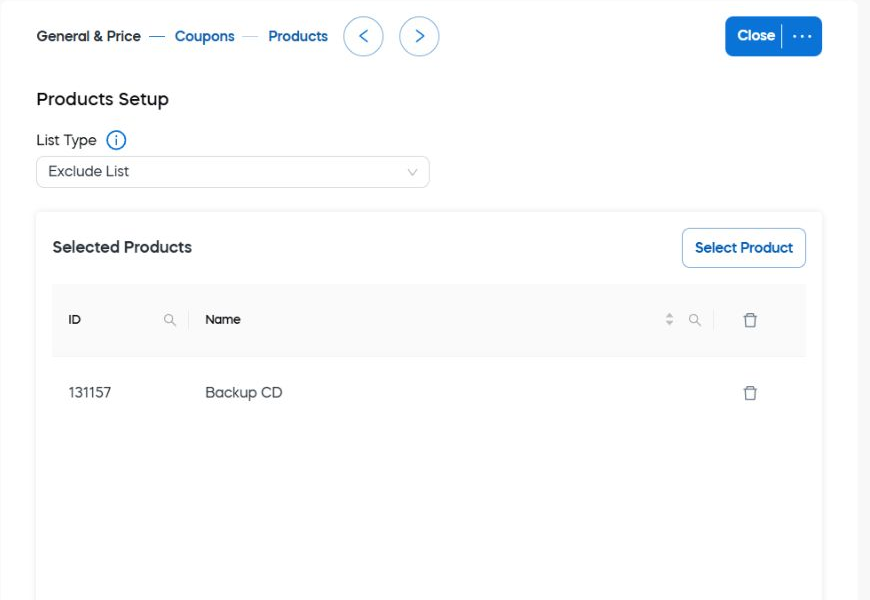
Use the Products section to specify which products are eligible for the promotion.
Include or exclude products
Choose whether the promotion applies only to selected products or to all products except the selected products.
- From List type, select one of the following:
- Include List to apply the promotion only to selected products. Use this option when the promotion applies to a limited number of products.
- Exclude List to apply the promotion to all products except the selected products. Use this option when only a few products should not be included.
To include all products in the promotion, select Exclude List and do not select any products.
- Above the Selected Products table, click Select Product.
- Search for and select the products to add to the promotion.
- Click OK.
Remove a product
Remove a product when it should no longer be included in, or excluded from, the promotion.
In the Selected Products table, click the bin icon next to the product you want to remove.
Trigger an item-level promotion
Customers can receive an item-level promotion in either of the following ways:
- The customer enters a coupon code during checkout.
- The coupon code is passed in the checkout URL, and the discount is applied automatically.
Let customers enter a coupon code
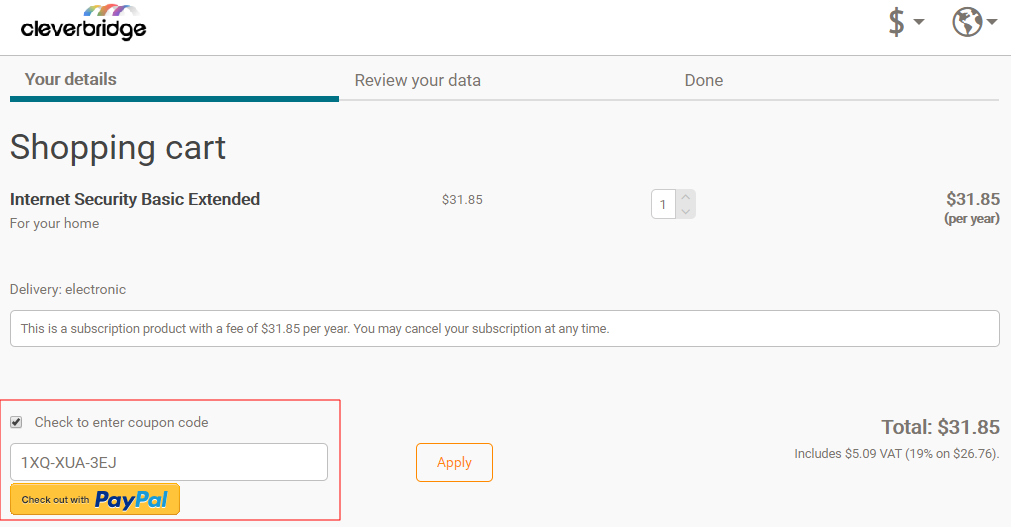
With this method, customers manually enter the coupon code in the coupon code field during checkout.
In the following cart, the customer clicks Check to enter coupon code to display the coupon code field. The customer enters the code and clicks Apply to activate the discount for the applicable product.
Pass a coupon code in a URL
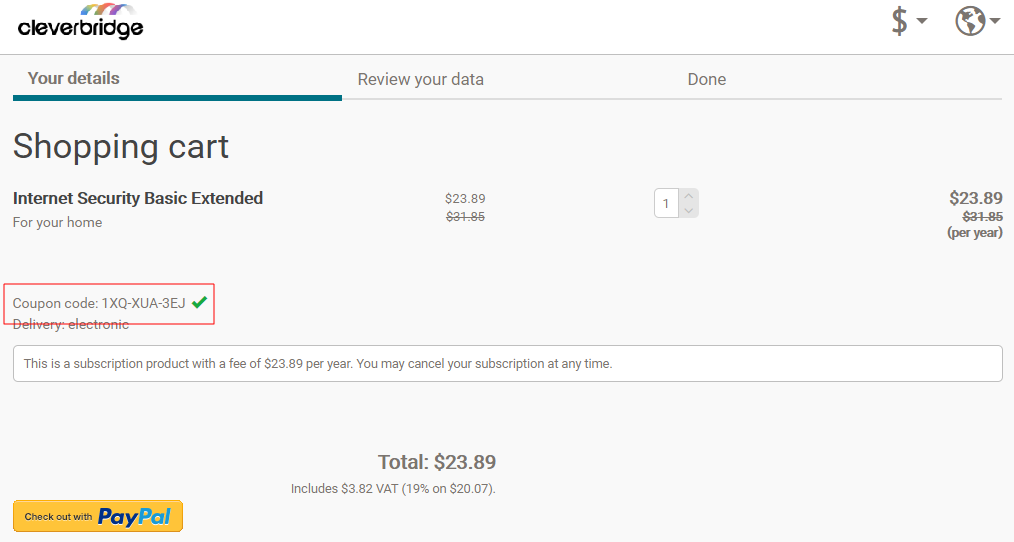
With this method, the coupon code is added to the checkout URL, and the discount appears in the cart automatically. The customer does not need to enter the code manually.
You can implement this method with SCM Link Generator or URL parameters:
- In Link Generator, enter the coupon code in Use coupon code. The generated link automatically applies the discount in the cart.
- To add the coupon code directly to a checkout URL, use
?coupon=when it is the first query parameter or&coupon=when the URL already contains another query parameter.
In the following cart, the discount was applied automatically. The URL includes the coupon code &coupon=1XQ-XUA-3EJ.
A complete checkout link follows this pattern:
https://<your.domain>/<your-accountID>/?scope=checkout&cart=<productID>&coupon=<your-promo-coupon>
Set up promotions in Commerce Assistant
For information about setting up promotions in Commerce Assistant (CA), see Promotions.