Product files

Product files are digital assets linked to products, such as data sheets, images, license documents, PDFs, and other attachments used on product pages or during order fulfillment.

Use Product Files in SCM to upload, replace, track, and manage these assets in one place.

You can use Product Files to:

  • add and manage product-specific attachments,
  • replace outdated files while preserving references,
  • verify file integrity before deploying updates,
  • see where a file is used before making changes.

Open Product Files

To open Product Files:

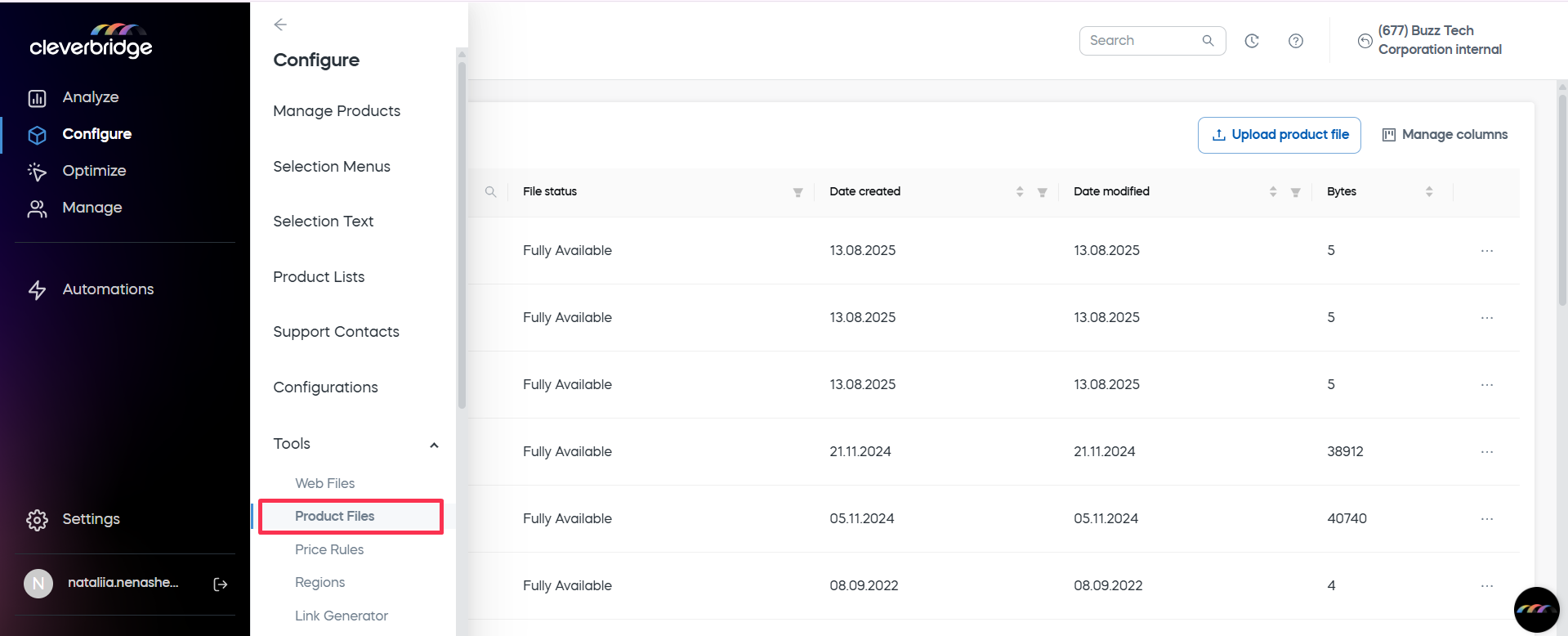
  1. Go to Configure > Tools > Product Files.

  2. The Product Files table opens.

    Navigate to Product Files

Product Files table

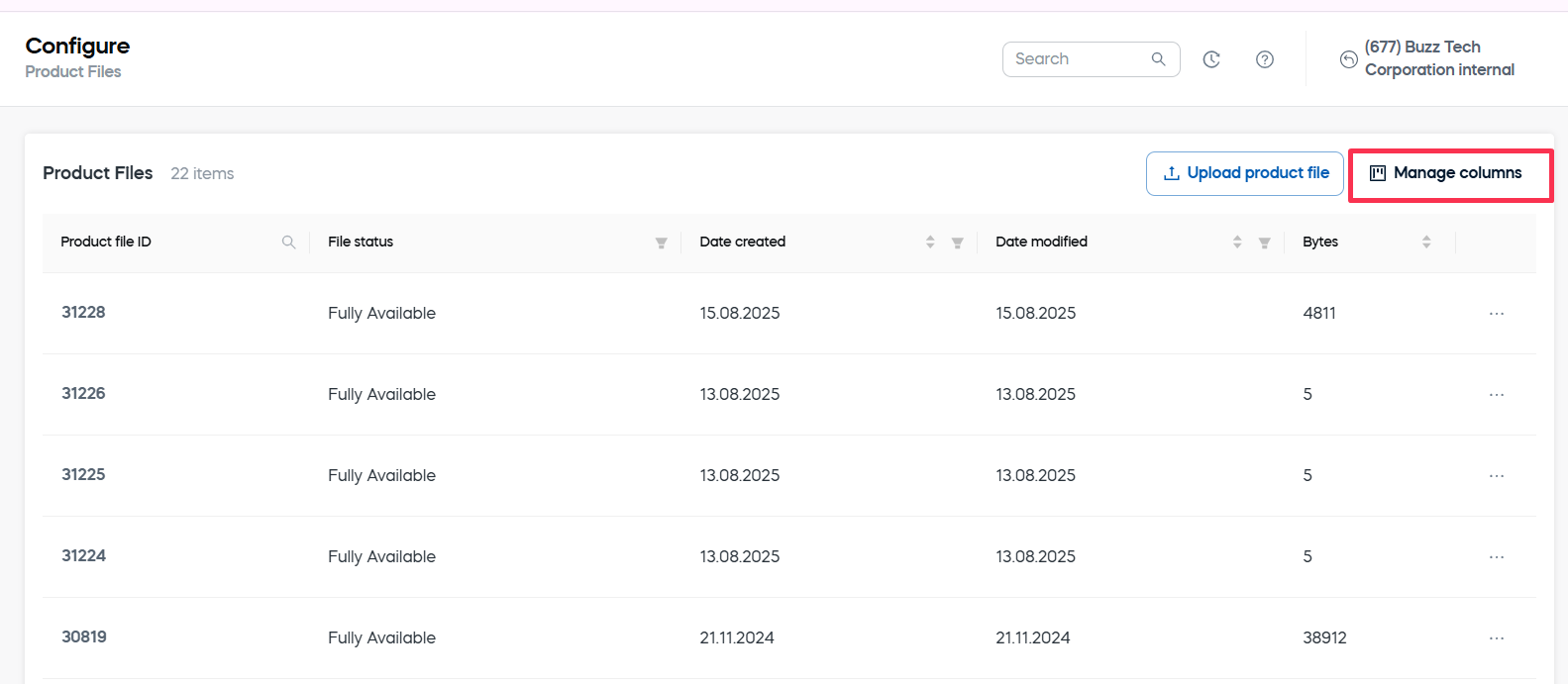
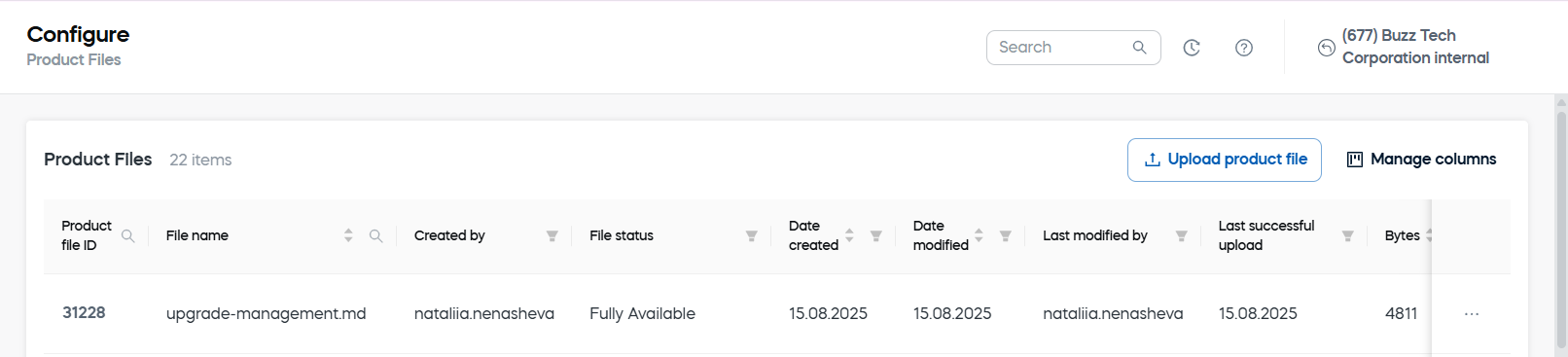
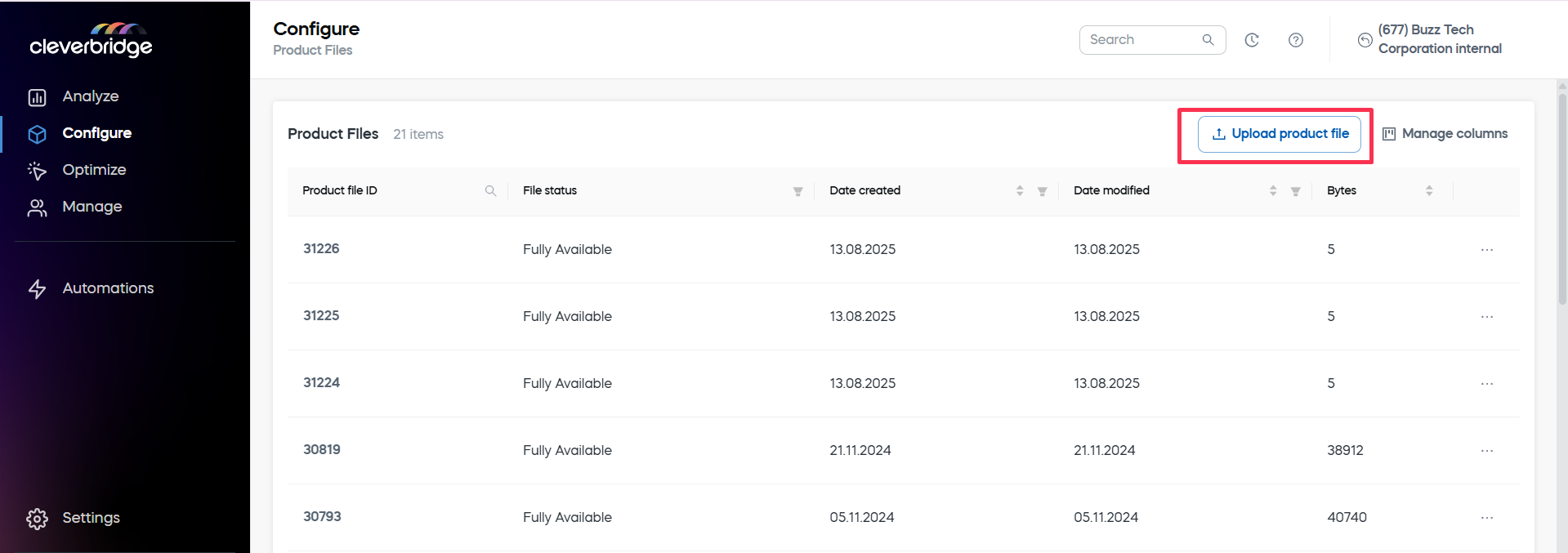
The Product Files table displays all uploaded product files.

ColumnDescription
Product file IDUnique identifier. Searchable.
File nameName of the file. Searchable and sortable.
File statusAvailability of the file. Filterable.
Date createdOriginal upload date. Sortable and filterable.
Date modifiedLast modified date. Sortable and filterable.
BytesFile size in bytes. Sortable.
Created byCreator’s username. Filterable and sortable.
Last modified byUsername of the last editor. Filterable and sortable.
Last successful uploadTimestamp of the most recent successful upload. Filterable.
MD5 checksumHash used to verify file integrity. Display only.

To add or remove columns:

  1. Click Manage columns.

    Product Files — Manage columns button

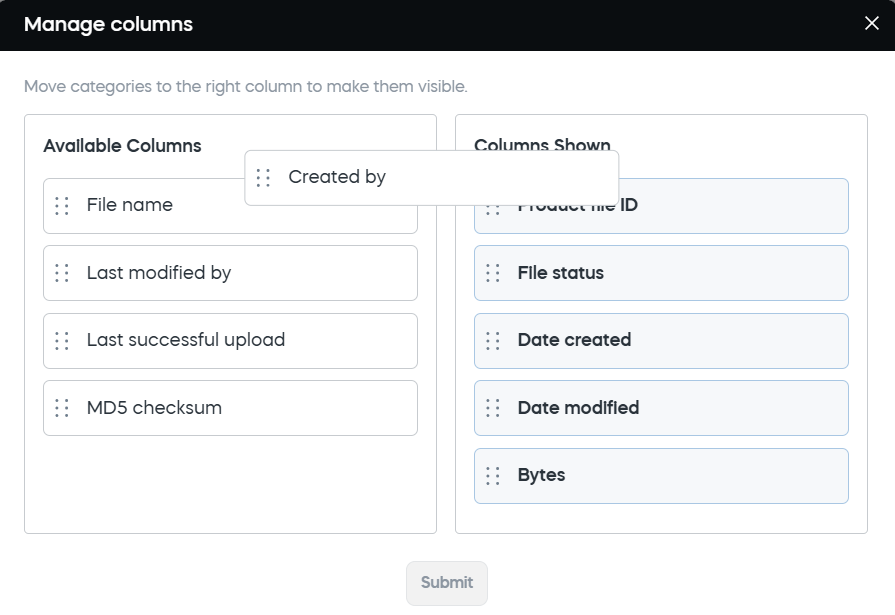
  2. In the Manage columns dialog, drag fields between Available columns and Columns shown.

  3. Click Submit.

    Manage columns — drag and drop

    Manage columns — full list

Upload a product file

To upload a product file:

  1. Click Upload product file.

    Upload product file

  2. Choose the file from your computer.

  3. After the file is uploaded, a success message appears.
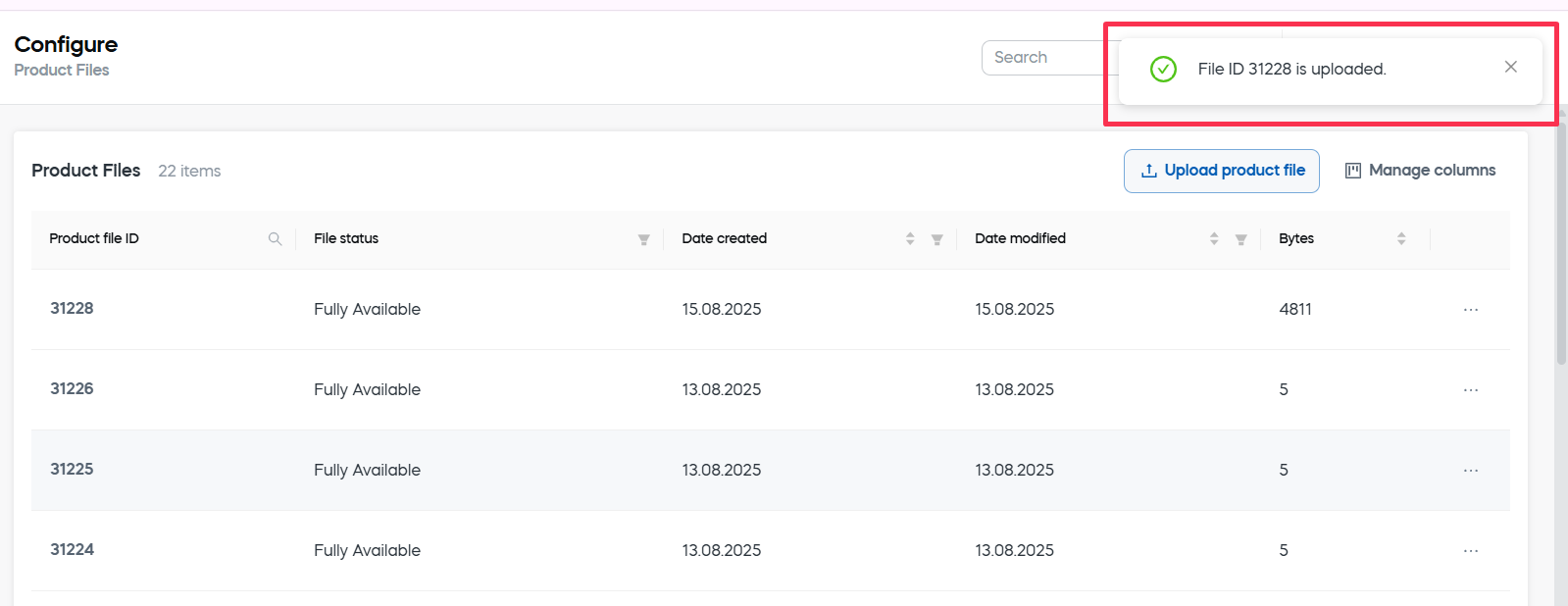
    Upload success message

Manage product files

Each row has a context menu with actions to manage the selected file.
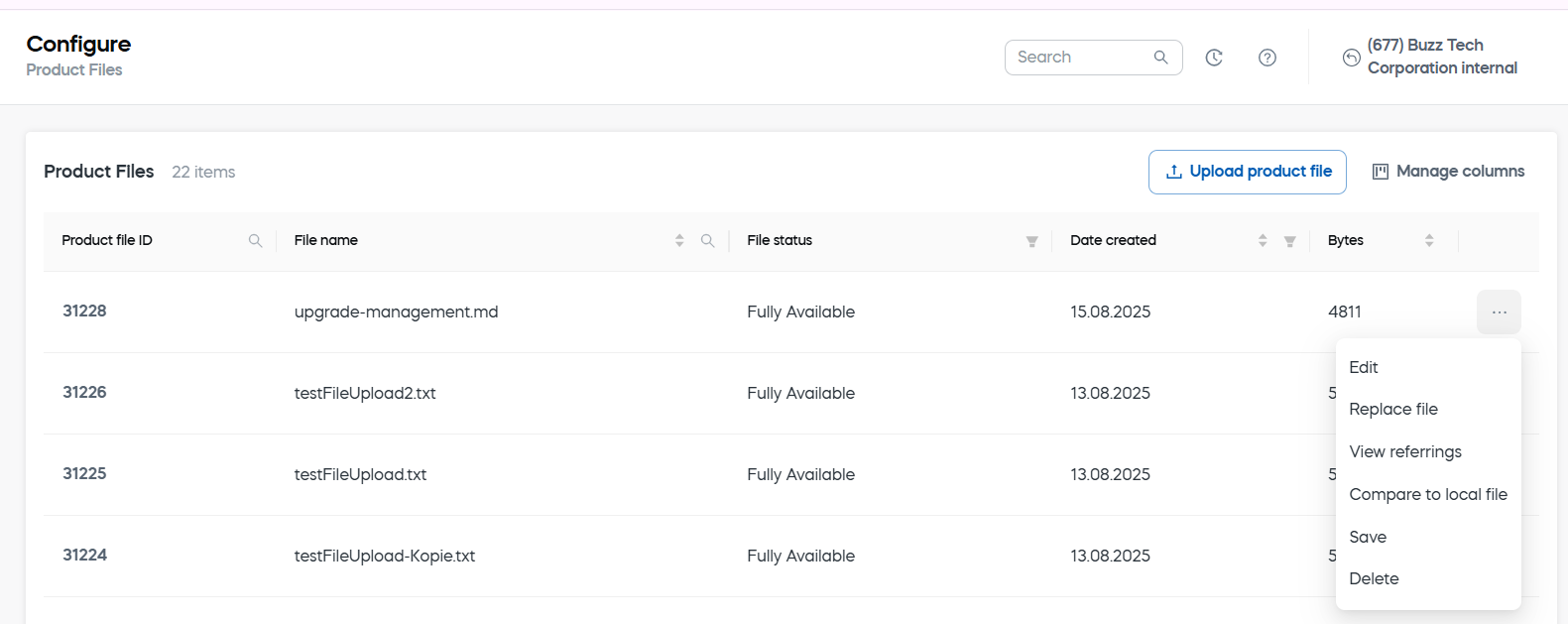
Actions menu

ActionDescriptionUse to
EditRenames the file.Update the file name without replacing the file.
Replace fileUploads a new version while retaining the same file ID.Update outdated materials while preserving existing references.
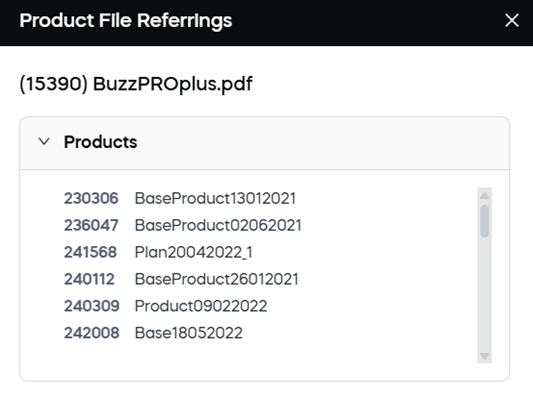
View referringsShows where the product file is used, for example which products reference it. Entries are clickable for quick navigation.Check dependencies before editing, replacing, or deleting a file.
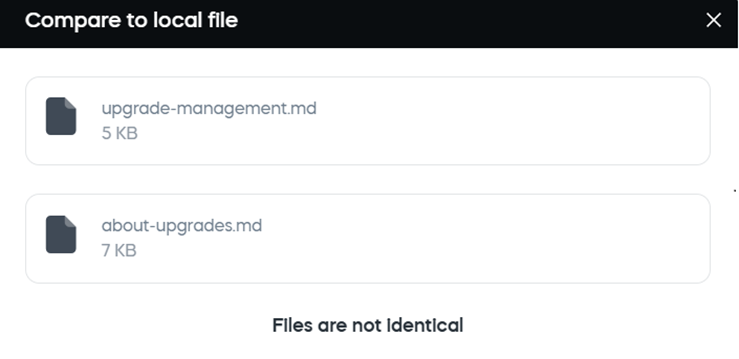
Compare to local fileUploads a local file to check whether it matches the selected product file.Verify whether a local file is identical to the uploaded version.
SaveDownloads the file locally.Keep a local copy of the product file.
DeletePermanently removes the file. If the file is referenced by other entities, deletion is blocked.Remove files that are no longer used.
note

A product file cannot be deleted if it is referenced by other entities. Use View referrings to check where the file is used before deleting it.

Edit Product File

Product File Referrings

Compare — not identical

Use table search, filters, and sorting to quickly find files.

ToolAvailable options
Filter byFile status, Created by, Last modified by, Last successful upload
Sort byDate created, Date modified, Bytes, File name

You can also locate product files using the universal Search by panel.


Did you find this doc useful?