Add a bundle product
Overview
You can choose products to include in a bundle and offer them together at a set price. Typically, the bundle price is lower than the total cost of all individual products, encouraging customers to purchase multiple items simultaneously. In the Cleverbridge platform, a bundle consists of multiple products grouped together rather than multiple licenses of a single product.
When products are grouped into a bundle, they no longer keep their individual product IDs but are assigned a single bundle ID. Bundled items must stay together, and individual products cannot be removed from the bundle during the ordering process.
To create a new bundle product in SCM, go to Configure > Manage Products, and select Add Bundle Product from the three-dot menu. 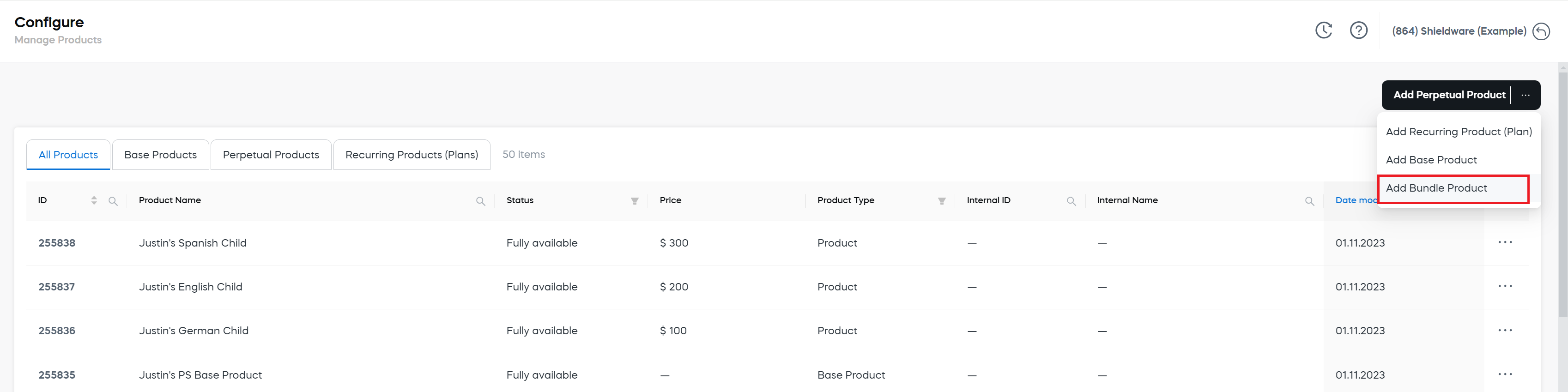
Shared settings of a bundle product
Bundle products use the following shared settings:
Bundle product specifics
Bundle products include additional settings that define which products are included in the bundle, how they appear in the cart, and whether the bundle is sold as a one-time offer or with subscription billing. These settings are specific to bundles because only bundle products group multiple products under one bundle ID.
Bundle product pricing
For bundle products, Volume Pricing Method is always set to All-units discount.
You can also enable subscription billing for a bundle. When the Enable subscription billing toggle is enabled, subscription billing options become available, including Sync next billing date with last payment, Subscription Interval, Start with free trial period, and Start with paid period.
Because subscription interval settings can also be used by recurring products, they are documented in Shared product settings. For more information, see Subscription interval.
Bundle section
The Bundle section appears only when you create or edit a bundle product. It is not available for base, perpetual, or recurring products because only bundle products can contain other products.
Use this section to select the products that are included in the bundle and define how those products appear in the cart. Products added to a bundle are sold together under one bundle ID and cannot be removed individually by the customer during the ordering process.
In the Bundle section:
-
Click Select Product to add products of your choice to the bundle.
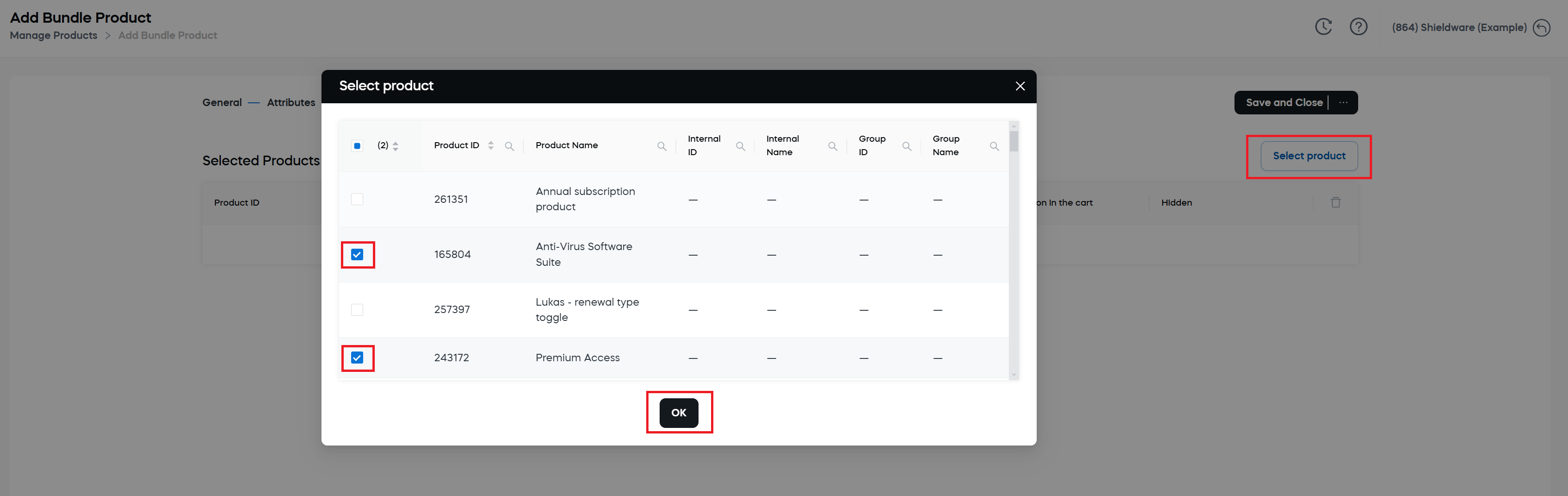
-
In the Position in the cart column, enter a position in the cart for each product in the bundle. This determines the order in which products display to customers. The position ranges from 1 to 100, with 1 being the highest position in the cart, and 100 being the lowest position in the cart. The default value is 50.
-
Optionally, to hide a product in a bundle, enable the toggle in the Hidden column of this product.
-
Click Save and Close.
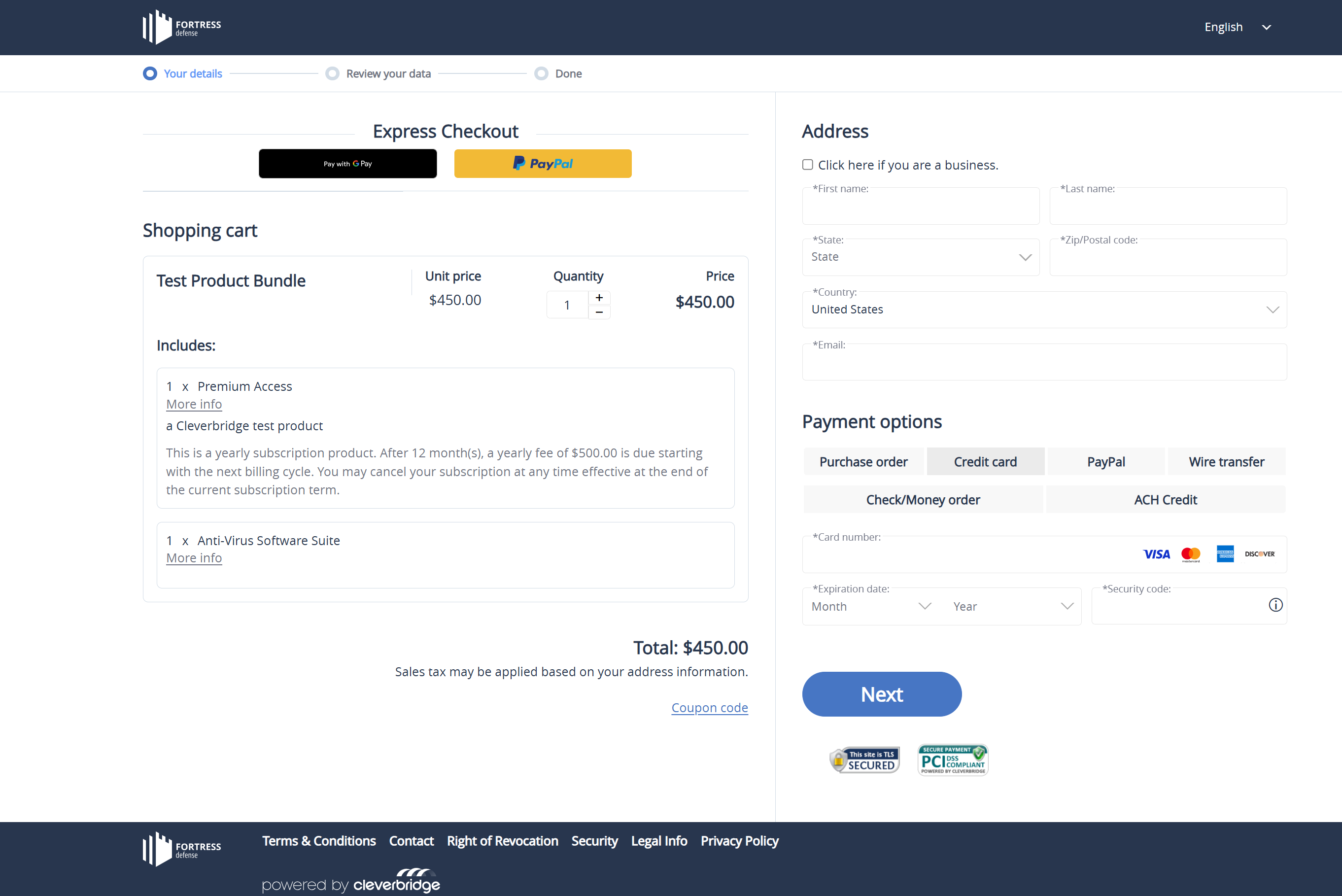
The following is an example of a checkout page with a bundle product created out of two products: Anti-Virus Software Suite and Premium Access.
Subscription bundle pricing scenarios
Bundle products can be used together with subscription products or can be configured as subscription products themselves. The setup you choose affects which product renews and which price is used for the renewal.
You can use the examples below to understand the difference between these subscription bundle pricing scenarios.
- Perpetual product + maintenance plan
- Recurring bundle price
Sell perpetual software combined with a maintenance plan
In this setup, the maintenance plan is the subscription product in the bundle. Only the maintenance plan renews, and the renewal price includes only the maintenance plan price you specified. Use this setup when you want to sell a one-time product together with a subscription product, such as a maintenance plan.
To set this up:
- Create a new bundle product.
- Set up the bundle as a regular product.
- Add the perpetual software to the bundle.
- Add the maintenance plan as a subscription product to the bundle.
In the cart below, Internet Security Bundle includes perpetual software and a maintenance plan at a single discounted price.
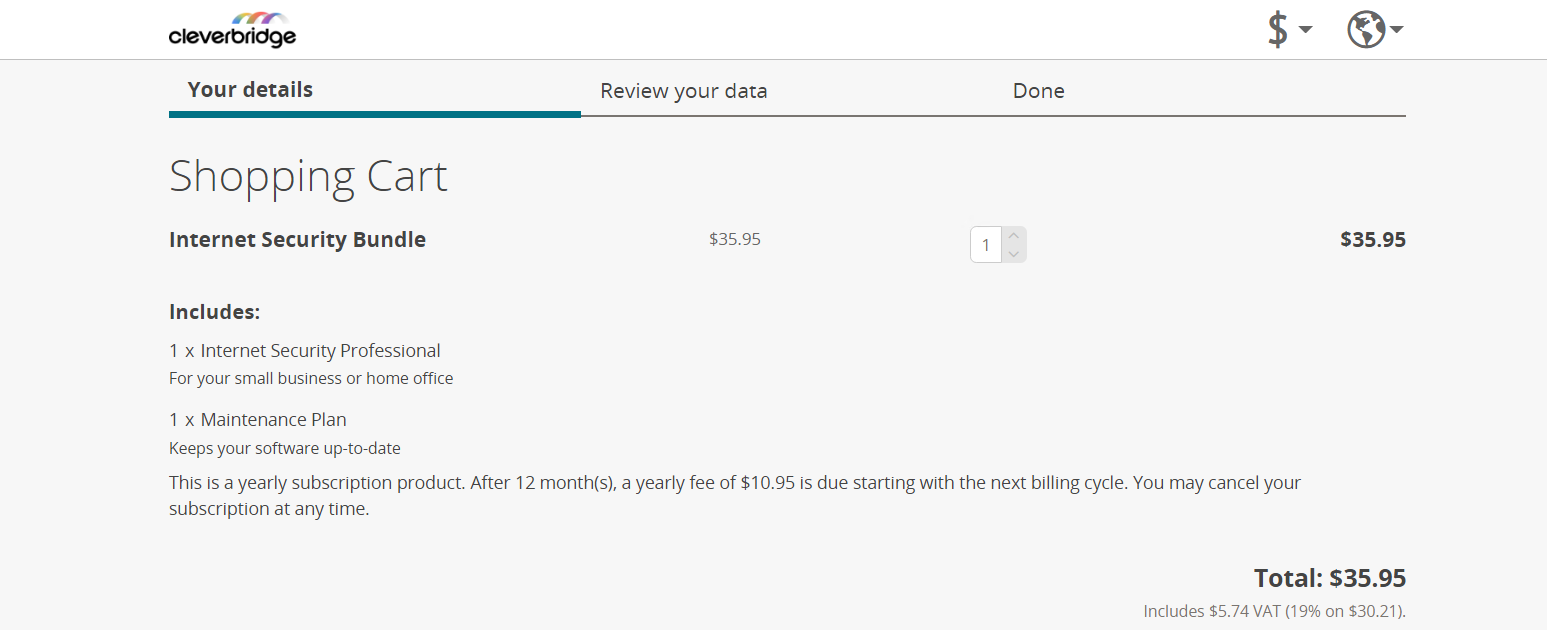
The following table shows the included products, the prices you entered for them in the Cleverbridge platform, as well as both the initial and the renewal price for the bundle.
| Product | Position | Product price | Bundle initial price | Maintenance plan renewal price |
| Internet Security Professional | 1 | $29.95 | $35.95 | $10.95 |
| Maintenance Plan | 2 | $10.95 |
The maintenance plan renews automatically at the price you entered.
Offer multiple products for one recurring bundle price
Use this setup when you want the bundle itself to renew as a subscription product. This is useful when you want to offer multiple products or services as one subscription package with one recurring bundle price.
In this setup, only the bundle product renews. The renewal price includes only the bundle product price you specified.
To set this up:
- Create a new bundle product.
- Set up the bundle as a subscription product.
- Add several products to the bundle.
- Set up each product in the bundle as a regular product.
In the cart below, Professional Security Bundle includes two regular products at a single discounted price.
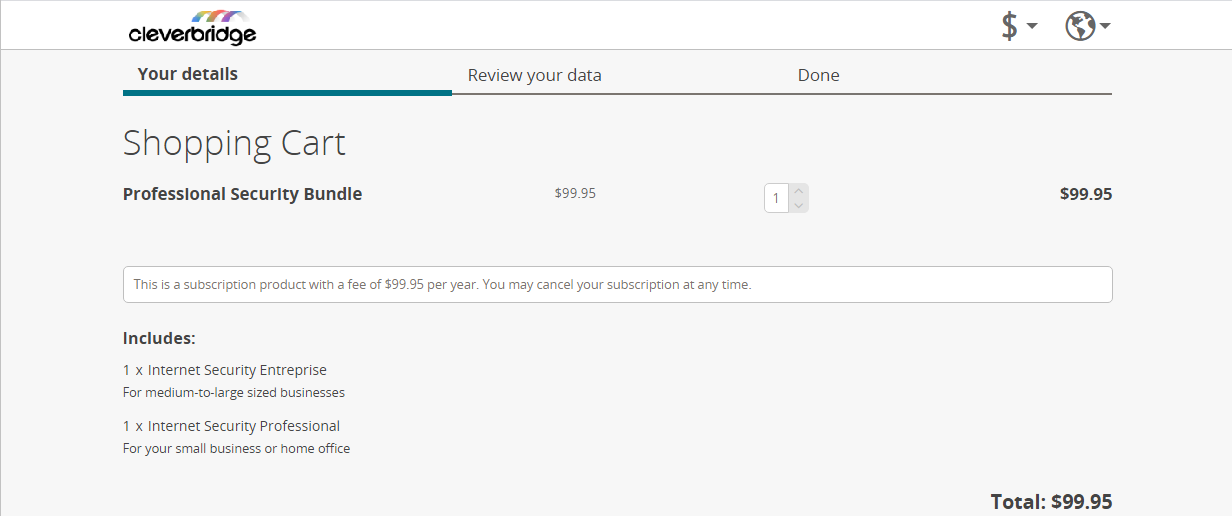
The following table shows the included products, the individual prices you entered for them in the Cleverbridge platform, as well as both the initial and the renewal price for the bundle as a subscription product.
| Product | Position | Product price | Bundle initial price | Bundle renewal price |
| Internet Security Enterprise | 1 | $89.95 | $99.95 | $99.95 |
| Internet Security Professional | 2 | $29.95 |
The subscription bundle renews automatically at the discounted bundle price you entered.
If you set up both the bundle and the included products as subscription products, the renewal price includes both the bundle price and the subscription product prices you entered.
For more information on setting up pricing for a bundle, contact Client Experience.
Remove products from a bundle in SCM
To remove a product from a bundle in SCM:
-
Go to Configure > Manage Products.
-
From the All Products tab, select the bundle that you want to update.
-
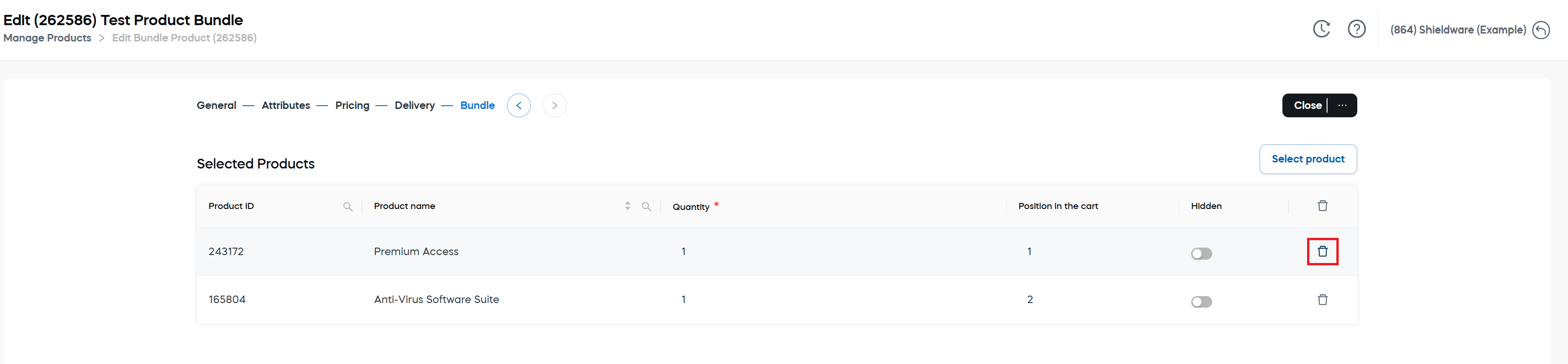
Go to the Bundle section and click the bin icon next to the product you want to remove.
-
Click Save and Stay or Save and Close.