Pay with Bank Transfer via KCP
Overview
Bank Transfer via KCP is available only when the checkout uses South Korea as the country and Korean won (KRW) as the currency.
If Bank Transfer via KCP is available to you in South Korea, you can pay online through a supported Korean bank. You start the payment in the Cleverbridge checkout and authorize it through your bank.
The video and screenshots are for illustration purposes only. The checkout and payment pages may look different.
Before you start
- Make sure you can sign in to a supported bank account and complete its authentication process.
- Allow pop-up windows for the payment page if your browser blocks the bank window.
- Keep the Cleverbridge email for the order. It contains the link you need if you do not finish the payment on the first attempt.
Complete the payment
-
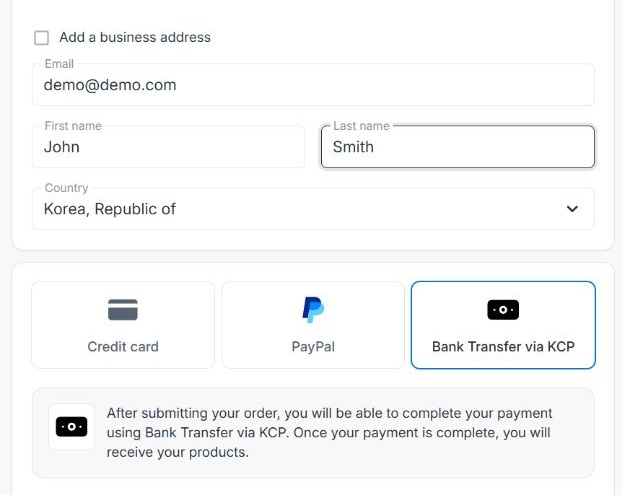
On the Cleverbridge checkout, select Bank Transfer via KCP.
-
Enter your required information and select Buy now.
-
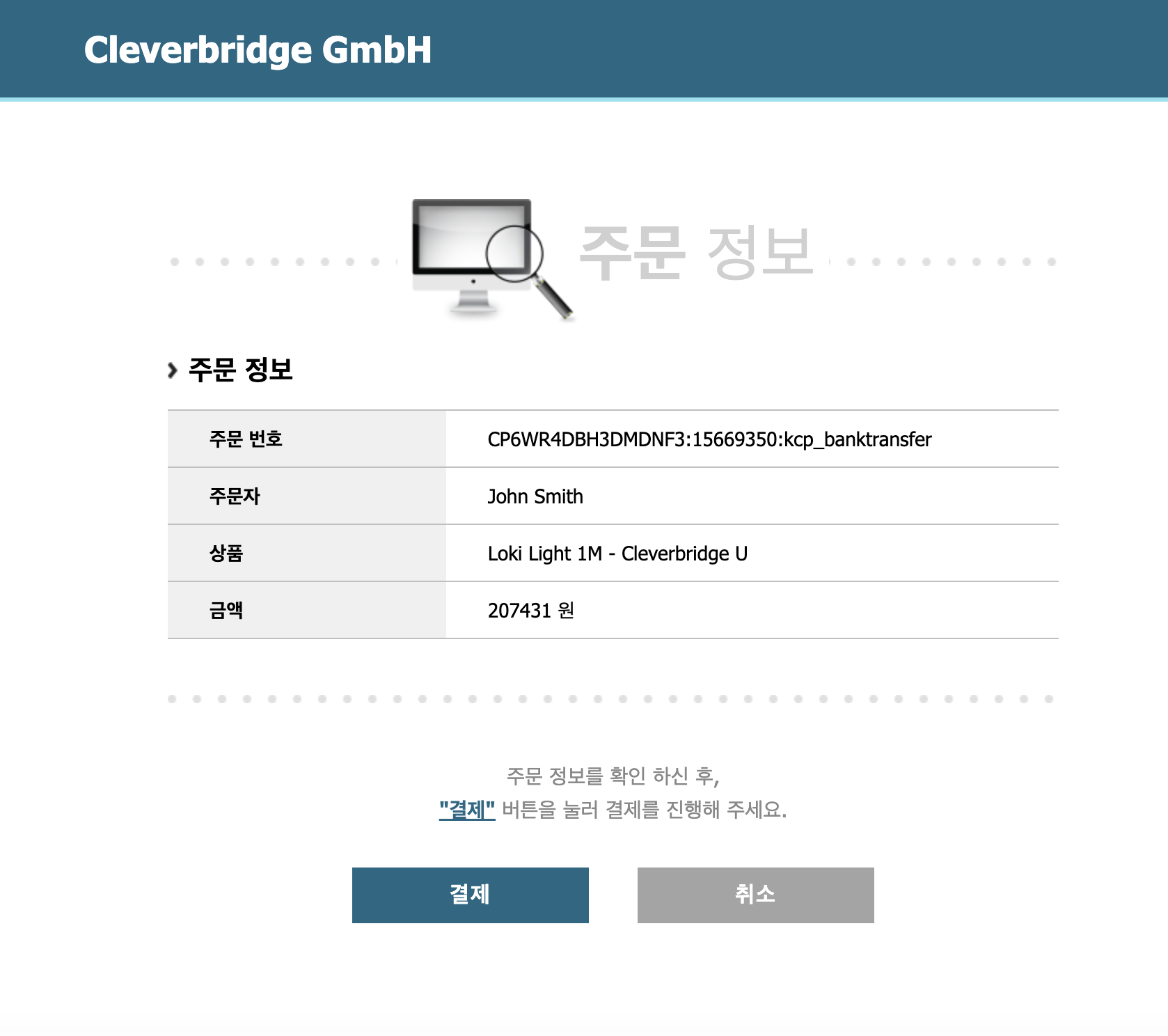
On the KCP order-information page, review your name, the product, and the amount. Select the blue Payment button to continue. The page is displayed in Korean.
-
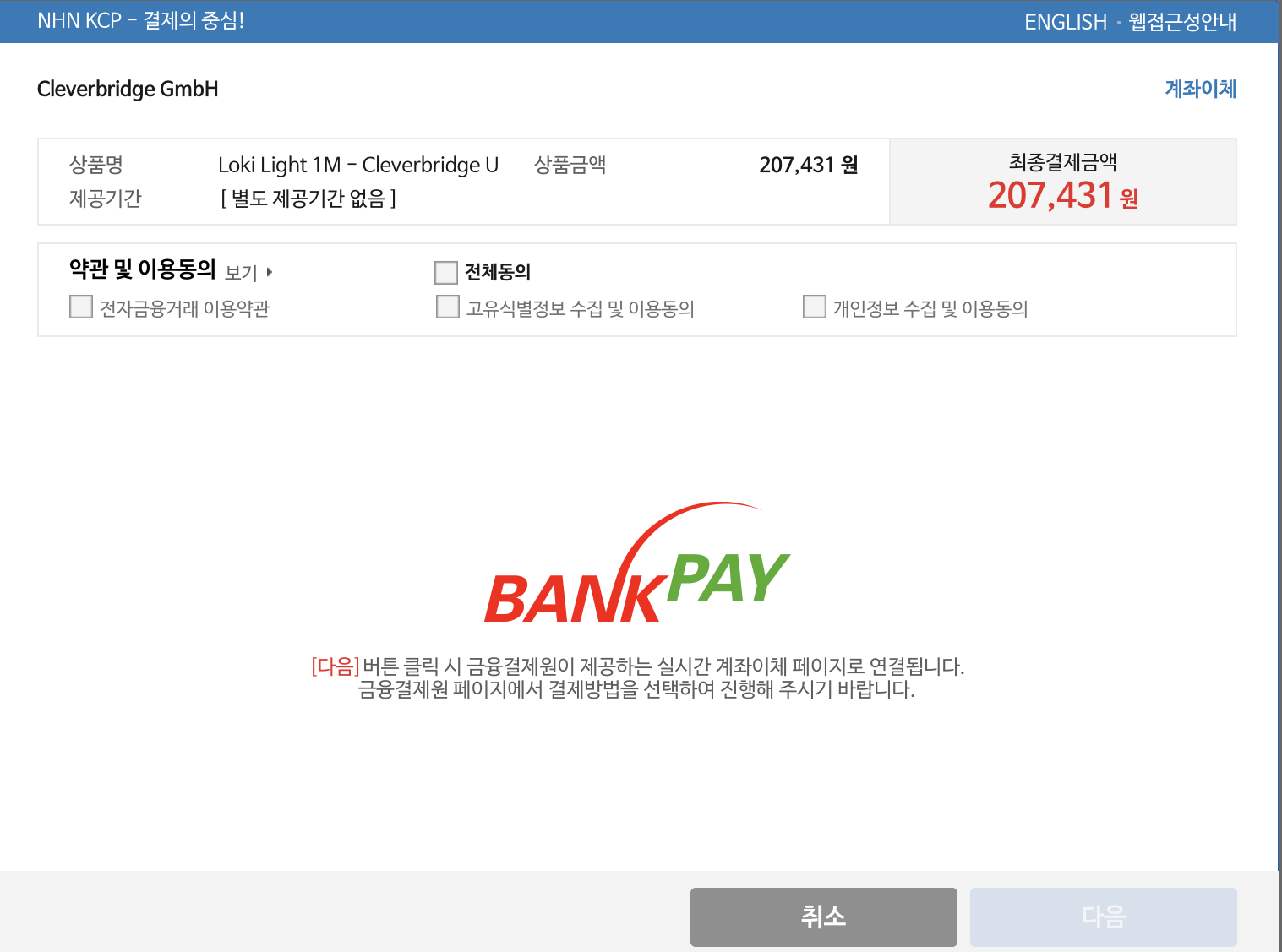
Review and accept the required terms and conditions, then continue.
-
Select your bank and follow its usual sign-in, authentication, and payment-authorization steps.
-
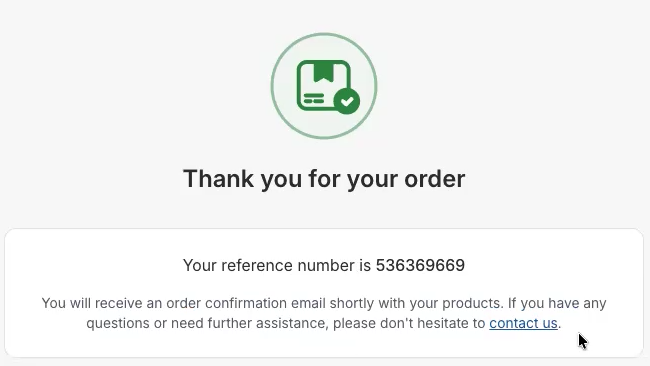
After the payment flow finishes, return to the Cleverbridge confirmation page.
-
Cleverbridge updates the order after receiving confirmation of the bank payment. After confirmation, your product is delivered and the invoice becomes available.
The screens and authentication steps can differ depending on your bank.
If you do not finish the payment
If you leave the hosted flow without completing the payment, Cleverbridge shows the Complete your payment page. Your order remains Awaiting Offline Payment. You cannot reopen the KCP payment from this page.
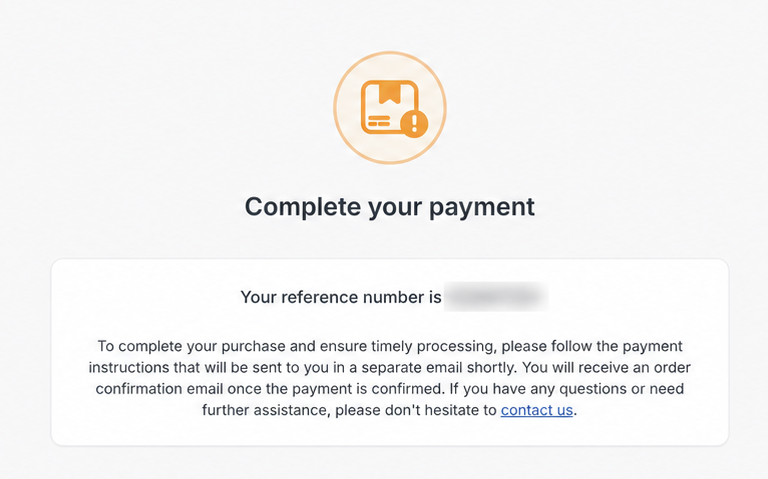
To try again:
- Open the Cleverbridge email for the order.
- Select the payment link in the email.
- Complete the hosted payment flow and authorize the payment through your bank.
To use a different payment method instead, select Change Payment in the email. Bank Transfer via KCP is not available in the change-payment flow, so choose another available method. To retry with KCP, use the payment link in the email rather than Change Payment.
If your payment is not authorized
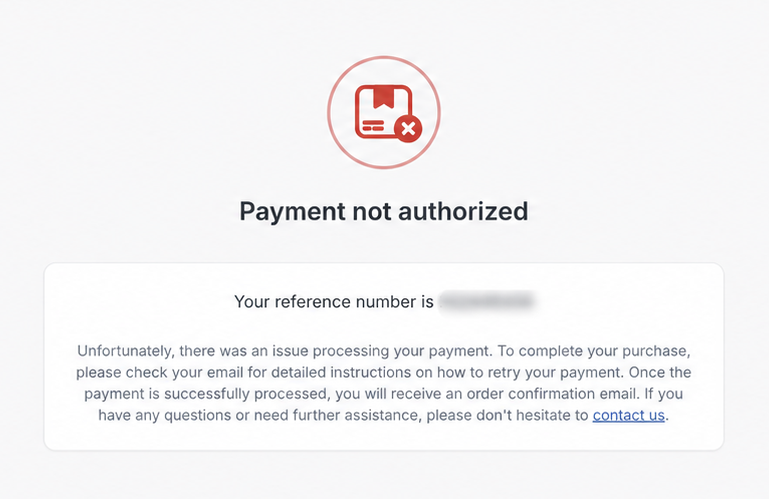
If KCP or your bank rejects the payment, Cleverbridge shows Payment not authorized. Check the Cleverbridge email for the order and follow its instructions to retry the payment.
Pay for a subscription renewal
Bank Transfer via KCP does not support automatic renewal payments. For every renewal, open the payment reminder from Cleverbridge and complete a new bank payment manually.
If Cleverbridge does not receive the renewal payment, the subscription can move to Hold. After the payment is confirmed, Cleverbridge updates the purchase to Paid.
Refunds
Bank Transfer via KCP supports full and partial refunds. After Cleverbridge issues a refund, your bank determines when the refunded amount appears in your account.
If you have questions about a refund or it does not appear in your account, contact Cleverbridge Customer Support. Include your Cleverbridge order reference and refund confirmation.
Get help
If the order remains unpaid after your bank confirms the payment, contact Cleverbridge Customer Support. Include the Cleverbridge order reference and your bank's payment confirmation.