General settings
General settings define the core product information used to identify, display, categorize, and manage a product. These settings include customer-facing product information, product status, product images, category information, and internal product identifiers.
Used by product type
| Product type | How general settings are used |
|---|---|
| Base product | Stores reusable product information that perpetual or recurring products can inherit. |
| Perpetual product | Defines customer-facing and internal information for a one-time purchase product. |
| Recurring product (plan) | Defines customer-facing and internal information for a subscription product. |
| Bundle product | Defines customer-facing and internal information for a group of products sold together. |
General product information
General product information covers the customer-facing and classification fields that identify a product in the Cleverbridge platform. Use this section to define the product name, subtitle, category, images, and optional base product inheritance.
| Field | Description | Use to |
|---|---|---|
| Product Name | Name displayed to customers during checkout. This field does not support HTML. | Help customers recognize the product they are buying. |
| Product Subtitle | Short customer-facing description displayed below the product name in checkout and related touchpoints. This field does not support HTML. | Add supporting details such as edition, license type, subscription term, platform, or key feature. |
| Select a category | Predefined product characteristics selected for Cleverbridge product classification. | Classify the product for Cleverbridge as the reseller of the product. |
| Images | Product images that display in the cart. | Help customers visually confirm that they are buying the correct product. |
| Select base product (optional) | Base product that can be selected to inherit shared information. For details, see Use a base product. | Reuse shared product information for perpetual and recurring products. |
You must include an English product name, even if your company uses another default language and only sells the product in this language. Failure to do so results in an Input Validation message when you try to save the product.
Product name and subtitle
The product name should be clear enough for customers to confirm that they are buying the right product. Avoid internal naming, abbreviations, or version codes that customers may not understand.
Use the product subtitle to distinguish similar products. For example, include the product edition, license type, subscription term, platform, key feature, or another short detail that helps customers choose the right option.
Because these fields do not support HTML, keep the text concise and readable. If you need longer formatted product information, use the product information or marketing description fields in the Attributes section.
Category and images
Use Select a category to classify the product for Cleverbridge. Select the category that best represents the product type, not the internal business unit or campaign that owns the product.
Use Images when visual presentation helps customers confirm what they are buying. Images are most useful for branded software, product suites, bundles, or products that appear together in a selection.
Avoid images that are too detailed, text-heavy, or difficult to recognize at cart size. The image should support the purchase decision, not replace the product name or subtitle.
Base product inheritance
Use Select base product (optional) when multiple perpetual or recurring products should inherit shared information from a common template.
Base product inheritance can reduce manual setup work and keep product information consistent. Use it only when the inherited information is truly shared. If a product needs different customer-facing or internal information, review the inherited fields before saving.
For details about base product inheritance, see Use a base product.
Product status
The Product Status option determines how the product is used in the Cleverbridge platform. The setting is available at the top of the General section of the product setup.
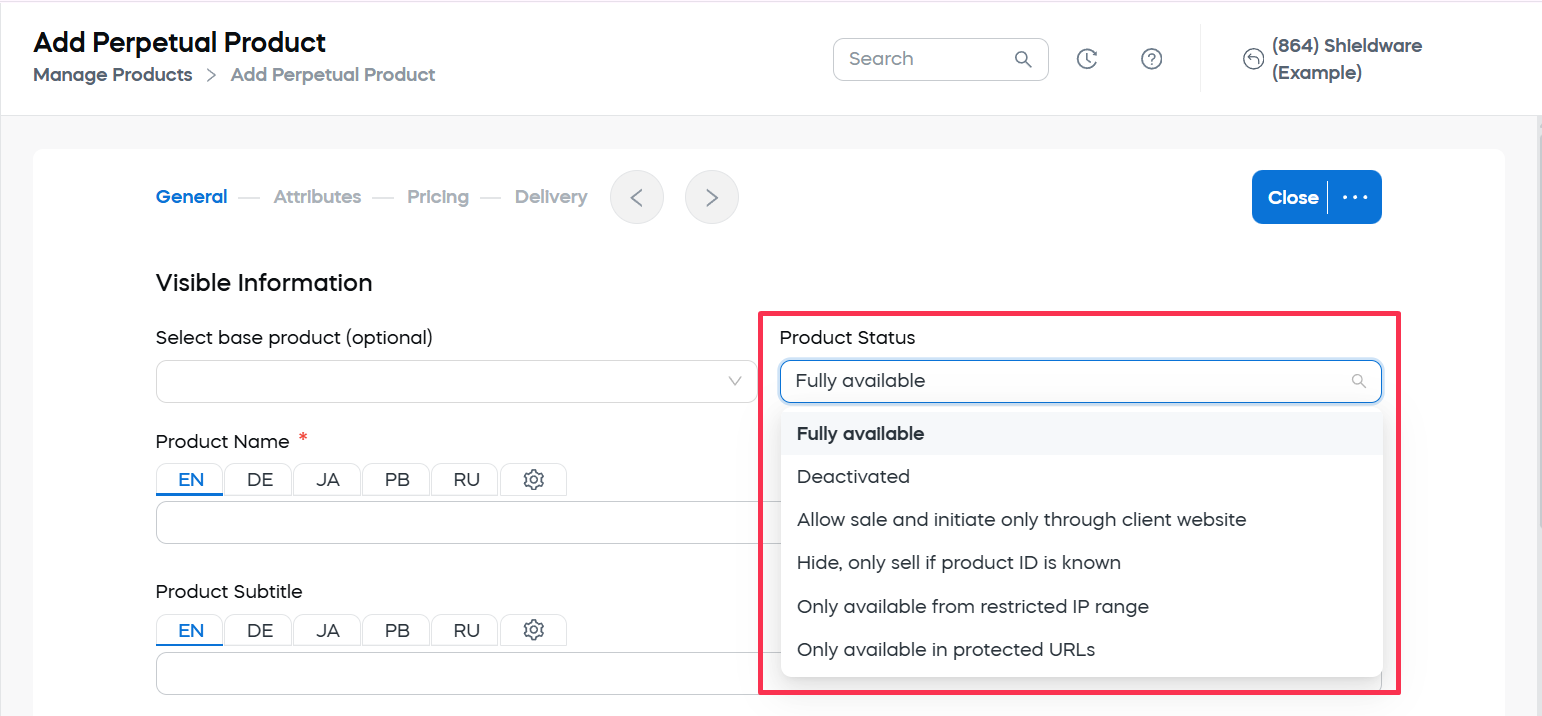
| Field | Description | Use to |
|---|---|---|
| Fully available | Default status. The product is available for sale and listed online. | Sell the product through normal checkout flows without additional restrictions. |
| Deactivated | The product is neither available for sale nor listed online. | Retire, discontinue, or temporarily remove a product from sale while keeping it in the system for reference. |
| Allow sale and initiate only through client website | The product can be sold through a direct link on a web page or in an email. Customers who contact Cleverbridge Customer Support are asked to order through the client website. | Keep purchase initiation controlled by your website, campaign page, email, or another client-controlled entry point. |
| Hide, only sell if product ID is known | The product is hidden from the general public. The customer must have the product ID to access and purchase it. | Support targeted offers, special pricing, upgrade flows, or products shared only with a specific audience. |
| Only available from restricted IP range | The product is available only from a restricted IP range. | Limit access to a defined network for internal testing, restricted purchasing, or setup validation. To set up an IP range, contact Client Experience. |
| Only available in protected URLs | The product is available only through a protected URL shared with specific customers. For protected URLs, see Create URLs with Link Generator. | Share the product with selected customers, customer groups, or internal users without making it publicly available. |
Before changing a product status, consider whether existing links, campaigns, support workflows, or internal test flows depend on the current status.
Internal product information
Internal product information helps you map Cleverbridge products to your own product names, categories, or IDs. The setting is available at the bottom of the General section of the product setup.
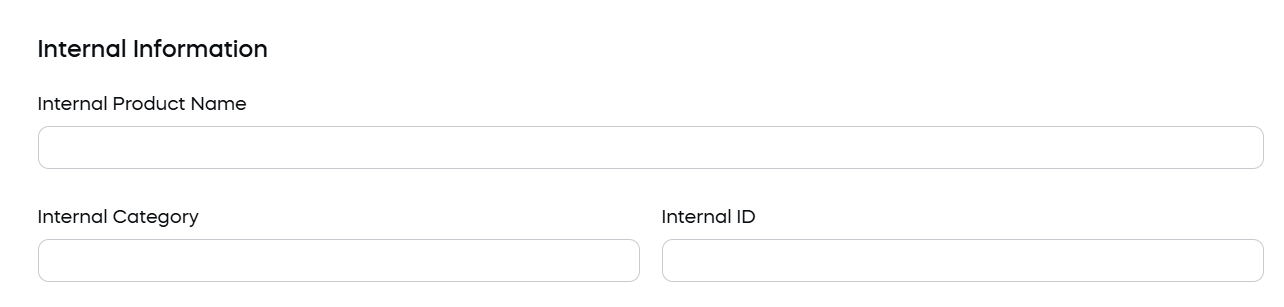
This information is mainly used for organization, reporting, integrations, and internal product management.
| Field | Description | Use to |
|---|---|---|
| Internal Product Name | Internal name that cross-references purchases with your own product name. If defined, this name is used throughout the Cleverbridge platform instead of Product Name. Customers still see the main product name in checkout. | Identify the product internally when your internal naming differs from the customer-facing name. This is useful when the public name is localized, marketing-oriented, or not specific enough for internal teams. |
| Internal Category | Internal product category used for sorting products by a specific type or class. | Group products according to your own internal structure for product management, reporting, and operational workflows. |
| Internal ID | Internal number that cross-references purchases with your own internal identifier. This ID can include alphanumeric characters. | Map the product to an identifier in your product catalog, ERP, CRM, licensing system, reporting setup, or another internal system. |
If Internal Product Name is defined, this name is used throughout the Cleverbridge platform instead of the name defined in Product Name. In the checkout process, customers still see the main product name and not the internal name.
Use an internal ID in checkout
To use your internal product ID in the checkout process, submit the internal ID as a cart parameter and prefix it with the capital letter I.
| ID type | URL format |
|---|---|
| Cleverbridge product ID | &cart=42149 |
| Internal ID | &cart=I98765 |
| Internal ID for a product option in a selection | &cart=S42149:I98765 |
Use the selection format when you want to preselect a specific option in a product selection. For example, if you offer subscription options such as 6 months, 1 year, and 2 years, you can use the internal ID of the 1-year subscription product to preselect that option for the customer.