Delivery settings
Overview
Delivery options define how a product is delivered to the customer and what delivery-related information appears on the confirmation page, in confirmation emails, or in delivery-related parts of the order flow. Depending on the product type and selected delivery type, different setup options can appear.
Delivery type
The Delivery Type setting defines how the product is delivered to the customer. Depending on the selected delivery type, additional setup options can appear.
Use this page for the exact product-level fields. To compare the available delivery approaches first, see Choose a delivery method. To create a web key generator, see Set up a license key generator.
This setting is available for:
- Base product
- Perpetual product
- Recurring product (plan)
The Delivery Type setting is not used for bundle products.
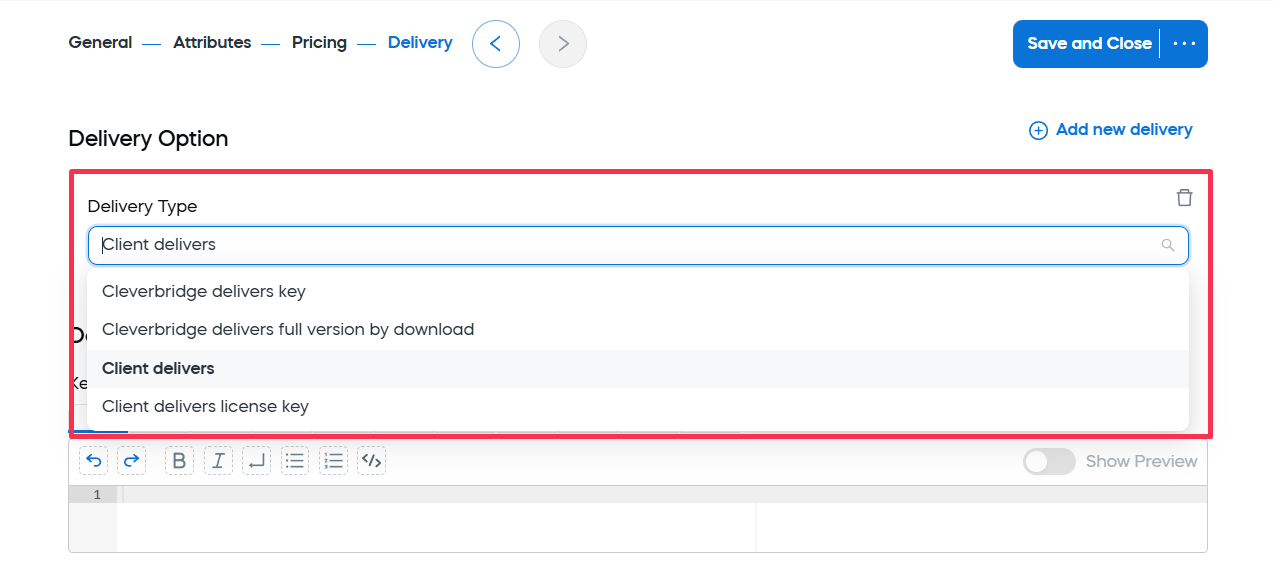
The following sections describe the available delivery types and their settings.
- License key
- Full-version download
- Client delivery
Cleverbridge delivers a key
Cleverbridge delivers the license key for the software to the customer.
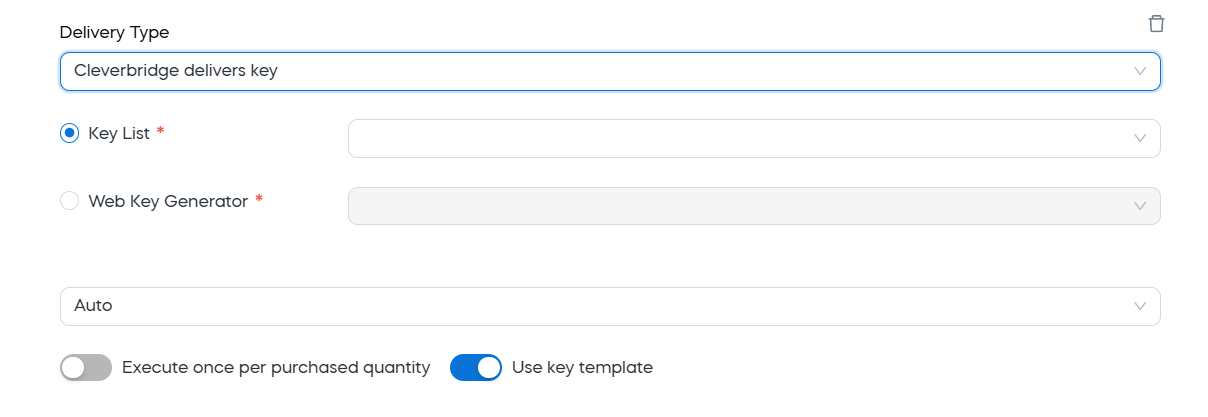
Use this delivery type when Cleverbridge should deliver license keys through a key list, web key generator, or another supported key delivery setup. When this type is chosen, the following options can be defined:
Cleverbridge can also deliver keys by using an executable key generator or a dynamic-link library (DLL). These options are hosted by Cleverbridge. For more information, contact Client Experience.
If a key generation or key list error occurs, Cleverbridge creates an error log entry and makes up to five attempts to generate or obtain the key. If the fifth attempt fails, Customer Support investigates the error unless Client handles errors is activated.
Cleverbridge delivers a full-version download
Cleverbridge delivers the full version of the software to the customer by download.
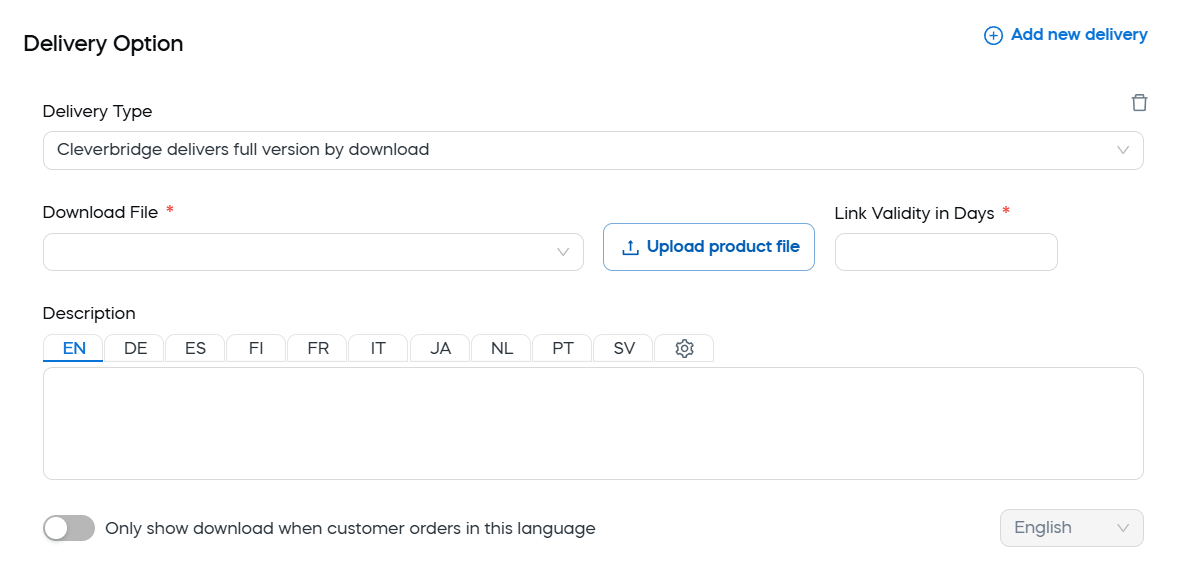
Use this delivery type when Cleverbridge should provide the full version of the software as a downloadable file. When this type is chosen, the following options can be defined:
Client delivery
Use client delivery when the product or license key is delivered outside of Cleverbridge by your own systems or processes.
The following client delivery options are available:
No additional delivery type options are listed for these delivery types.
Key templates and delivery notes
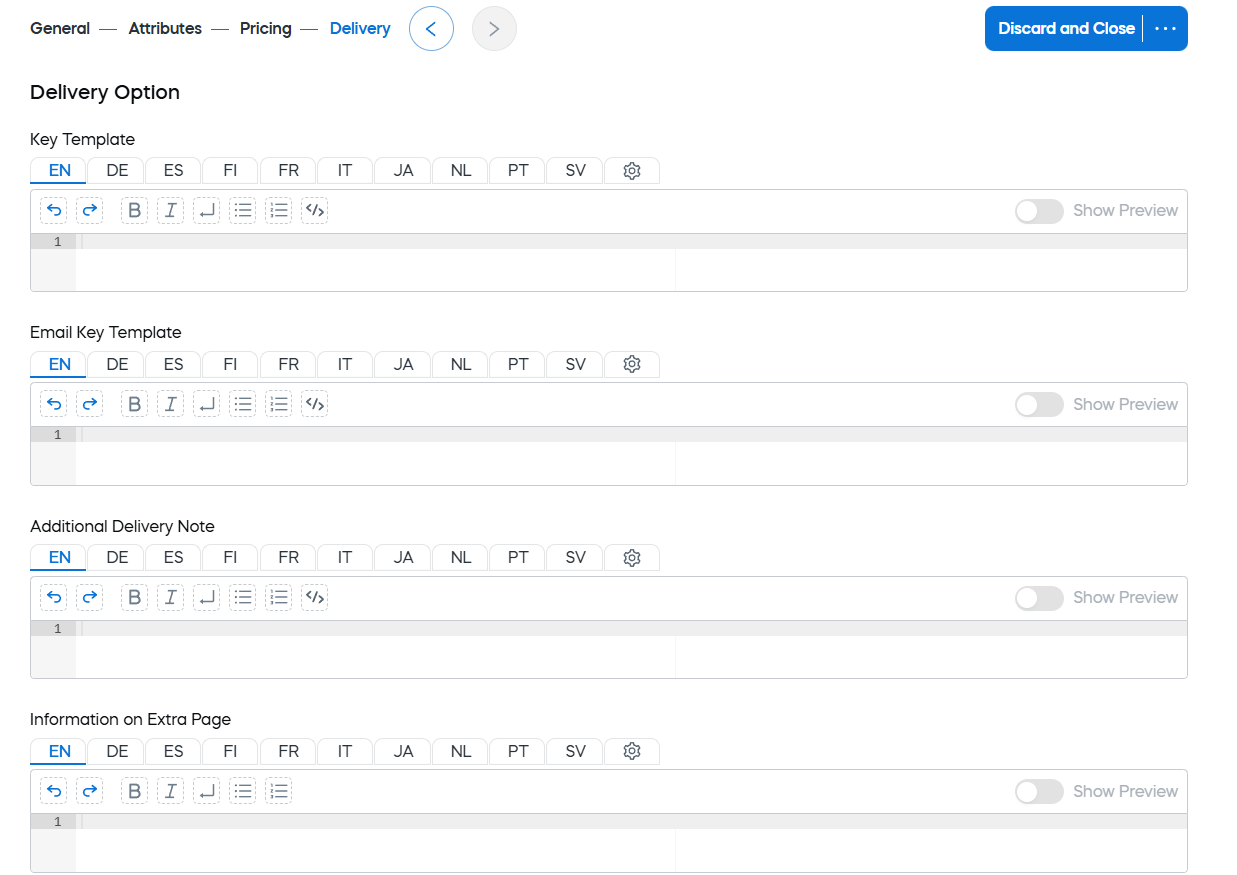
These settings define custom license key and delivery information shown to customers on the confirmation page or in confirmation emails. They are available for all product types and particularly important for products that use delivery-related confirmation information.
The following settings can be defined:
If you do not want the default key template text to display on the confirmation page, and you do not want to enter custom text, enter only the Key placeholder in the Key Template field.
In this case, if you use a key list, only the license key itself displays. If you use a key generator, neither the default text nor a license key displays.
Placeholders for the key template
Use the following placeholders to insert customer, product, or order information into the Key Template.
The following is an example of key template text:
<RegName>, here is your product key for your purchase of <ProductName>.
<Key>
Placeholders for the additional delivery note
Use the following placeholders to insert customer, product, or order information into the Additional Delivery Note.
The following is an example of additional delivery note text:
<p>Thank you for your order. To download and install your product, please follow these instructions:</p>
<ol>
  <li>Download the installation file by clicking the button below.</li>
  <li>Double-click on the downloaded file to begin installation.</li>
  <li>Follow the onscreen installation instructions.</li>
  <li>When prompted, enter your license key.<br /></li>
</ol>
<p>Please note: The license key is also included in your confirmation email.</p>